
Kevin V.

Forum Replies Created
-
AuthorPosts
-
I have encountered the exact same problem!
However changing from GPU to CPU did do something, it still shows a very odd result.
When using the “Alpha Over” node, it only shows the layer that is plugged into the bottom input of the node.
Now upon checking it seems that all alpha layers are value 1.. And I have no idea why. (followed all the exact same steps as Sean did).
I have also tried combining everything using the “mix color” as node set to “mix” @mackdadd suggested (and tried other options as well) without usable result.
I am running on a M2 Ultra. (Blender 4.2).
So I guess I have to wait for a patch in a new update?
UPDATE: I made it work.
I also needed to switch to CPU, but during the process of figuring out why it wasn’t working, I also disabled the “transparent” in film settings. This resulted in fully white alphas. Enabling this resulted in usable alphas 🙂
Hello Adrian!
First of all, my apologies for the late reply!
So what I am trying to achieve is the following:
1. I have created a fluid sim, which I exported as points (alembic).
2. Then I have mapped a texture on the starting position of all those points.
3. And I want to use this starting position of all these points, as a reference. So once the particles start to move, it gets the color assigned to them, which they had in the start position.
Basically I am trying to figure out how I can make an image (texture) “melt”.
Hope it makes sense?
Hello all,
First of all, my apologies for the late reply!
I want to share the file but I don’t find a way to add it to the post. (sorry I am still new here!)
______
In cases like these, I always have my standard list of steps of troubleshooting I go through. And checking for double- and merging vertices is one of them, but this did not solved it either.
But what I found the weirdest thing with this one, was after I applied the mirror-modifier it still showed this “artefact“, so I also applied the symmetrise-option in edit mode. Hoping it would “copy” the good side, to the “bad” side, but instead, the shading artefact just moved to the other side instead.
Not knowing it is relevant: the previous images I have shared, where you can see the vertexes being “pulled” in the z-axis, was done using the “mesh-symmetry” being active in edit mode as well.
In the meantime I have found a “work-around” to get rid of the problem, by activating adaptive-subdivision in the subdivision modifier.
Anyway, once I know how to upload a blend file here, I’ll share it straight away!
Ps. I was using Blender 4.0 when it first encountered, and it is still there in 4.1
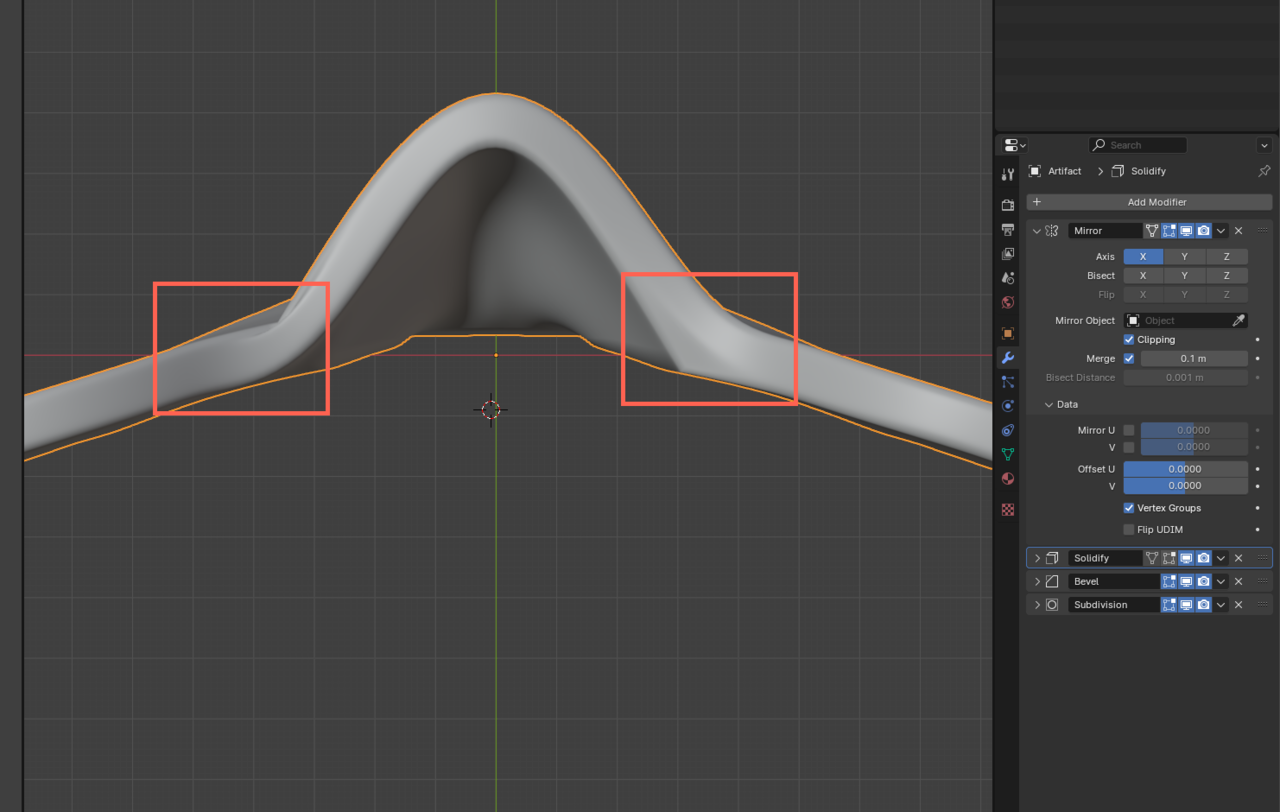
Thanks for your quick reply 🙂
It is indeed not in the stack. (I took the screenshots just incase I was not able to fix it and wanted to revisit this problem, and thus after I applied it).
But as mentioned, I tried to fix it by removing the “bad” side, and re-applying the mirror modifier without any succes. Also apply symmetry did not solve this. I have to check, but I might be possible to share a blend file where this is still occurring.
-
AuthorPosts
