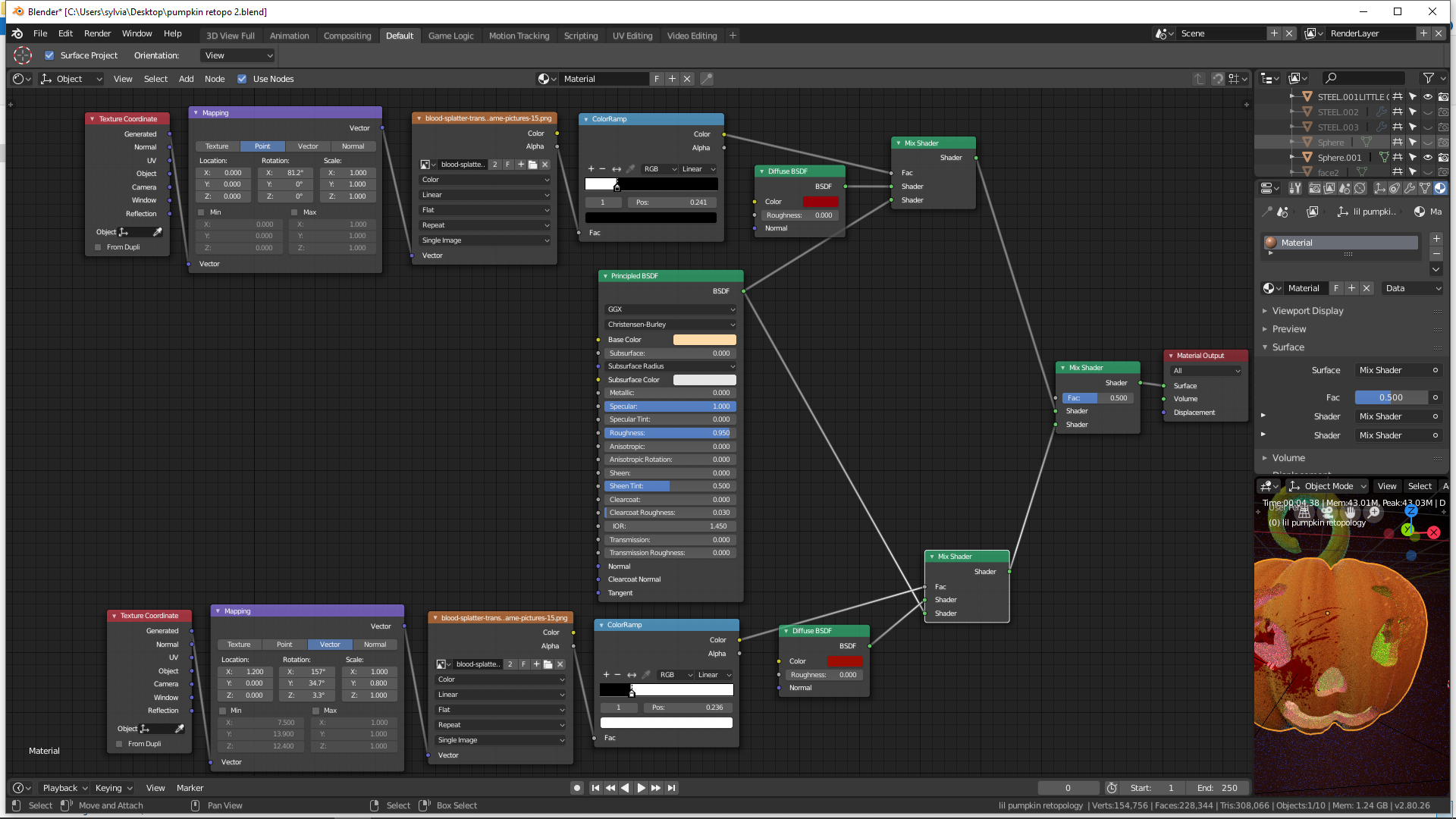
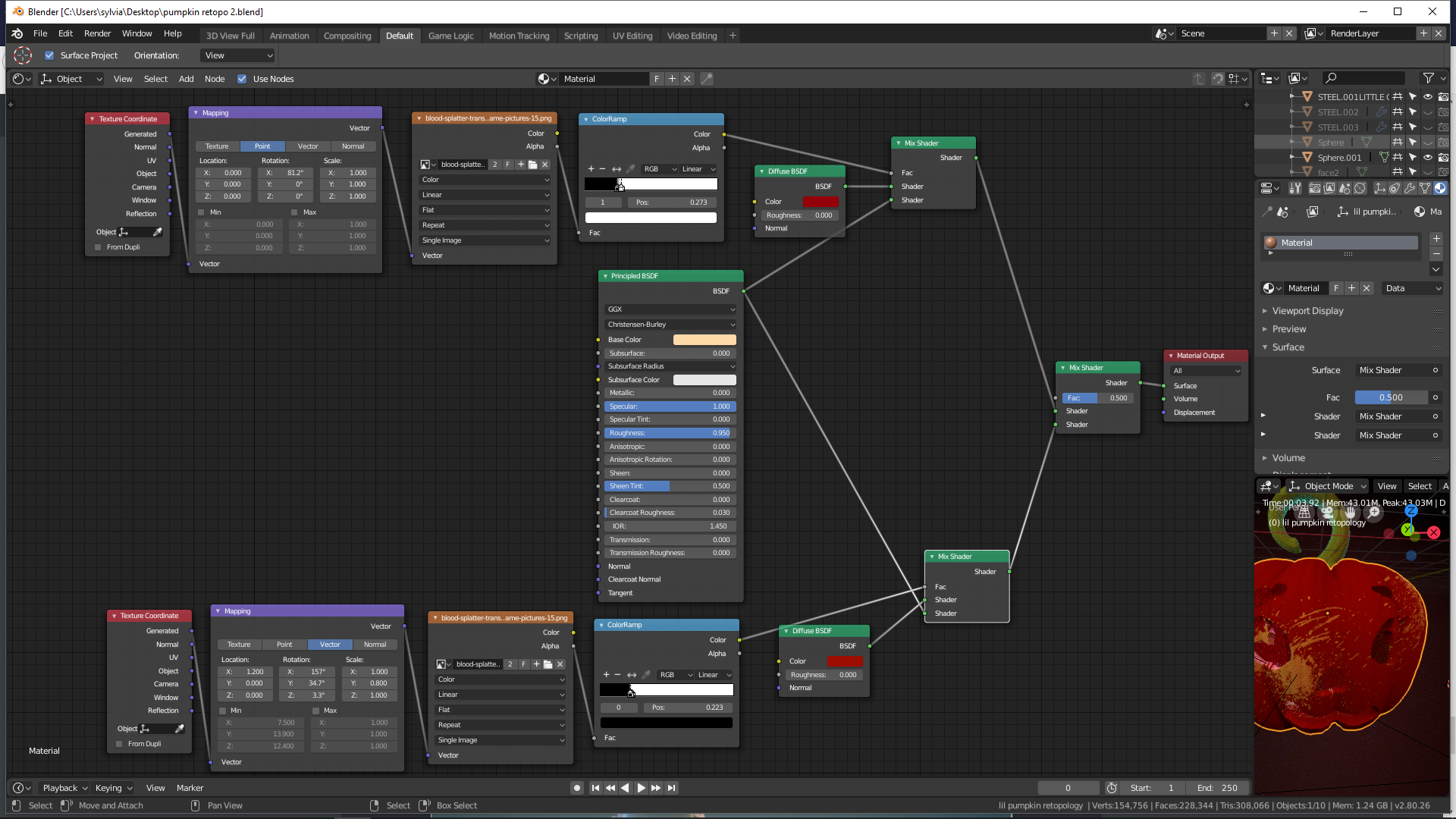
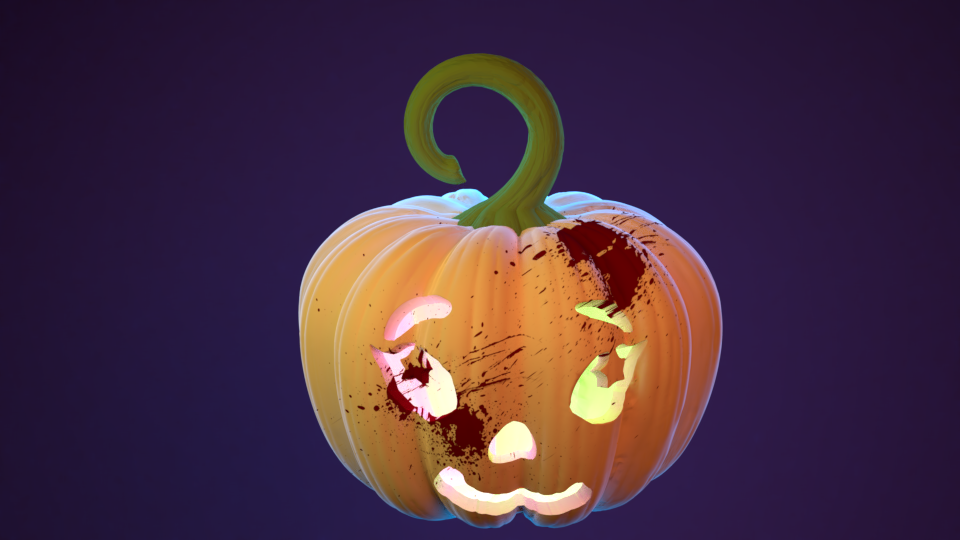
@procyonlotor hey i tryed it out but i still am not getting what i want (i do get half already correctly) first i put in the collor ramp but it didnt worked well so i inversed the color flags and with the first blood splat it worked . but then the second isnt doing the same . these are the 2 setups i tryed the left bloodsplat is good but right one isnt visible . now if i switch the other collor flag too like that then this happens hope someone knows what i do wrong
@yukinoh1989 I think that last mix shader is what is causing your problem. You can check by seeing if each one works individually. I would combine your image textures with a mix RGB node before plugging them into the shader. Then use the color ramp on the mix RGB to get your mask.
@procyonlotor so i should first plug in a mix rgb and then after that right away the collor ramp that is plugged into the mix shader ? is that correct or do i get it wrong ?
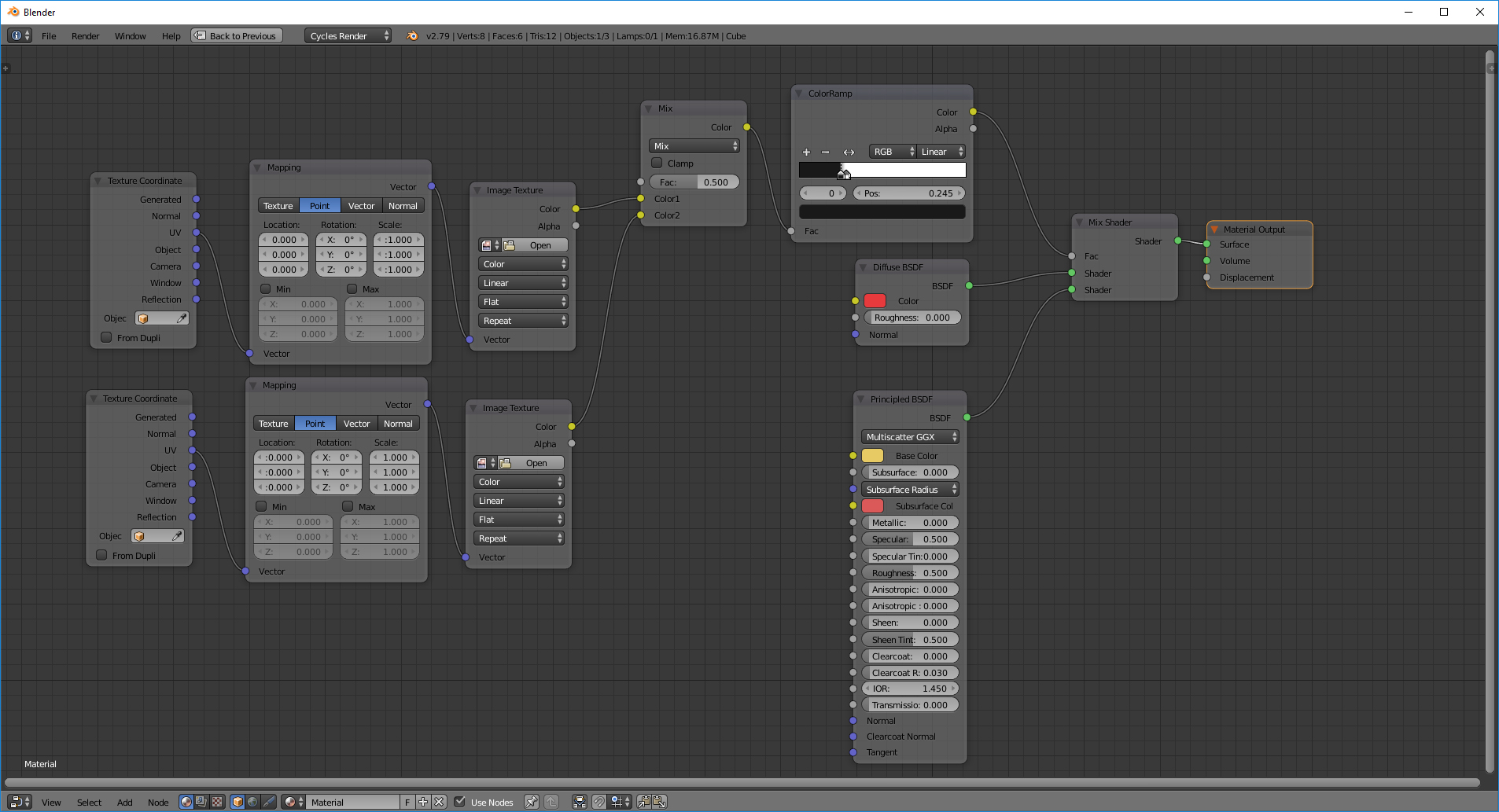
@yukinoh1989 Yes. This is the setup I’m imagining. I don’t know what your images look like so you may need to play with the blend mode to get it the way you like, but it should work for you:
@procyonlotor its still not working . maybe its handy to show to file so maybe you see someting i dont . this is the one that you mention above node setup John Sanderson
and this one is the one i got as close as i could get but in the end the last add shader isnt doing what i was thinking . Node setup 2 fail
not sure if the blood splat is included in the file . if not this is the image
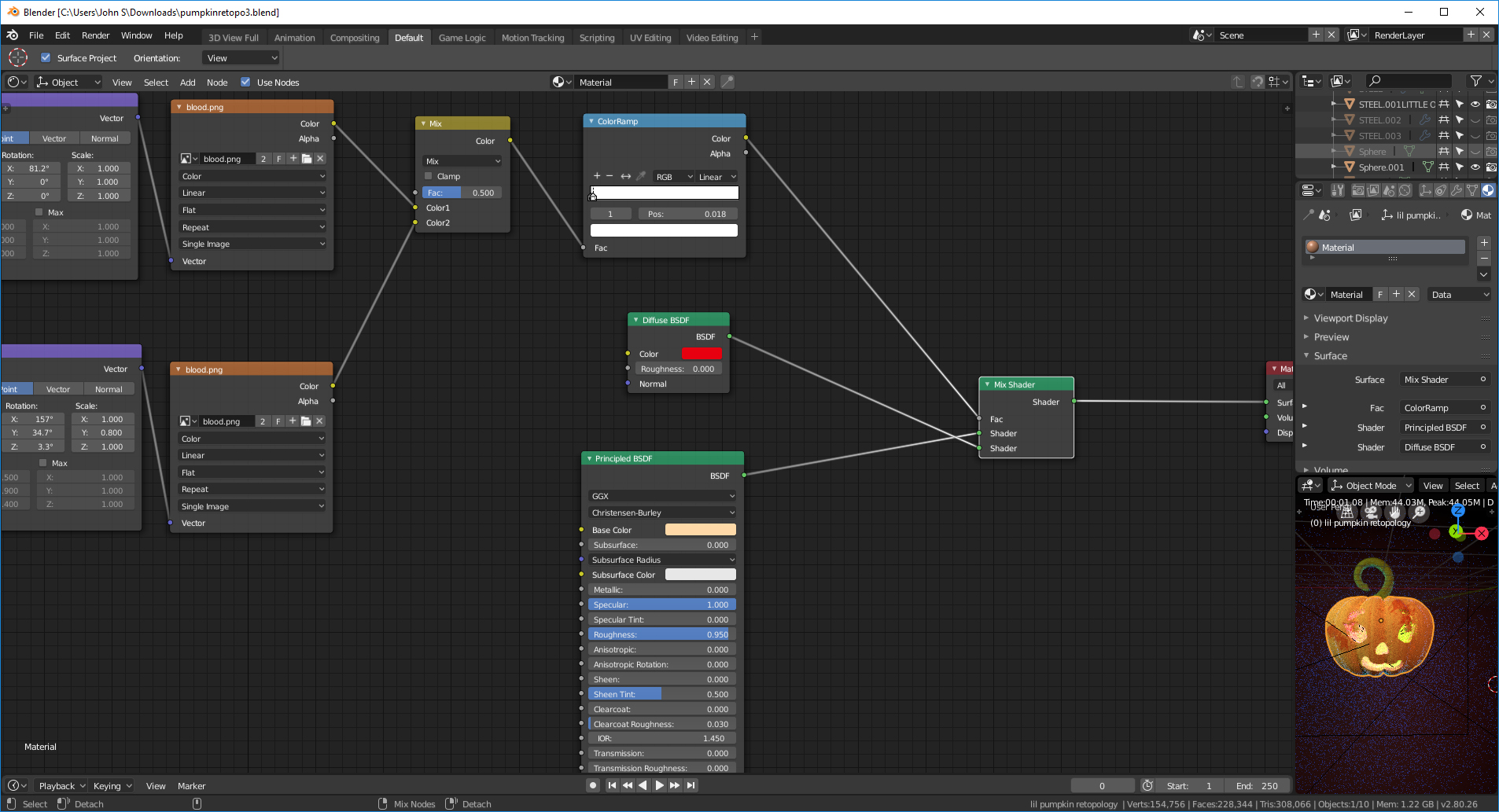
@yukinoh1989 You just needed to crush the whites a lot more, since your image entirely black with a little red, bringing up the blacks drowned out the details. That, and switch the inputs in the mix shader. from pumpkinretopo3:
@yukinoh1989 Correction: Your image is mostly alpha, not black. But the red is a low value so cranking up the blacks turns it black quickly so that the color ramp doesn’t output any information. Pulling the white flag down is the key either way 🙂