
Why reference image opacity always reset to 1 anytime I add new mesh ?
Forum Archive › Why reference image opacity always reset to 1 anytime I add new mesh ?
- This topic has 16 replies, 3 voices, and was last updated 4 years, 11 months ago by
Kwin K.
-
AuthorPosts
-
June 14, 2021 at 5:53 pm #14064
Hello
Anyone can tell me how to fix reference opacity value.
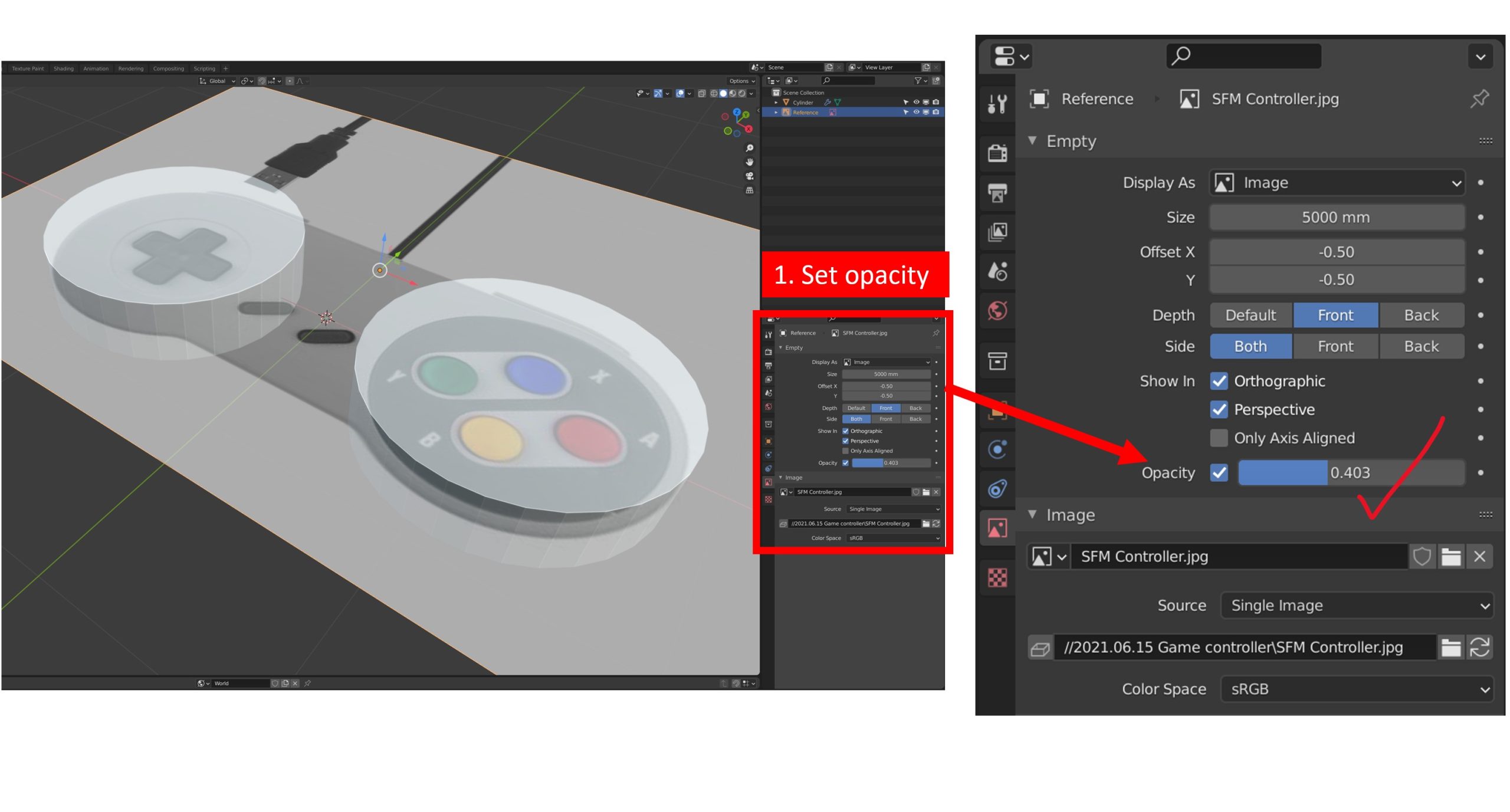
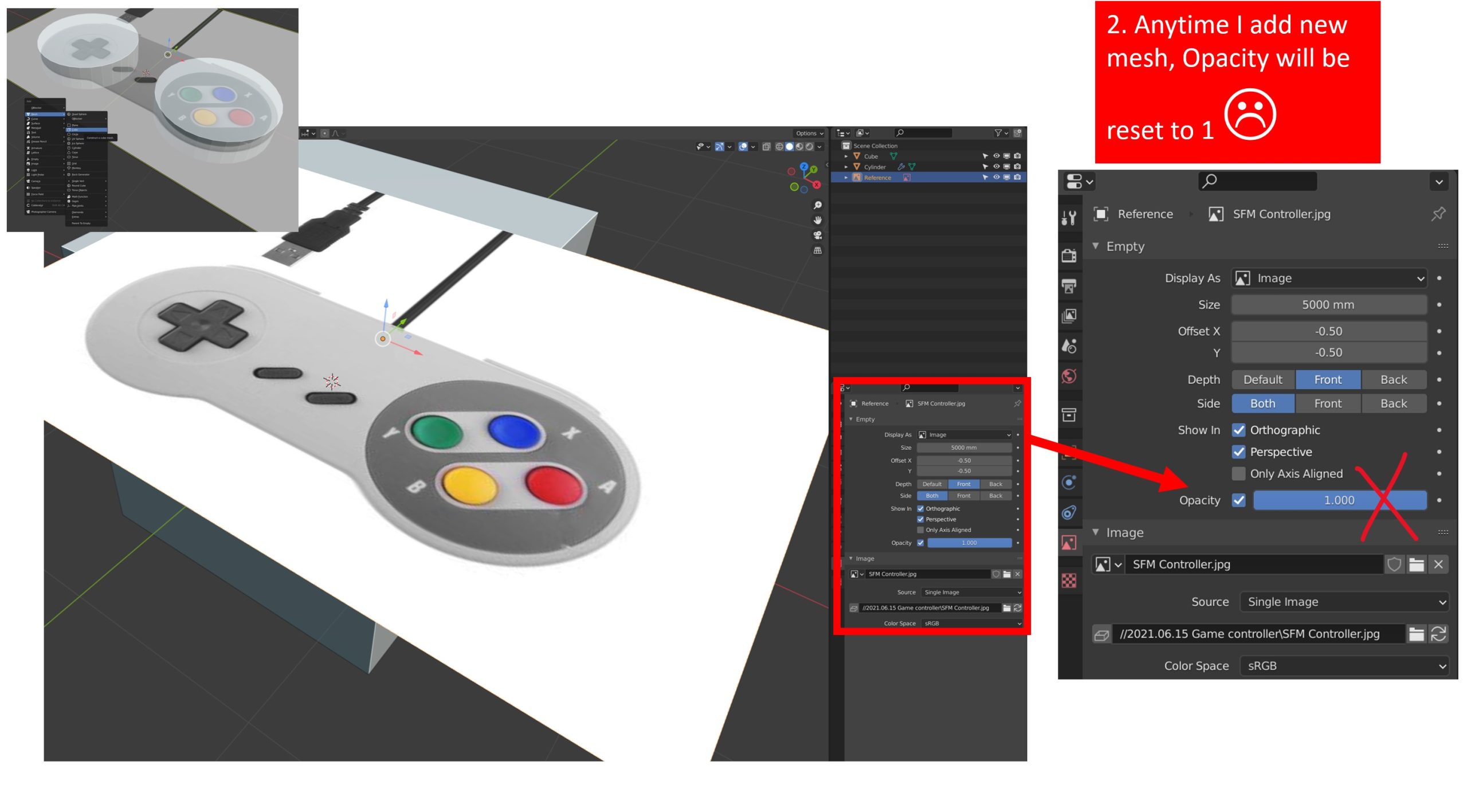
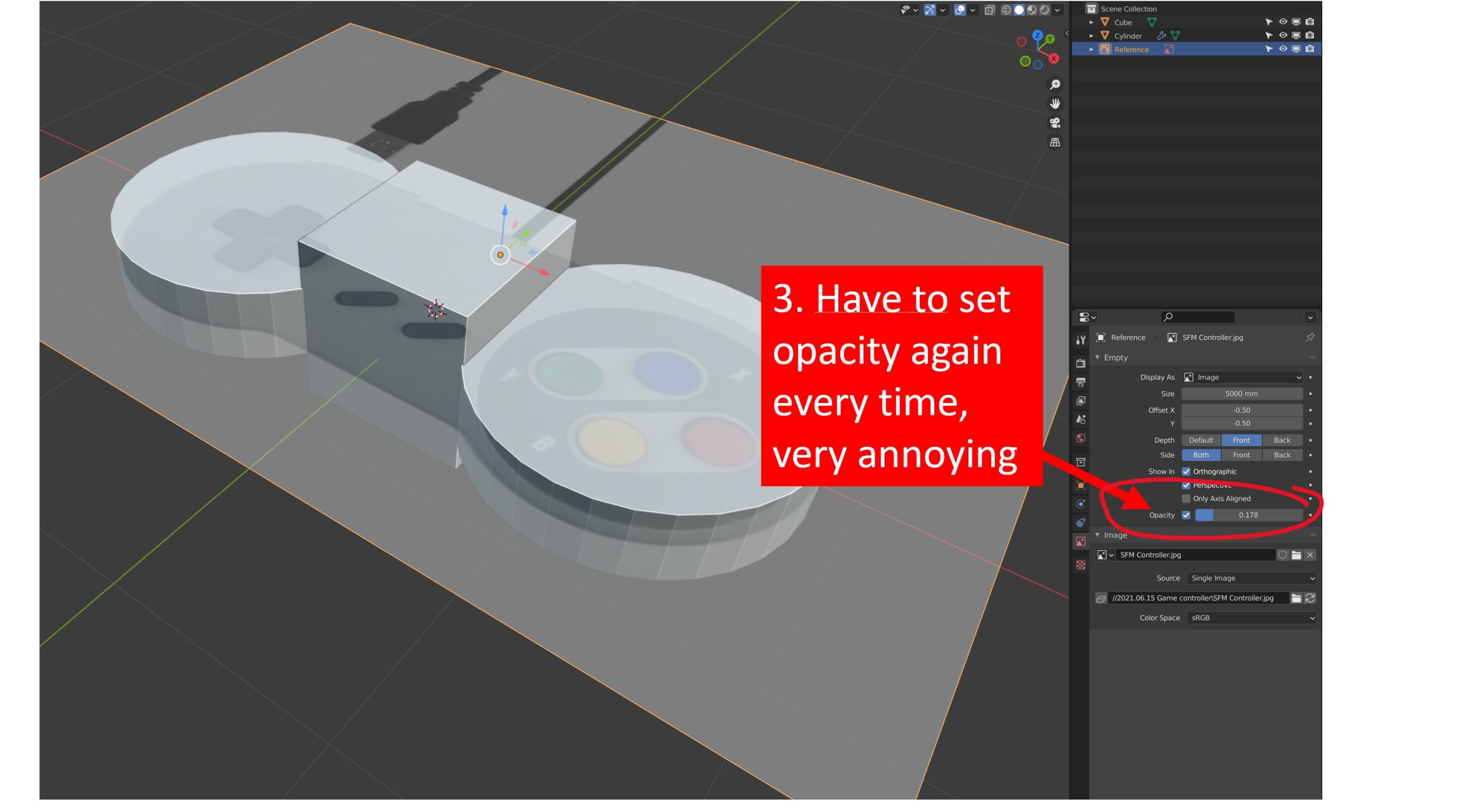
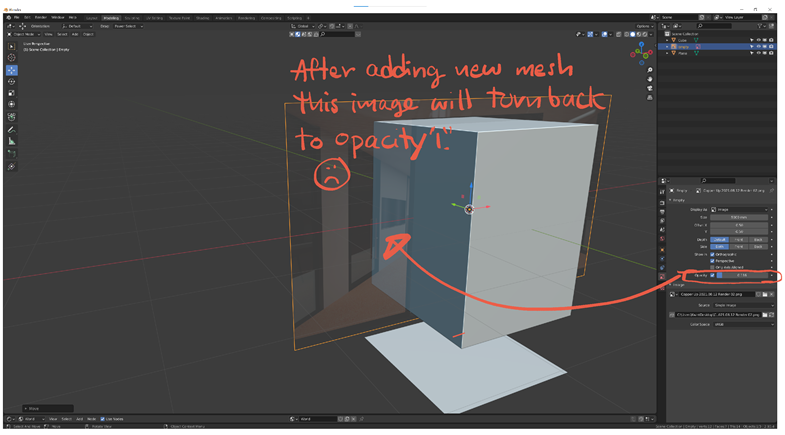
I experience this annoying behavior for a while. After I set opacity I would like to use, anytime I add new mesh to model, image opacity will automatically reset back to “1”. So I always need to come back to make it transparent again and again.
Thank you for your help.
 June 15, 2021 at 12:44 am #69003
Yes, I can see how that would be very annoying.
However, that is not the normal behavior. What Blender version are you using? Looks like a 2.9…. version, but I’ve tested a few different versions and this doesn’t happen…(couldn’t try 2.93.0, because I deleted that and now have a 2.93.1 Maybe it was a bug that they already fixed?)
June 15, 2021 at 3:36 am #69004Just tried it in 2.93.0 and this doesn’t happen to me either. Try deleting the image and reload it.
June 15, 2021 at 7:08 am #69005I am using version 2.93.0. (will test 2.93.1 soon)
Also think it should not be normal behavior. When I watch other tutorials also not see this problem happen .
Deleting and reload image also not help. It not only happen to this project but anytime other case I also experience this problem.
Is it possible that this problem cause you hardware, graphic card setting ?
I currently I using Quadro RTX5000. is there any chance I can check and config hardware ?
Thank you
June 15, 2021 at 10:39 am #69006Hi @kwin maybe, it could be your (graphics) driver, that is not updated….
I looked at the bug reports, but couldn’t find any mention of this problem…
Also, I am not a Windows user anymore, but Windows 7 is no longer supported!
June 15, 2021 at 2:30 pm #69007Thank you for your help. I currently use Windows 10. It should not caused by Windows.
I will try to check and also try to search for other people who may have the same problem.
At this point, at least I know this is not standard Blender behavior.
June 15, 2021 at 2:46 pm #69008I just check with other computer. Have exactly this same problem so it may not caused by hardware.
June 15, 2021 at 4:27 pm #69009That is weird…but just to make sure (although I don’t think that this is causing it) double-check that your (graphics) drivers are up to date!
June 15, 2021 at 9:09 pm #69010I already update driver. My both computer have Nvidia Quadro graphic card.
Guess maybe Blender have conflict with Quadro card.
 September 8, 2021 at 5:20 am #69011
Hey @kwin ,
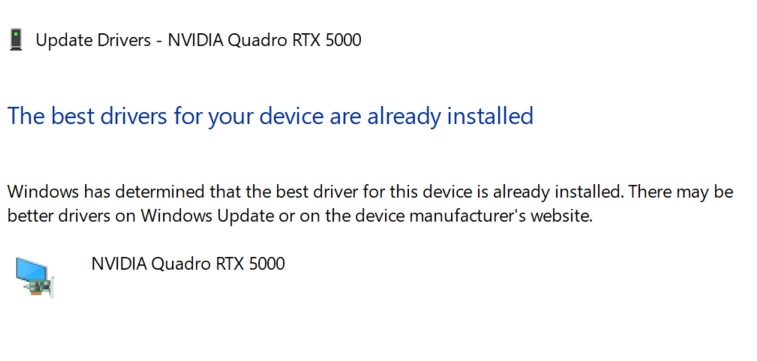
Don’t rely on Windows updates for GPU drivers. The drivers installed by Windows are usually not the latest drivers and only a basic version for your hardware to work with Windows.
Notice the word ‘BEST’, when using software such as Blender the ‘LATEST’ available recommended driver is advised.
You could check for driver updates every day for 5 years and get the same message, yet the drivers direct from NVIDIA are usually updated at least every quarter (4 times a year).
Go to NVIDIA website look for support and driver updates, and download the latest recommended driver for your GPU.
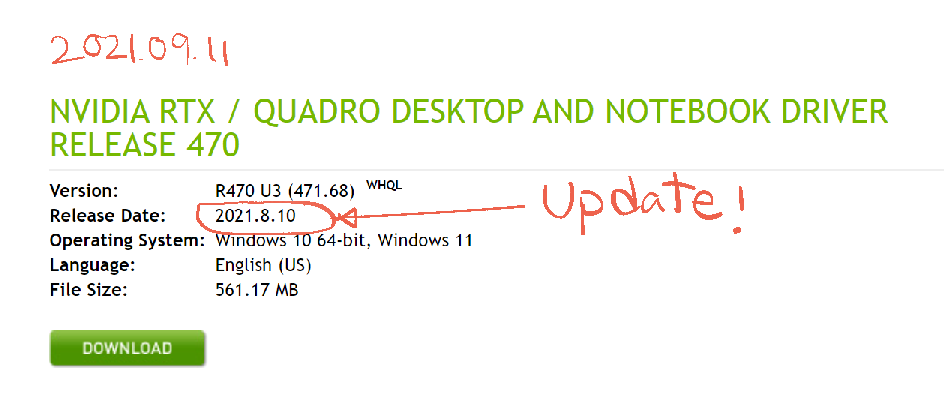
If you go to Windows Device Manager and look at the properties for the GPU Driver you will see some info like this:

You will probably see the date some time in the distant past. You could also search online for a list of drivers for your GPU. I have known of this to happen, where the driver is several years old and an early driver from when the GPU was first released.
September 10, 2021 at 6:09 pm #69012Hi Adrain
Thanks for trying to help me here again. I follow your suggest go to Nvidia website and update latest driver. Also I just update Blender to version 2.93.4 but problem still remains.
I am wondering maybe this problem is not caused by graphic card driver but maybe other setting.
Also seems only me have this problem. Is there any idea I can check and try ?
Or maybe is that any way to force reference image always transparent ? Can we convert image to mesh and modify material node ?
 September 10, 2021 at 6:14 pm #69013
 September 11, 2021 at 12:33 am #69014
@kwin I do not know of any setting that could cause this behavior, but just to make sure, try to Reload Factory Settings.
Did you try key-framing the Opacity as a workaround?
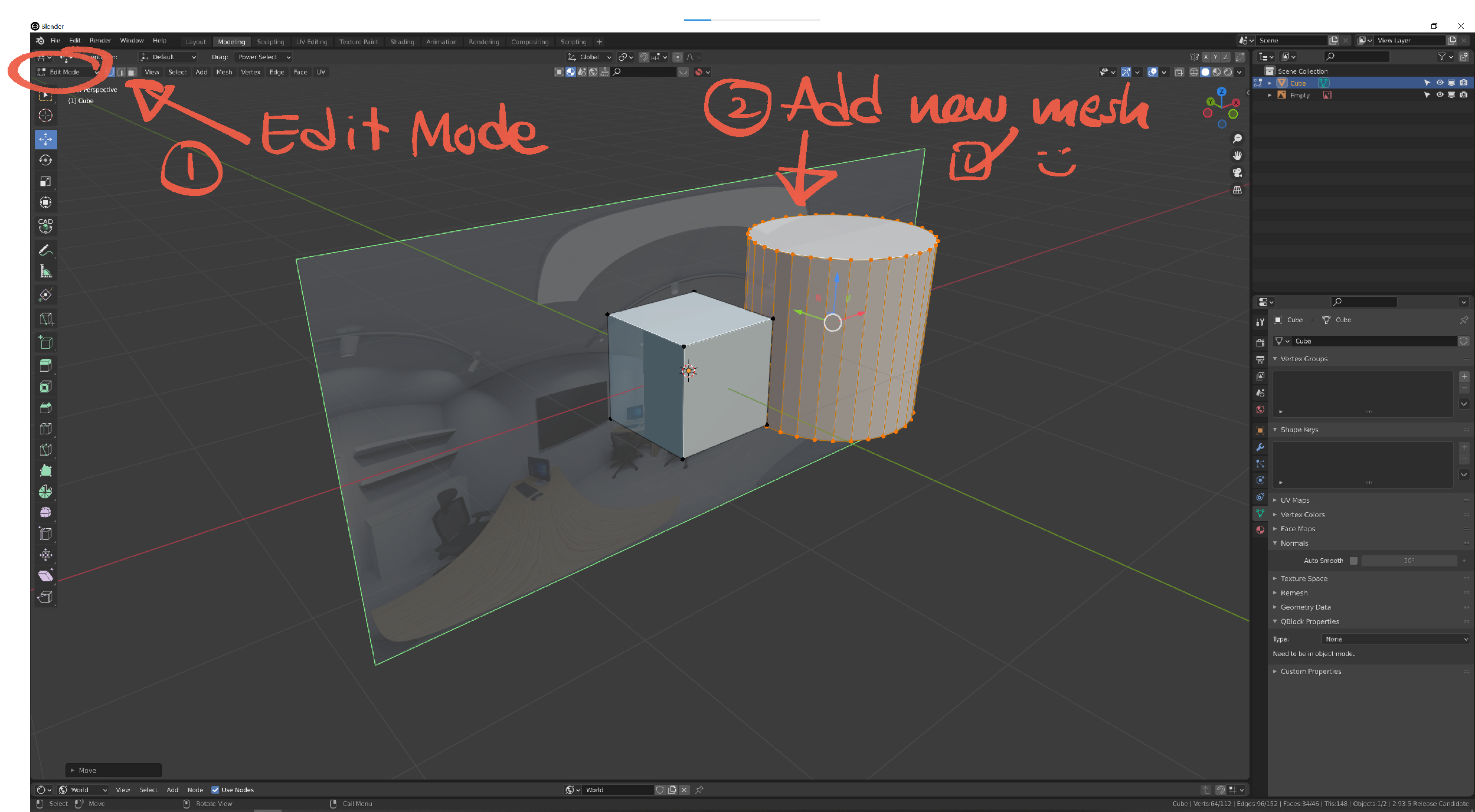
Or adding new Meshes in Edit Mode (you can always separate them later if you wish)?
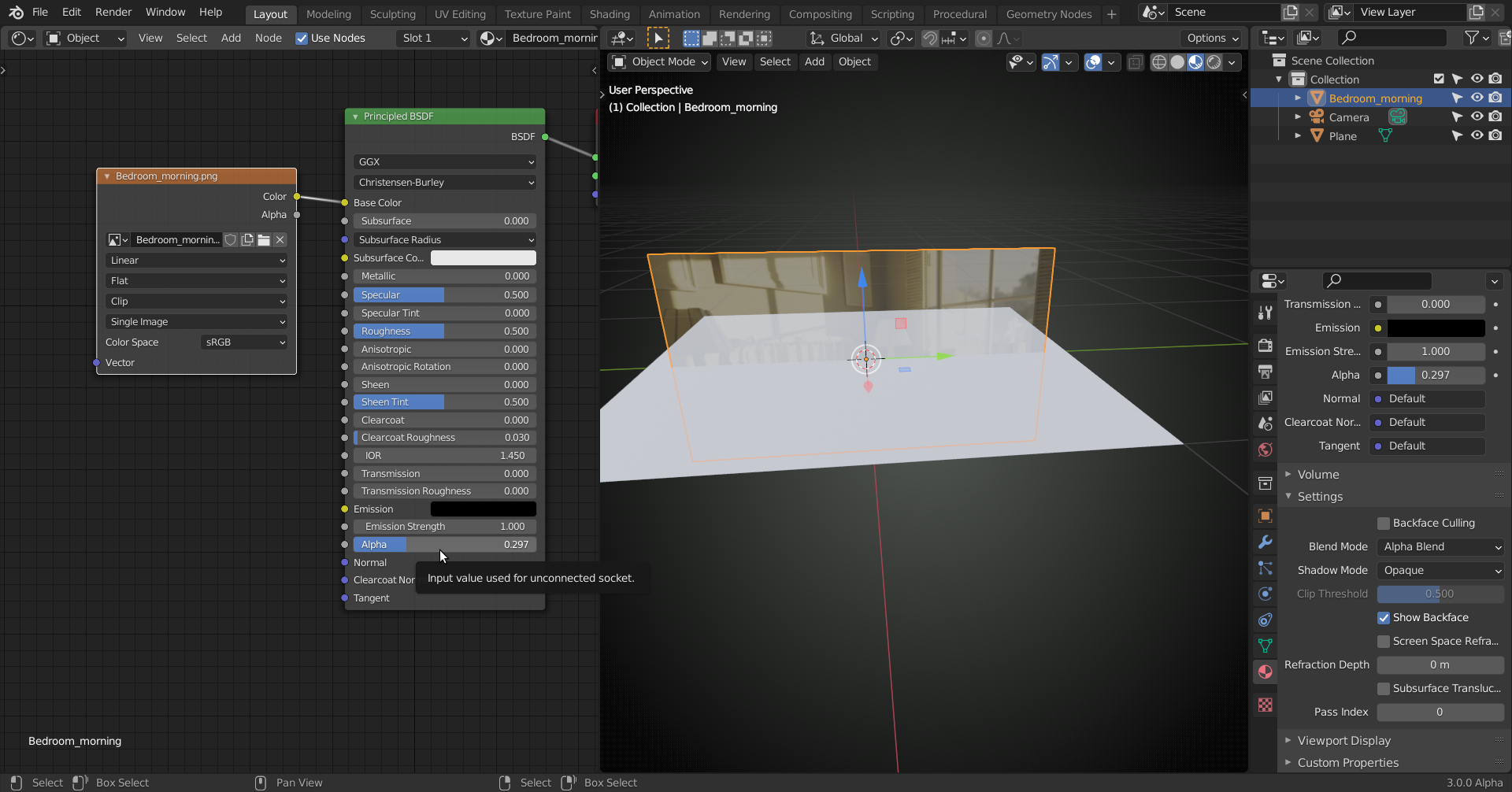
And yes, you can enable the Import Images as Planes addon and set the Alpha in the Material:
 September 13, 2021 at 4:13 pm #69015
Hi Spikeyxxx
Thank you for your help. Sorry for my late reply. I don’t know why I don’t receive notification email from this forum even I turn email notification “on”
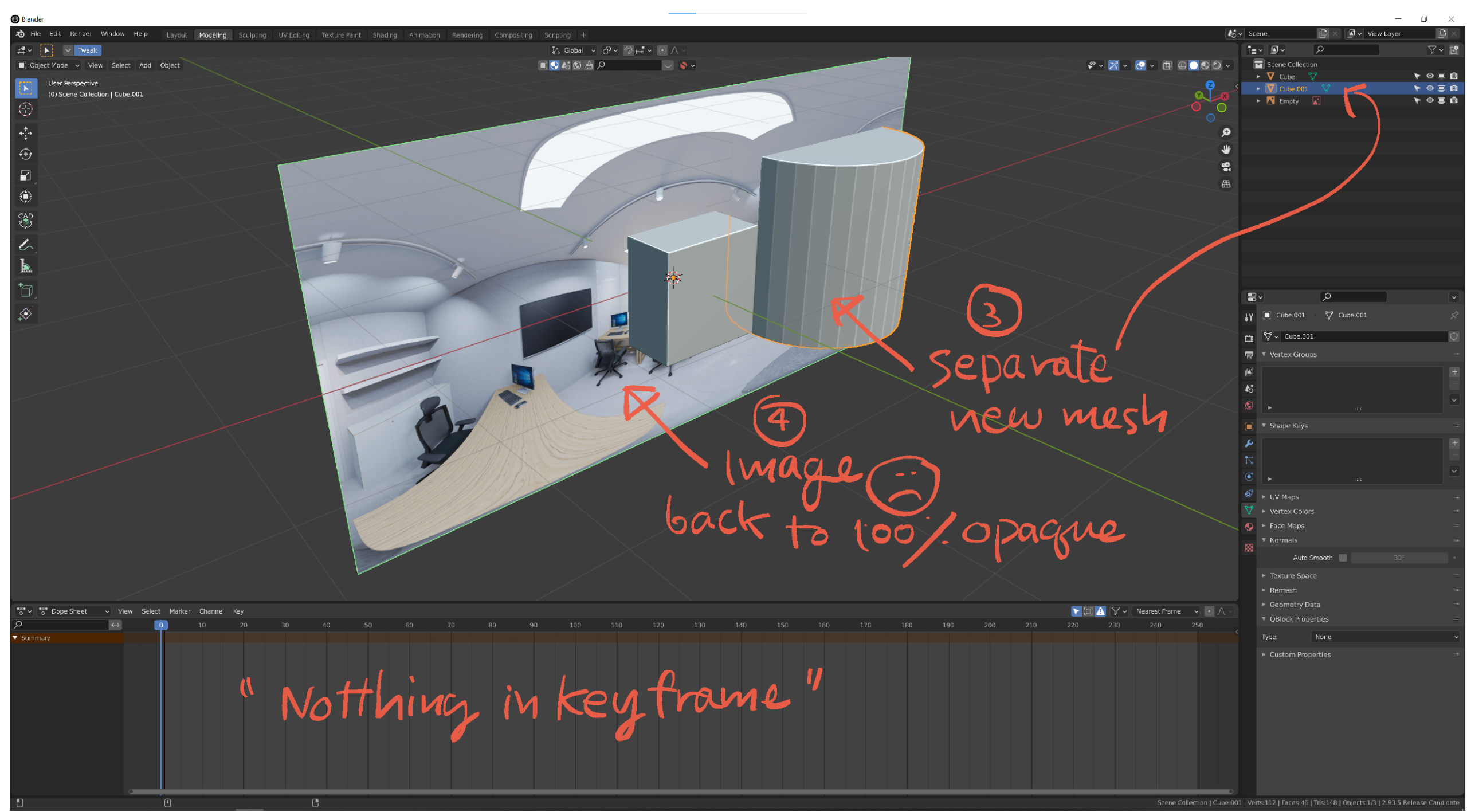
1. Solution 1 > adding new mesh in Edit mode and separate later.
It seems to work but when I separate new mesh to new object image will turn back to full opacity again!
I have checked key frame, there is nothing.
 September 13, 2021 at 4:24 pm #69016
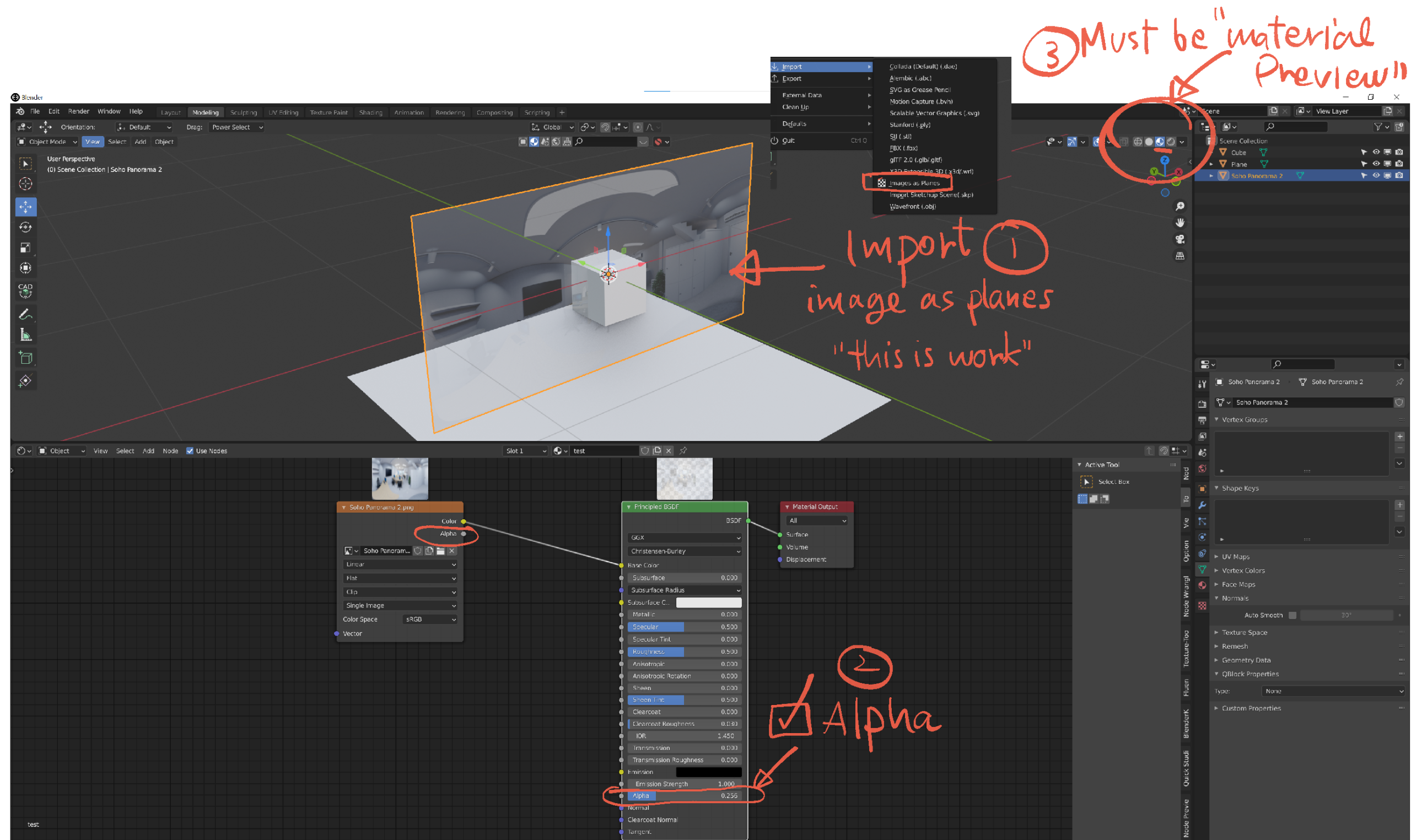
2. Solution 2 > Import image as plane
Thanks for this tip. It is work. I just learn how to use alpha.
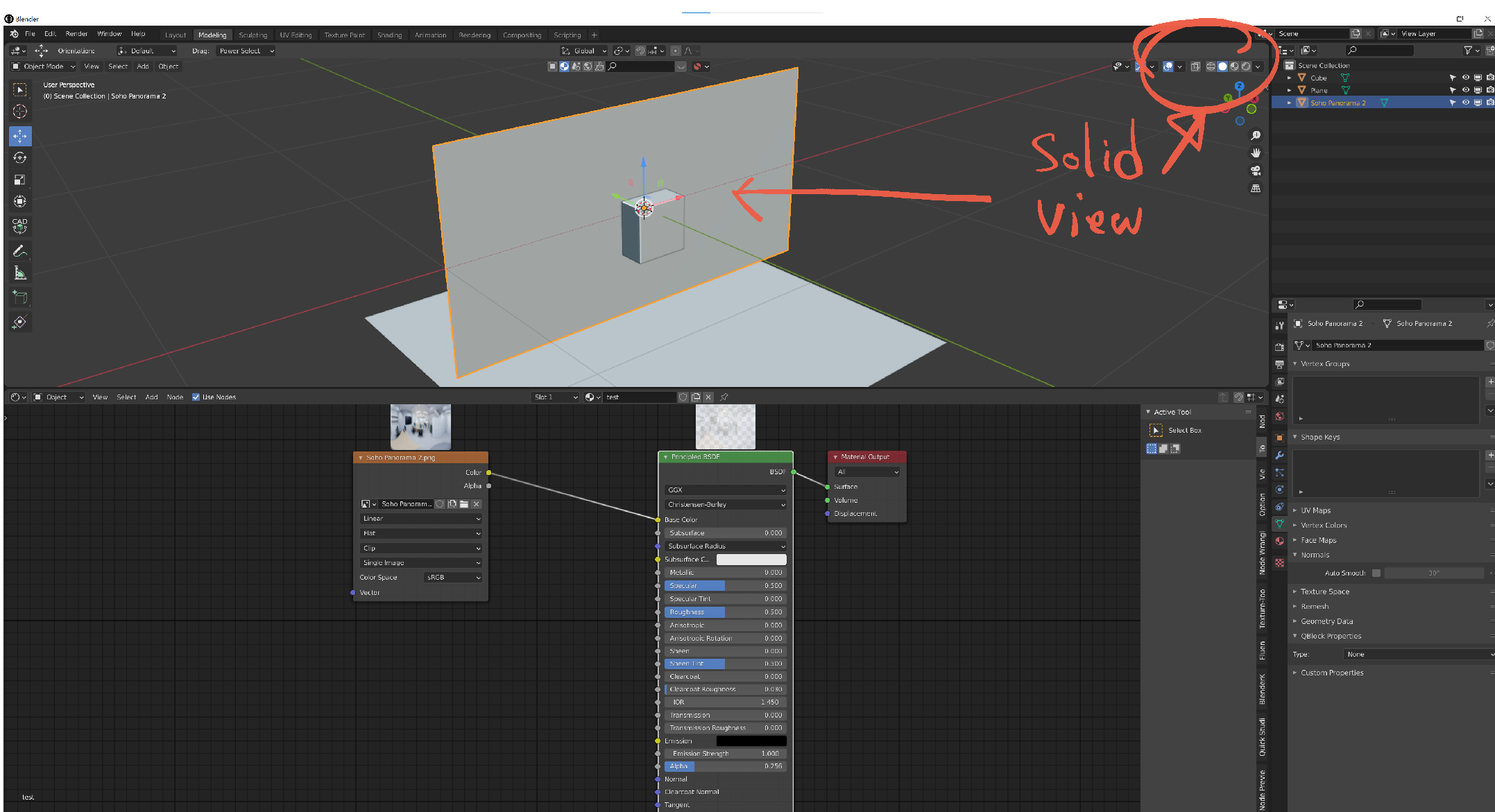
There is only limitation is I have to model in “material preview” viewport display. Cannot see image in “solid view”
3. Solution 3 > Reload factory settings
If I do this, Do I need to re install all addons again ?
-
AuthorPosts


- The topic ‘Why reference image opacity always reset to 1 anytime I add new mesh ?’ is closed to new replies.