
Why does shade smooth have weird shadows?
Forum Archive › Why does shade smooth have weird shadows?
- This topic has 11 replies, 4 voices, and was last updated 2 years ago by
Matthew Goddard.
-
AuthorPosts
-
March 18, 2024 at 2:27 pm #17687
This may just be how blender works, but all of my models have the same issue with shade smooth. Completely flat faces have shadows on some edges. This side of the die is completely flat, but looks like this:
 March 18, 2024 at 3:18 pm #84874
It might be the material as well, or could be the geometry. You can select a face there and with Shift + G to select similar, go with Co-planar, is they are perfectly flat that option should select them all, if not then you have to do some good old scaling to zero in the axis. It could also be that you are using a bevel modifier and the indents of the circles are not deep enough. And it could also be the angle in your shade smooth settings.
You can also upload your file and paste the link for us to take a look if you want.
March 18, 2024 at 4:02 pm #84875So changing the angle to anything over 10.1 degrees causes the problem. But it is completely flat as confirmed by coplanar. Why would it think there is a 10.2 degree angle there? How would I go about uploading the file? Google drive? or is there a system for sharing files here?
March 18, 2024 at 4:22 pm #84876Hi @dbro0808 ,
Select Coplanar has a relatively high Threshold and doesn’t mean the Faces are really flat…
But something else may be the cause of this Shading…
Yes, you can upload your .blend file to GoogleDrive, Dropbox or something like that and then post the Link.
March 18, 2024 at 4:43 pm #84877Ok, Thanks. I didn’t mess with the face itself from the original cube other than adding the bevel to the edges and the boolean spheres. Here is the blend file, it may not have shade smooth enabled or it may have the auto smooth angle set low enough, I can’t remember what state it was in when it was saved.
https://drive.google.com/file/d/1VMCqWDjqbLd2KnXANvV__05gOxrhcan5/view?usp=sharing
March 18, 2024 at 5:44 pm #84878Okay @dbro0808 ,
I’d set the Auto Smooth Angle to 10 or so…so that it looks good.
The reason for the weird Shading, is, because Shade Smooth interpolates the Vertex Normals and the outer circles of the ‘dimples’ have their Normals pointing ‘inwards’:
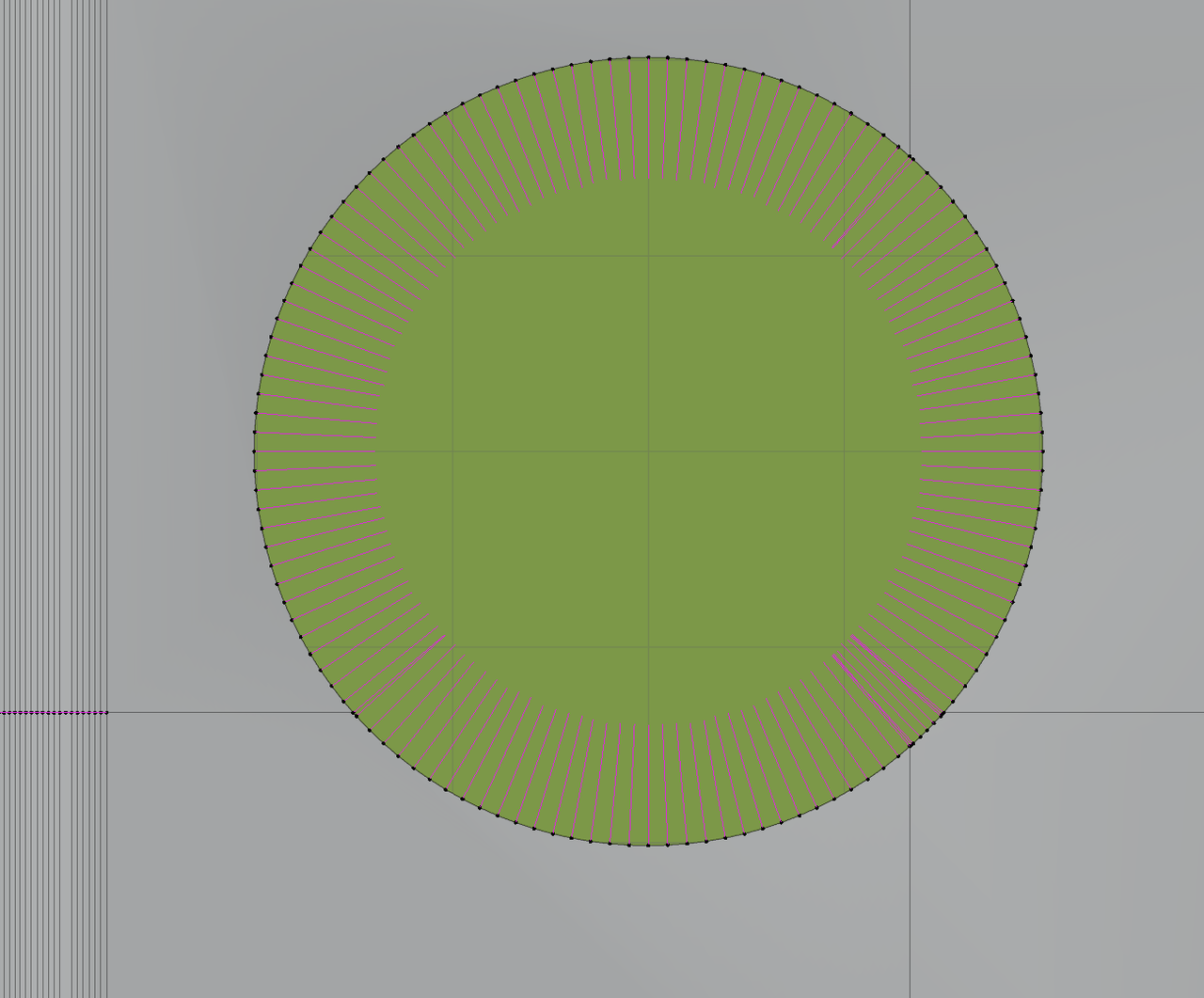
while the Normals of the surrounding Faces are pointing ‘straight up’.
At least, that’s what I think is causing the Shading mishap.
March 18, 2024 at 5:59 pm #84879Ahh, that makes sense, in this case setting the angle to 10 works, but all of my projects seem to have this issue at some point. I thought it was related to shade smooth not liking n-gons. Is there any way to rotate the normals up? Or whichever way they need to go? Like I said, this happens on other projects and at some point 10 degrees may not be a suitable option.
Also, why do the tutorials not seem to have the same problem? Or maybe they do and I’m just not seeing it? It’s hard to tell in this one if he is using shade smooth or not.
March 19, 2024 at 1:33 am #84880Hi @dbro0808 ,
Let me try to give a better explanation. Auto means you are giving away some control; you let Blender decide which Faces are Shaded Smooth and which are Shaded Flat. This is solely done by looking at the angle between Faces (or easier to imagine: look at the angle between the Face Normals of adjacent Faces) and if that angle is smaller than the set (threshold) Angle, it will be shaded Smooth.
In the example of the dice, the angle between the ‘flat Faces’ and where the ‘dimples’ start is quite small. There are several ways to overcome this and the easiest way is, like I said to lower the threshold Angle in the Autosmooth.
You can also make changes to the Geometry of the Mesh (increasing the angle of the outer circle by moving the ‘dimples’ a bit deeper, or making an extra ring around the ‘eyes’ *).
Or set the Object to Shade Smooth (not Auto Smooth) and in Edit Mode, Select the ‘flat Faces’ and go to Object > Face > Shade Flat (or just CTRL+F > Shade Flat).
This gives a great result:
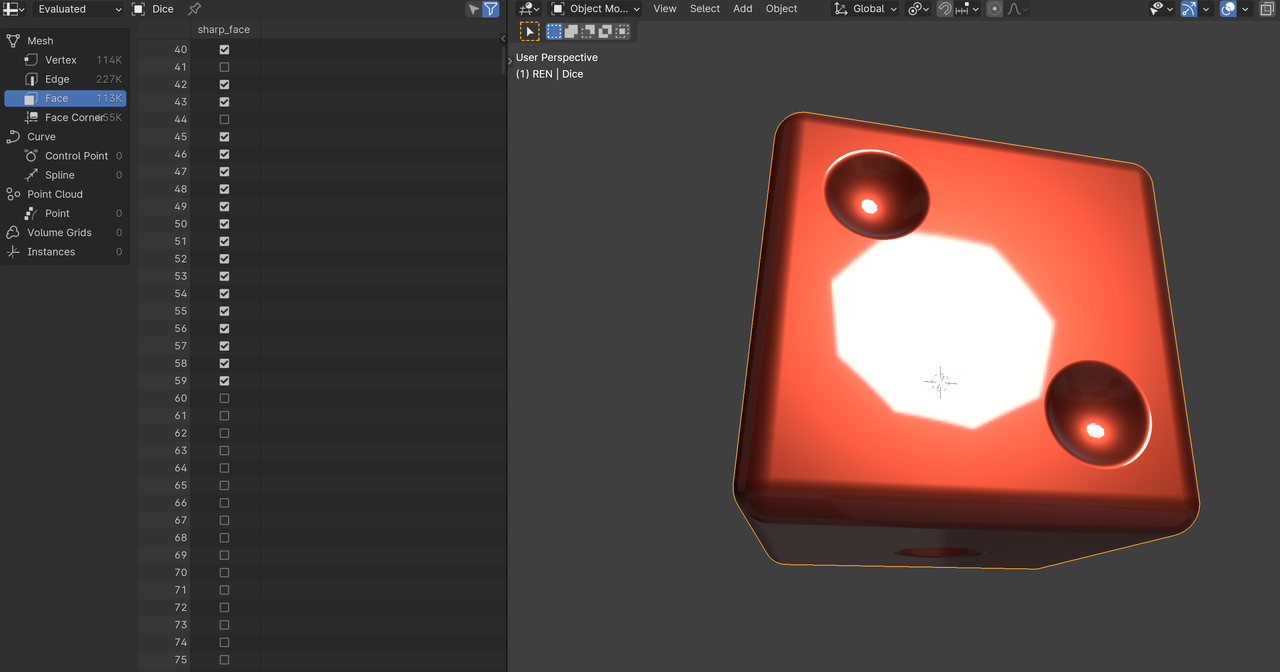
but might not be suitable for all situations.
And it is very well possible, that Kent doesn’t even use Shade Smooth, hence the use of so much Geometry (I can’t remember if he uses Smooth Shading or not…)
March 19, 2024 at 1:47 am #84881* For the extra ring, you could Select All the ‘flat Faces’ and press I to Inset them a tiny bit:
 March 19, 2024 at 5:22 am #84882
That makes sense, thank you for the help, I definitely have a better understanding of the problem now and can work through it when it happens, I appreciate it.
March 19, 2024 at 7:11 am #84883Dangs, you got Martin to go all Blender Super Saiyan there, it went well beyond 9,000.
August 21, 2024 at 10:28 am #84884I was having similar shading issues with the shading on the faces. I scaled each side to 0 on its axis and then inset the faces (Like Martin said above) and it has fixed my issues
-
AuthorPosts


- The topic ‘Why does shade smooth have weird shadows?’ is closed to new replies.