
Render Failed
Forum Archive › Render Failed
- This topic has 9 replies, 5 voices, and was last updated 1 year, 11 months ago by
Aleksandra Ivanovic.
-
AuthorPosts
-
September 8, 2024 at 3:31 pm #18683
After I’ve set up all the lights and attempting to render my scene, I get this error:
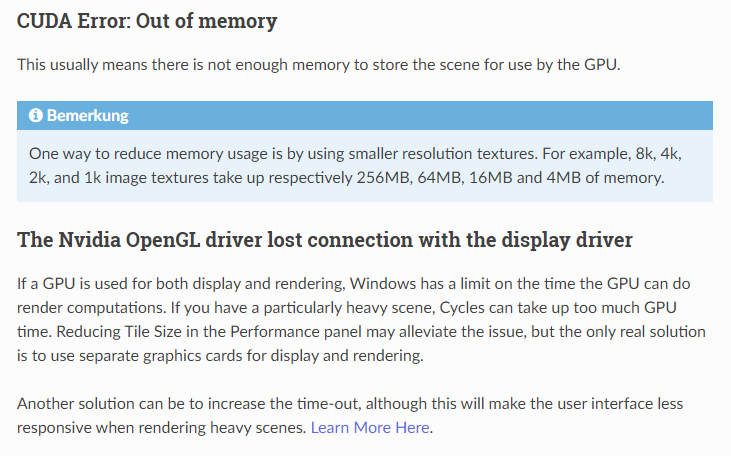
Render failed: system is out of GPU and shared host memory
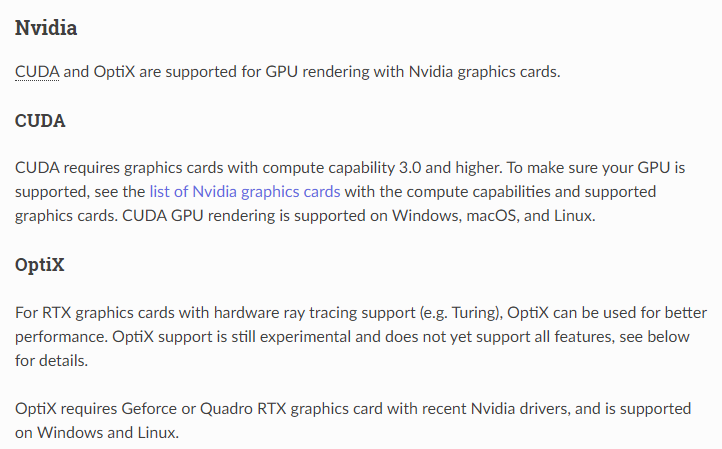
Not sure how to fix thisSeptember 8, 2024 at 5:38 pm #89175The error message indicates that the memory of the graphics card or the shared memory was not sufficient for rendering. You could change something in your scene, use fewer lights, optimize textures, reduce subdivision modifiers, use instances instead of copies, i.e. ALT+D instead of Shift + D or something similar. You can tweak the render settings, lower resolution, lightpaths. Actually everything that requires performance and needs to be cached. I don’t know if this will help in the end, I’ve never dealt with it before, but maybe the render device setting will help a bit. If you go to Settings -> System, your graphics card will be listed under None/Cuda/OptiX. Depending on which graphics card you have.
I think maybe it’s not so much the memory of the graphics card but also the RAM memory.
This is from the Blender manual, maybe it can help.
https://docs.blender.org/manual/de/2.83/render/cycles/gpu_rendering.html
 September 8, 2024 at 6:43 pm #89176
Yes as Leo says, it just means you have reached the limit of your hardware. That’s why you see everyone trying to get the most super awesome computer, so they can render more and more complex scenes and faster and faster render times. It’s like a villain origin story, power corrupts man.
September 8, 2024 at 6:47 pm #89177Breaking it up into layers like Background, animation, and foreground is one route. Then you can combine it in the VSE or compositor. This is why rendering to image sequence is so common.
Background rendering can also help in these situation. Just go to command prompt. If you have a path setup for blender then you can just type blender. if not then you will need to add the path before you type blender. Then after it you add “-b” without the quotes. the b need to be lowercase. Blender is case sensitive. This sets it to background. After that you type the path and blend file name followed by a “-a” without the quotes for animation or “-f ###” without the quotes and replace ### with the frame number to render a single frame. For example:
Blender.exe -b c:\blendfiles\renderme.blend -a
Blender.exe -b c:\blendfiles\renderme.blend -f 23
The first one renders all the frames set in the blend file. the second one renders frame 23. You can also render in sections using -s ### and -e ### before the -a to set the start and end frames. You can use -j ## to set the steps. There are a lot of other options but those are the only ones I use other than -S [Scene name] to select a different scene in the blend file. Notice the S is capital for scene and lowercase for start frame.
If you want to read more: https://docs.blender.org/manual/en/latest/advanced/command_line/index.html
September 8, 2024 at 6:59 pm #89178The problem is that since it’s a file that you downloaded for the exercise, it’s already set up for you, so there’s not much you can do to optimize it. It shouldn’t be such a heavy scene, so maybe you have an old not so powerful GPU?
September 8, 2024 at 7:13 pm #89179Using both CPU and GPU for rendering and closing google chrome ( I have a lot of tabs opened ) seemed to work. In a perfect world where I don’t have to deal with unemployment, I would buy a new PC and not have to deal with this type of issues. I will also try background rendering as dwayne suggested, since it’s probably quicker and lighter on the system.
September 9, 2024 at 10:03 am #89180Oh yes it’s faster to render in background. With my Nvidia gt730 and amd athelon II it’s the only way I can really render anything over a thousand triangles. Note: yes I know my system doesn’t meet the minimum standard for Blender, but thanks to Linux and some kernel trickery I have 4.2 running.
September 9, 2024 at 12:22 pm #89181So you get my struggle. Mine is gtx 1060 6 gb, which is from 2016. Only options I have is to find workarounds or give up on cycle renders.
September 14, 2024 at 10:06 pm #89182While my old iMac was able to open and render the exercise as-is, it sure wasn’t a snappy experience–first time I’ve ever encountered 16k textures. (OMG!)
Is there an easy way to reduce textures without unpacking and resizing? Have noticed the Simplify render settings for Cycles…just noticed there’s a Texture Limit option. Might try setting it to 1024 or 2048?
September 15, 2024 at 4:43 am #89183I’ve discovered an amazing addon https://blendermarket.com/products/turbo-tools-v3—turbo-render-turbo-comp-temporal-stabilizer
It’s pretty pricey, but renders that previously took two hours now take less than 10 minutes. It renders everything at much lower samples, then seems to do some kind of denoising magic in compositor. -
AuthorPosts


- The topic ‘Render Failed’ is closed to new replies.