Paint keys on a qwerty keyboard

Forum Archive Paint keys on a qwerty keyboard

Viewing 7 posts - 1 through 7 (of 7 total)
  • Author
    Posts
  • #19759
    Sid Edwards
    Participant

      I’d like to 3D model a realistic looking laptop for my own personal projects. However, the main thing I’m worried about is the detailed letters on the keys. I don’t want to use a typical jpeg/png because I want it to look good at a high resolution and dimensions.

      So, how can I effectively “paint” letters onto the keys of the keyboard? If there’s a CORE video or another video that goes over this I’d like to know too!

      #93395
      Dwayne Savage
      Participant

        You can use text object and then use snap to face or face project  snapping to place them on the keys. I’d recommend using the text editor to type out all the letter and as many of the symbols as you can. Put one per line. then click Edit->Text to 3D->object per line. You can change the font as you see fit. For the named keys like Num Lock you can do as one line then after the text object is created you can edit it by tabbing into edit mode and then add the return to make it double lined. For symbols like the arrow keys you can choose a symbol based font like windings or if the font you plan on using has a special character you can use a word processor text editor and insert the special character in that program then copy(CTRL+C) and paste(Ctrl+V) in Blender’s text editor. You could also just create it using curves or a mesh. Another option is to find an SVG of the keys faces. Usually they just have the keyboard layout. 

        #93396
        Dwayne Savage
        Participant

          I haven’t finished this yet so I don’t know how he handles the lettering, but there is this: https://cgcookie.com/lessons/laptop-modeling-the-body

          #93397
          Omar Domenech
          Participant

            Kent for efficiency purposes uses a pre-made model. But if you want to do it yourself from scratch, I think you could boolean all the letters in. You can find an image, trace over all the keys and with the text tool in Blender, just boolean all the letters into you keyboard mesh. 

            #93398
            Sid Edwards
            Participant

              Is there a foreseeable way I might be able to use a layer mask in the shader/materials editor? For instance, could I paint the letters white and everything else black after making the letters with the text editor, and somehow…map it to the texture coordinates of the laptop as a separate layer?

              #93399
              Omar Domenech
              Participant

                Yeah you could use a mask where the letters are in white and everything else in black. But that’s a texture anyways, I think your objective is to not use a texture. You can also just use the mesh letter and extrude it just a tiny bit and place the letter over their respective place on the keyboard. 

                #93400
                Martin Bergwerf
                Participant

                  HI Sid,

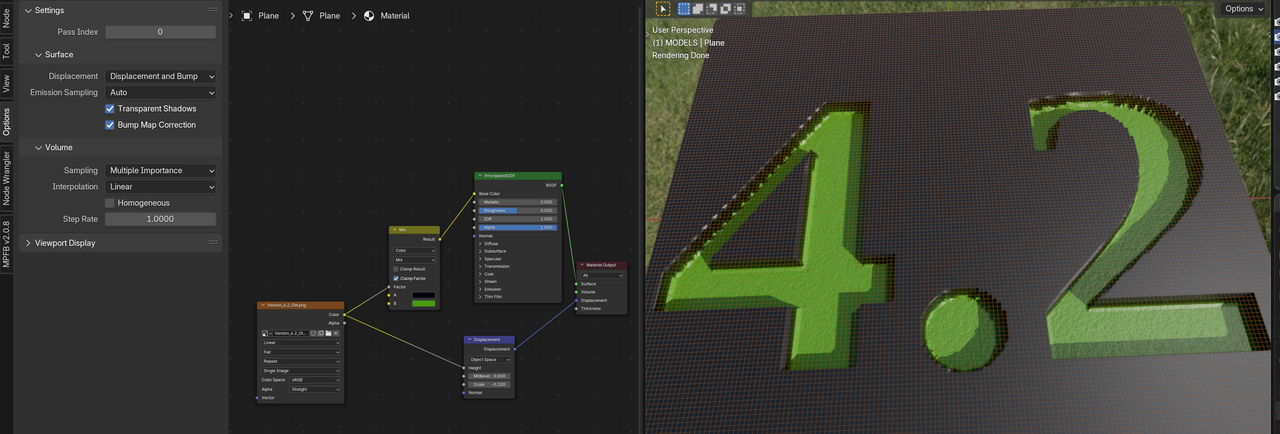
                  It’s pretty easy to make a Mask and use that in the Shader Editor, but be aware that, if you want the letters ‘indented’ in the keys,you’ll need to use a Displacement and that needs a lot of Geometry, in order to look good. Here’s a simple example with not enough Geometry (I added the Wireframe, so you can get a better ideas of the amount you’d be needing):

                  Text.png

                  You’ll get a much better result by using Booleans, as demonstrated in the above mentioned Laptop Course.

                Viewing 7 posts - 1 through 7 (of 7 total)
                • The topic ‘Paint keys on a qwerty keyboard’ is closed to new replies.