I see no option to Apply Modifier for the Rivet’s template cube.

Forum Archive I see no option to Apply Modifier for the Rivet’s template cube.

Viewing 5 posts - 1 through 5 (of 5 total)
  • Author
    Posts
  • #15499
    Andrew Honeycutt
    Participant

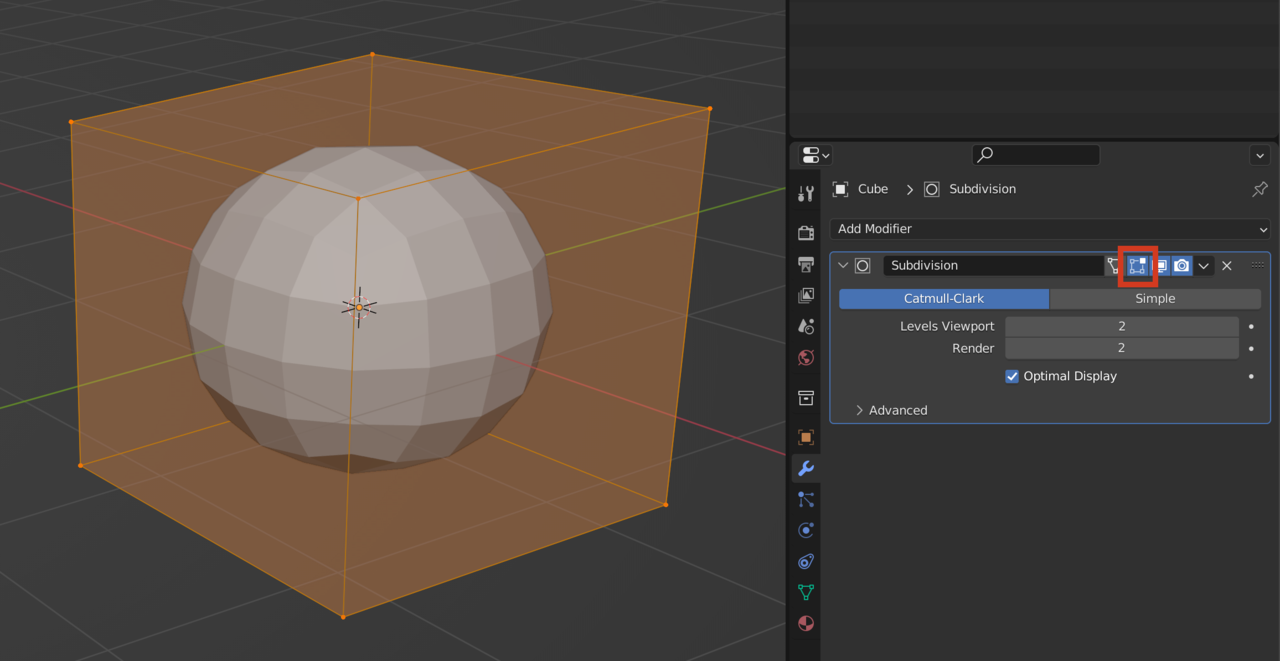
      Help, it just comes out as a cube on the outside with a sphere on the inside. I assume it’s an update thing but I do not know how to work around it!

      #75767
      Martin Bergwerf
      Participant

        Hi Andrew,

        If it shows like that, then you are probably in Edit Mode. Modifiers can only be Applied in Object Mode.

        #75768
        Omar Domenech
        Participant

          Yeah it’s ok, that’s just how Blender previews a modifier. It looks like a cube on the outside because that is your underlying or original geometry, and it shows the circle inside as the result of your modifier over the cube. That all happens when you go into Edit Mode, but you can change that using this button, which will turn off the edit mode preview of the modifier:

          Cube.png

          #75769
          Adrian Bellworthy
          Participant

            Hey @mace3739,
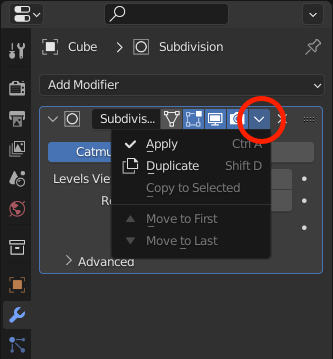
            Since the recording of this course, the ‘Apply’ option has moved to the drop-down menu to the right of the modifier name.

            Apply-mod.png

            Or you can use CTRL+A hotkey with the mouse over the modifier.

            #75770
            Andrew Honeycutt
            Participant

              Thank you to Martin, Adrian and Omar for your time! This is my second animation so I’m still very much a learner, I really appreciate it!

            Viewing 5 posts - 1 through 5 (of 5 total)
            • The topic ‘I see no option to Apply Modifier for the Rivet’s template cube.’ is closed to new replies.