How Do You Erase Brush Strokes (Not Ctrl + Z)?

Forum Archive How Do You Erase Brush Strokes (Not Ctrl + Z)?

Viewing 4 posts - 1 through 4 (of 4 total)
  • Author
    Posts
  • #17895
    Chris Le Fave
    Participant

      How do I erase brush strokes without using CTRL + Z? I know that Ctrl + Z works great, but undo histories do have a limit and I’d hate to be stuck with a decision. So far, I’ve been using Shift + X to sample the Material Colors and brush over what I’ve painted but there must be some much more elegant way of doing this.

      #85724
      Martin Bergwerf
      Participant

        I don’t think there is another way, apart from starting over.

        So, to recapitulate, you have:

         CTRL+Z (in practice, you will not soon reach the Limit of 256 and who wants to press CTRL+Z so many times?).

         Painting over the Brush stroke.

         Starting over (highly recommended in many situations, where a few Undo’s won’t work).

        (It is of course possible that there is another method, that I am not aware of.)

        #85725
        Omar Domenech
        Participant

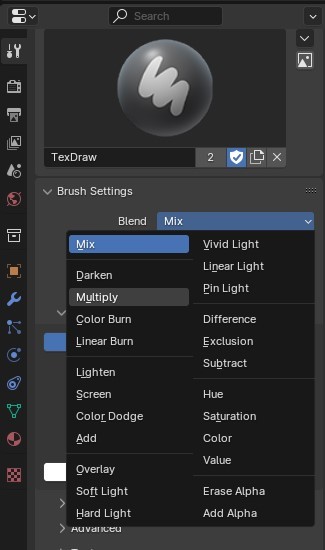
          What I tend to do is work in layers. I have a base color, then scratches, decals, details, etc. That way when I have to delete a stroke I wont mess all the others up, which would happen if you are painting it all in just one texture. So with that control set up, I can use the erase alpha or add alpha setting or any other that works for my situation:

          Erase-Alpha.jpg

          #85726
          Chris Le Fave
          Participant

            Thanks, Omar and Martin! These answers both help a lot!

          Viewing 4 posts - 1 through 4 (of 4 total)
          • The topic ‘How Do You Erase Brush Strokes (Not Ctrl + Z)?’ is closed to new replies.