from absolute path to relative path

Forum Archive from absolute path to relative path

Viewing 4 posts - 1 through 4 (of 4 total)
  • Author
    Posts
  • #21041
    INUMAKI TOGE
    Participant

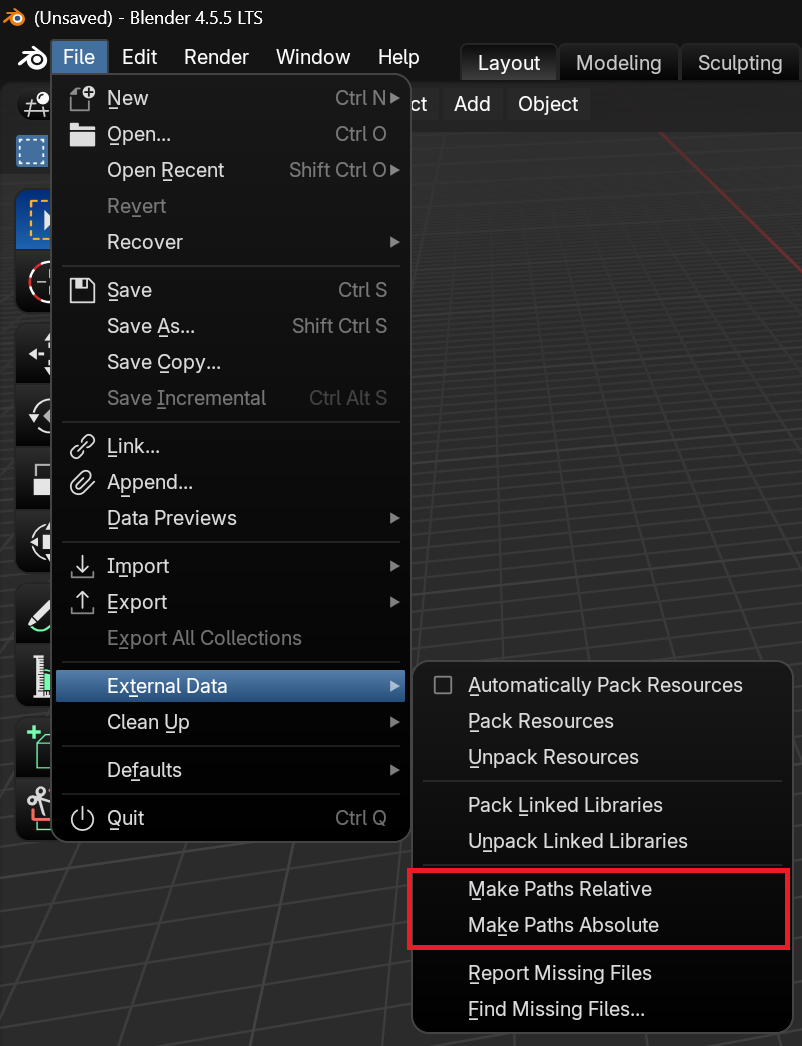
      how can i change from absolute path to relative path. i want to share my file and materials as zip folder to a group so that they can us the file on their computer.

      #98116
      Sascha Feider
      Participant

        You can find the option under file -> external data. There you could alternatively also pack all textures into the .blend file directly, which might be the better option, if you want to share the file packed in a zip.

        #98117
        Dwayne Savage
        Participant

          By default blender uses relative paths. To make sure this is still set as default goto preferences(Ctrl+comma on 4.+, or F4->preferences or edit menu preferences) Click Save & Load on the left hand side. In Blend file panel under default to section make sure relative paths is checked.

          #98118
          Steven Fergus
          Participant

            A simple way to switch from absolute to relative paths is to make sure all your files and materials live inside one main project folder, then update your references so they point to locations relative to that folder instead of your full system path (for example, change something like C:\Users\You\Project\textures\image.png to textures/image.png or ./textures/image.png); once everything is linked this way, you can zip the entire main folder and anyone who extracts it on their computer will be able to open and use the project without broken paths, as long as they keep the same internal folder structure.

          Viewing 4 posts - 1 through 4 (of 4 total)
          • The topic ‘from absolute path to relative path’ is closed to new replies.