Faces not appearing perfectly flat in final touches

Forum Archive Faces not appearing perfectly flat in final touches

Viewing 3 posts - 1 through 3 (of 3 total)
  • Author
    Posts
  • #19074
    Al Mar
    Participant

      I don’t know if these lines were present before I started using auto smooth, but when I turn auto smooth off, they still seem to appear, so that must not be it. It’s driving me crazy!
      Do I need to delete the top faces and try again?
      I selected a few faces by themselves then scale > z > 0 to try and bring them all level, but didn’t seem to help.

      Including a few views for perspective. 
      I’m so ready to move on to other tutorials, but not having these meshes right is irksome!

      EDIT: I was able to fix it. I selected the individual faces on top and right click > shade flat. and this mess went away. Now why it was smoothing when I have autosmooth for the entire object set to 30*? I am not sure. 

      EDIT: Fixed after selecting faces in edit mode then shade flat

      #90801
      Martin Bergwerf
      Participant

        Hi Al Mar @Tachy ,

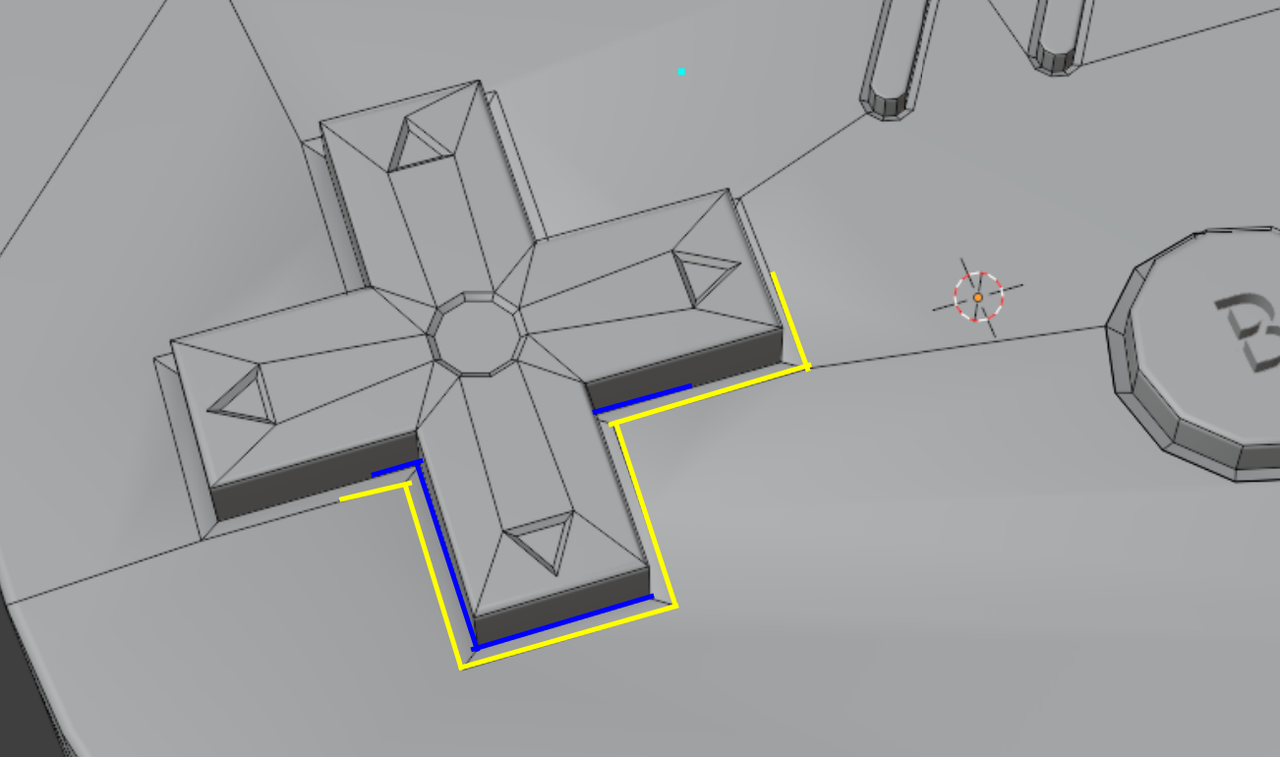
        Those Shading issues were caused by the insets around the buttons and mostly around the d-pad; they were probably not deep enough (blue lines), so the angle between the Faces on both sides of the yellow lines was less than 30° and thus ‘shaded smooth’, causing those artifacts:

        Shading_01.png

        I hope that makes a bit of sense.

        Anyway, your solution works well too; sometimes auto-anything doesn’t do what you want and needs to be ‘corrected’ 😉

        #90802
        Al Mar
        Participant

          That makes complete sense! Thanks for pointing out where the issue may be coming from, I appreciate your constant replies and advice!

        Viewing 3 posts - 1 through 3 (of 3 total)
        • The topic ‘Faces not appearing perfectly flat in final touches’ is closed to new replies.