Both highlighted objects rotate, when I only want one to rotate.

Forum Archive Both highlighted objects rotate, when I only want one to rotate.

Viewing 12 posts - 1 through 12 (of 12 total)
  • Author
    Posts
  • #14702
    frankfriesen
    Participant

      I have added a Boolean to the first highlighted object, but the problem is that if I want to rotate only one highlighted object, both rotate. Something I’m missing?

      #72251
      Jonathan Lampel
      Participant

        I’m not entirely sure without looking at the file… Just to double check, are they separate objects? If they are linked duplicates, are you rotating them in object mode rather than edit mode? In the video I just have one object and am duplicating the parts in edit mode. 

        #72252
        frankfriesen
        Participant

          how do I figure out If they are linked?

          #72253
          spikeyxxx
          Participant

            It looks to me as if you only have 1 Object. To rotate part of that Object you need to go into Edit Mode.

            Look at the outline color.

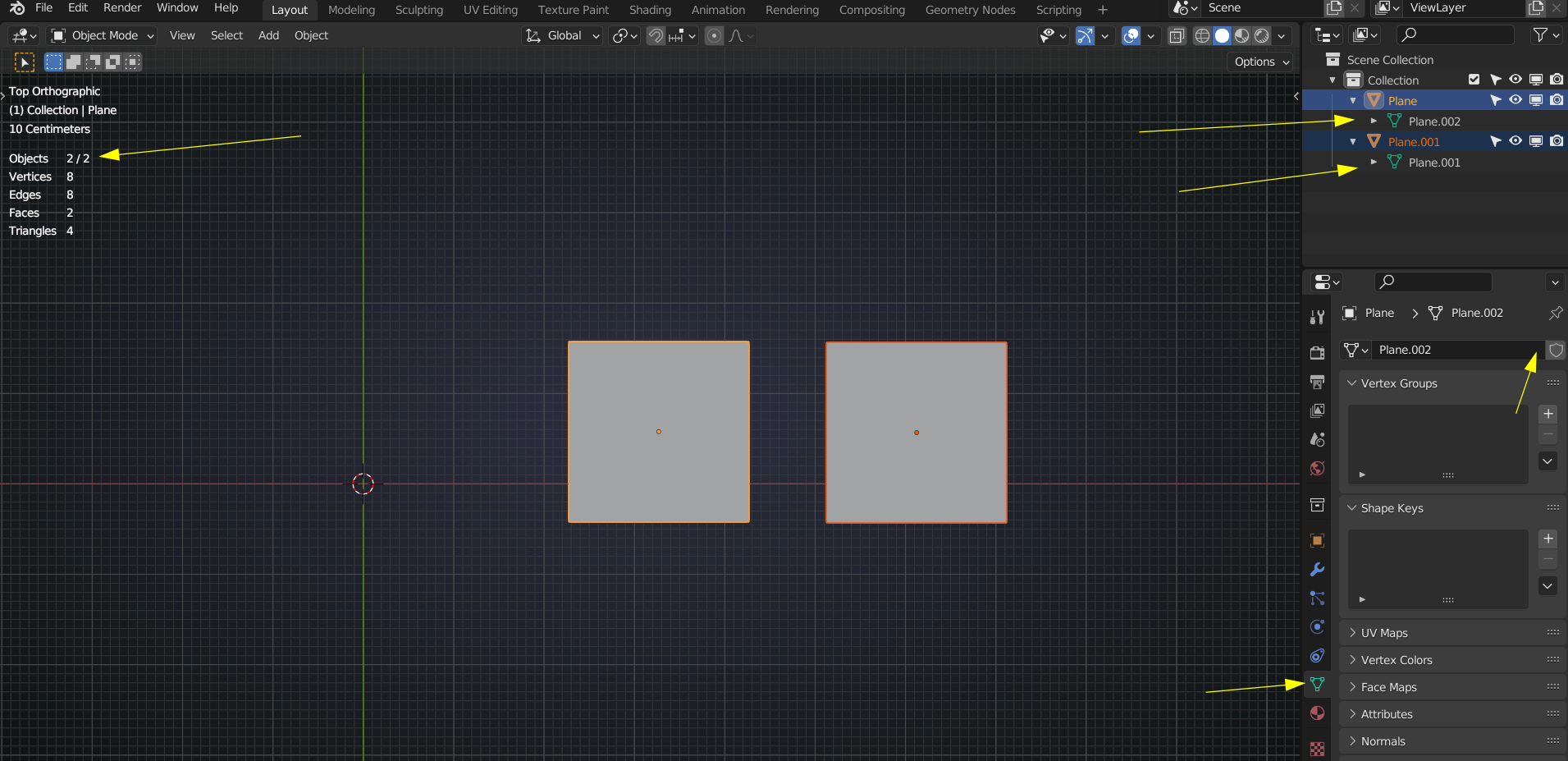
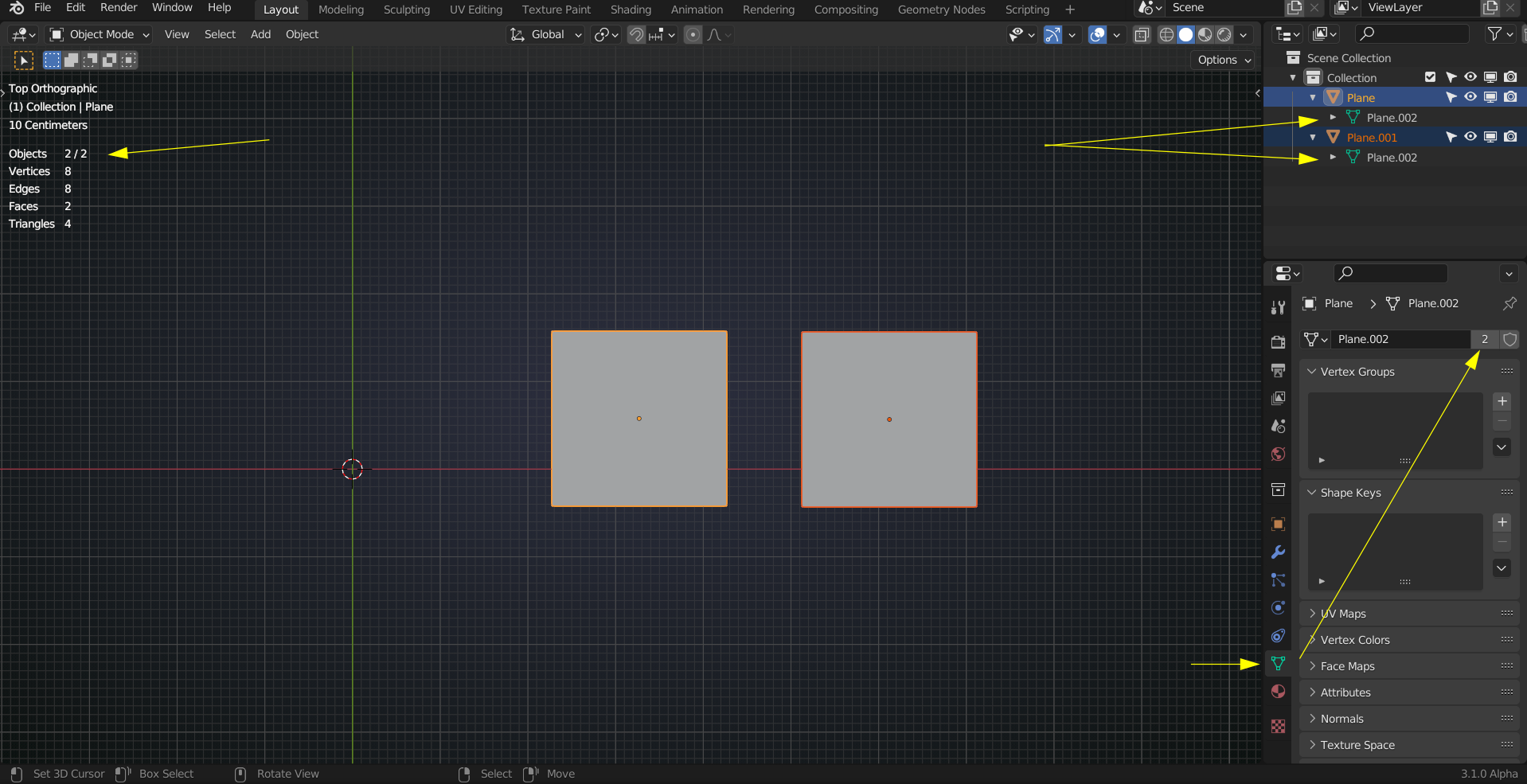
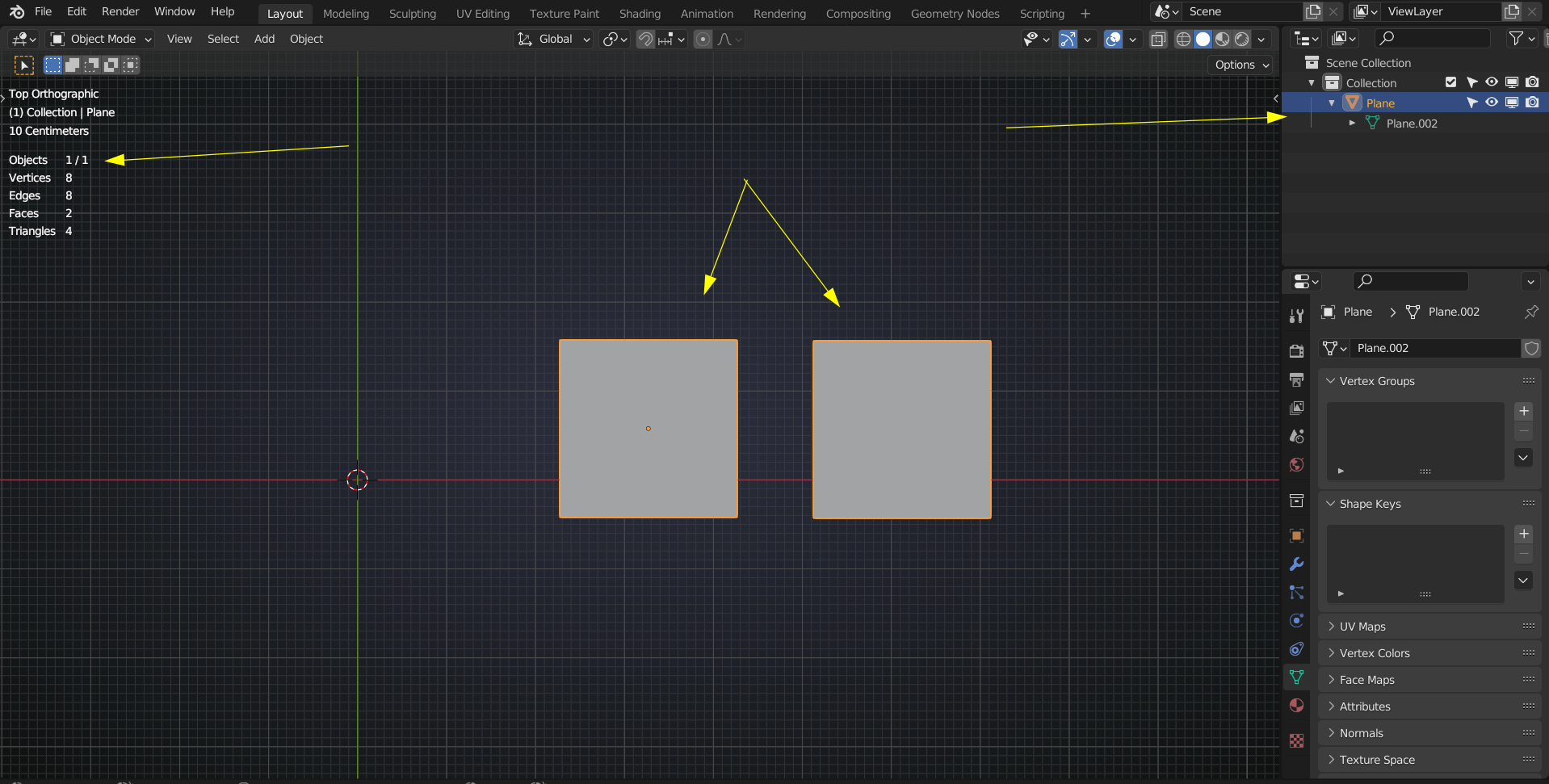
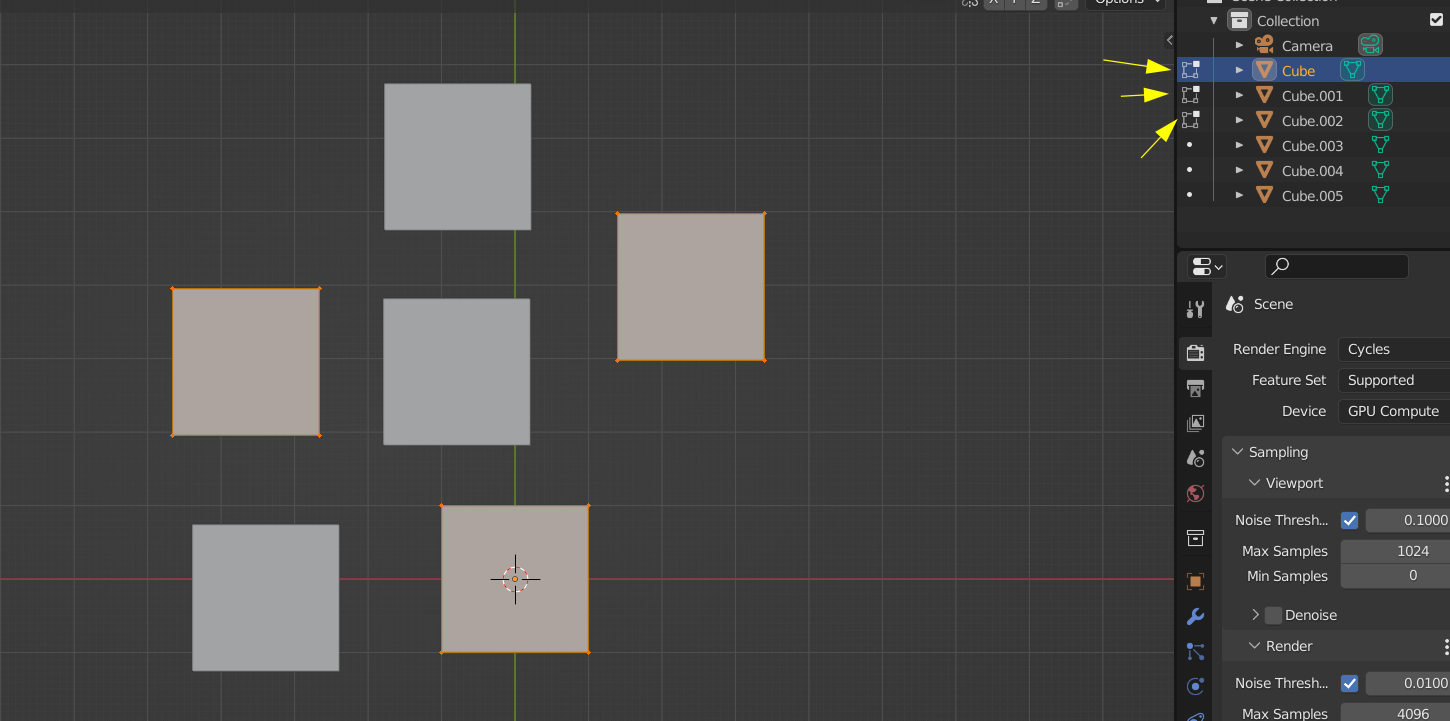
            Here are some situations and places that gtell you what is going on; 2 separate Objects:

            2 linked Objects:

            And 1 Object:

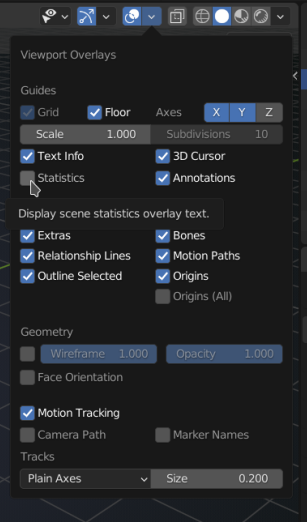
            The info in the top left corner of the viewport is an Overlay, that can be handy sometimes (I leave it off most of the time):

            #72254
            naiad
            Participant

              @spikeyxxx

              Thank you for the great demonstration! 

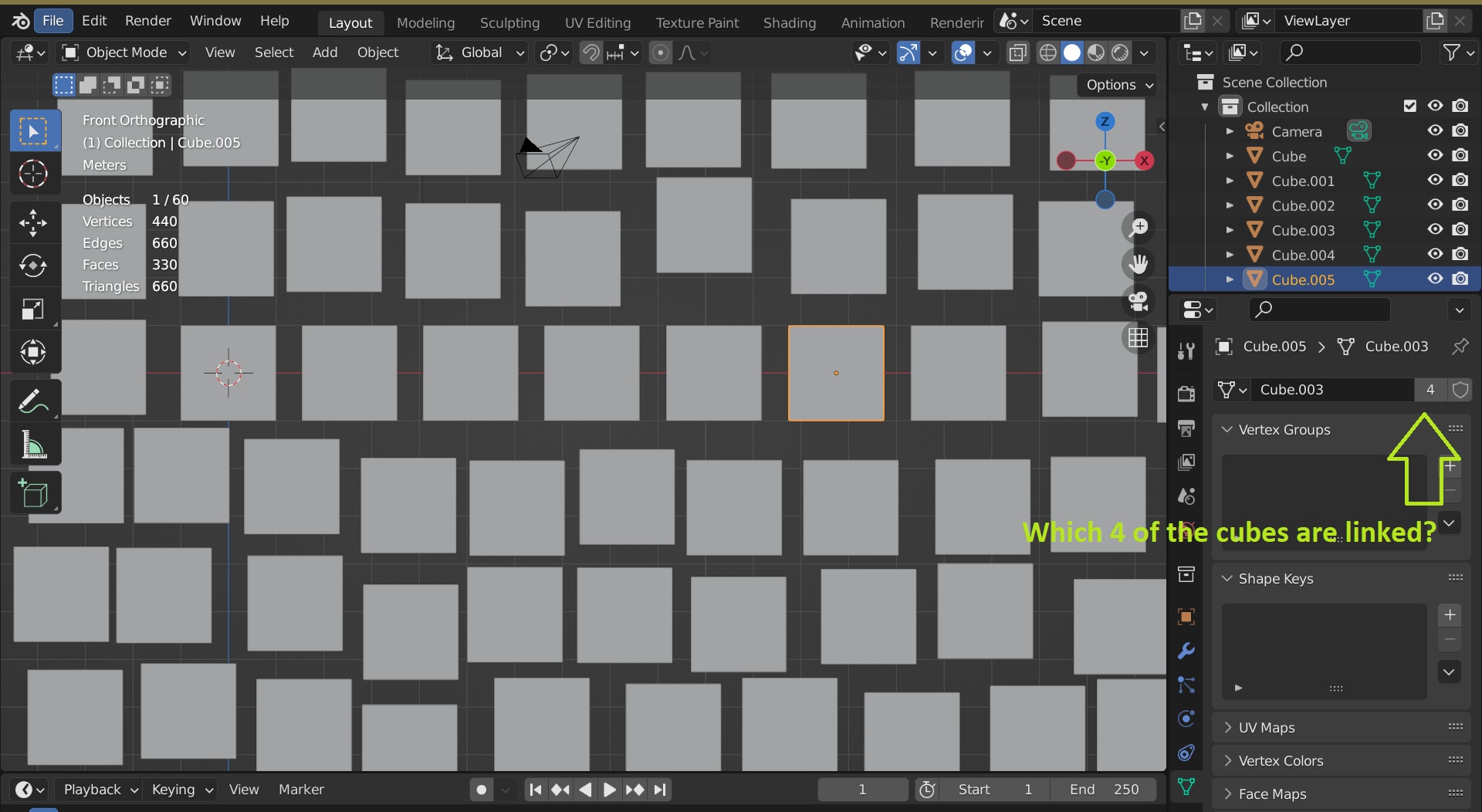
              Let’s say that I have 60 cubes.

              When I select the Cube.005, the property panel says that 4 cubes are linked, and the Cube.005 is linked to the Cube.003. But I still don’t know where the rest 2 linked cubes are.

              How could I find out where those 4 linked cubes are please? Thank you!

              #72255
              spikeyxxx
              Participant

                @naiad  select one of those Cubes and then go into Edit Mode. The linked Cubes will also ‘jump’ in Edit Mode then:

                #72256
                spikeyxxx
                Participant

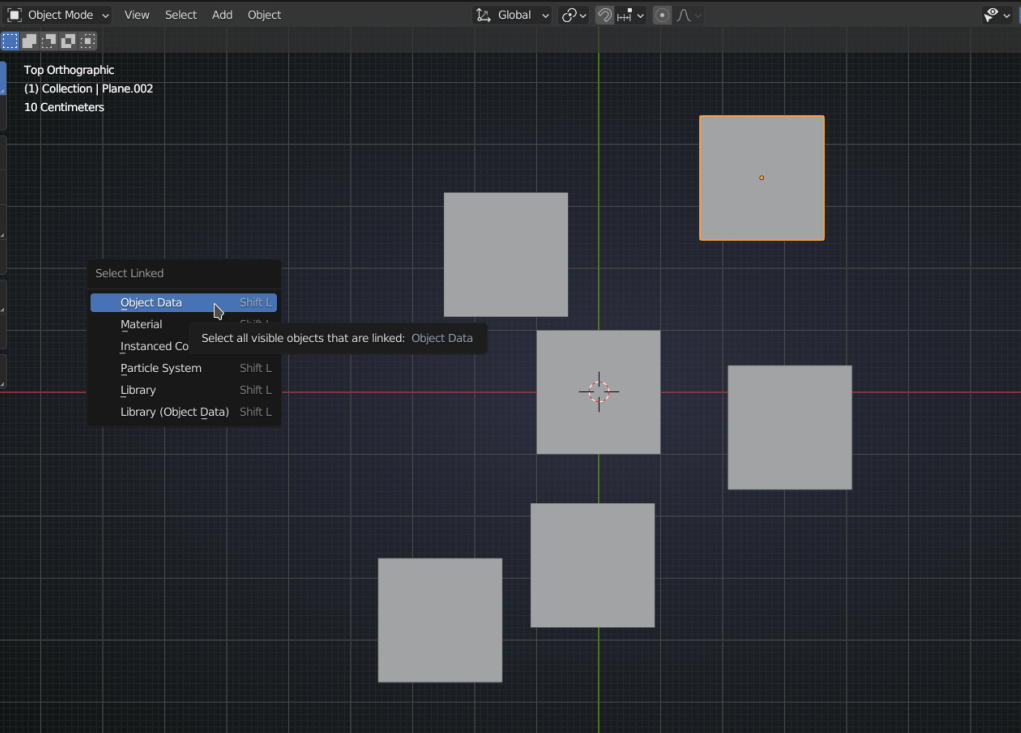
                  Alternatively: SHIFT+L:

                  #72257
                  naiad
                  Participant

                    @spikeyxxx 

                    I can not appreciate enough on how much you have helped me! Big thank you!

                    For your 1st method, which is to enter into the Edit mode, and works great for the linked object data, but provides no information for the linked material data. 

                    The linked Cubes will also ‘jump’ in Edit Mode

                     The ‘jump’ feature must be a new feature for Blender 3.0. This feature is missing on Blender 2.90. I notice the yellow arrows pointing to some white icons on your first screenshot. Blender 2.90 does not have such white icons in the edit mode. I will try this on my Blender 3.0 next time.

                    Your 2nd method, which uses SHIFT + L, is much more powerful, because it not only works for the linked object data, but also linked material data, as the following screenshot.  
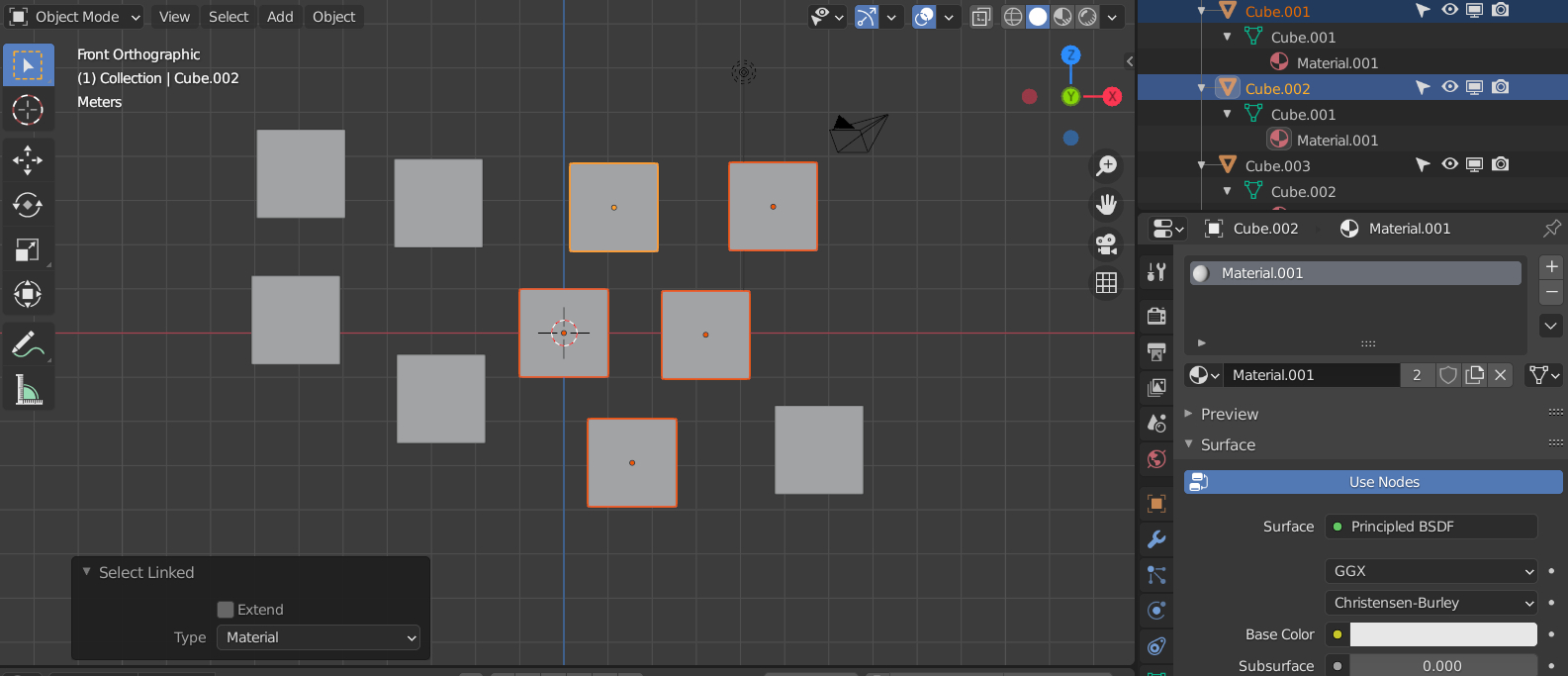
                    BTW, (for those who wonder) from my screenshot, the Material.001 are linked and used only twice, but there are 5 cubes actually selected. That is because 4 out of the 5 cubes are linked in the object data and the 4 linked cubes are only counted to use the Material.001 once.

                    #72258
                    spikeyxxx
                    Participant

                      The ‘jump’ feature must be a new feature

                      no, that was just a figure of speech, they don’t actually jump.

                      Blender 2.90 does not have such white icons in the edit mode

                      No, I don’t remember when they added those (2.91 or 2.92, I think), but at least 2.93 has them.

                      #72259
                      frankfriesen
                      Participant

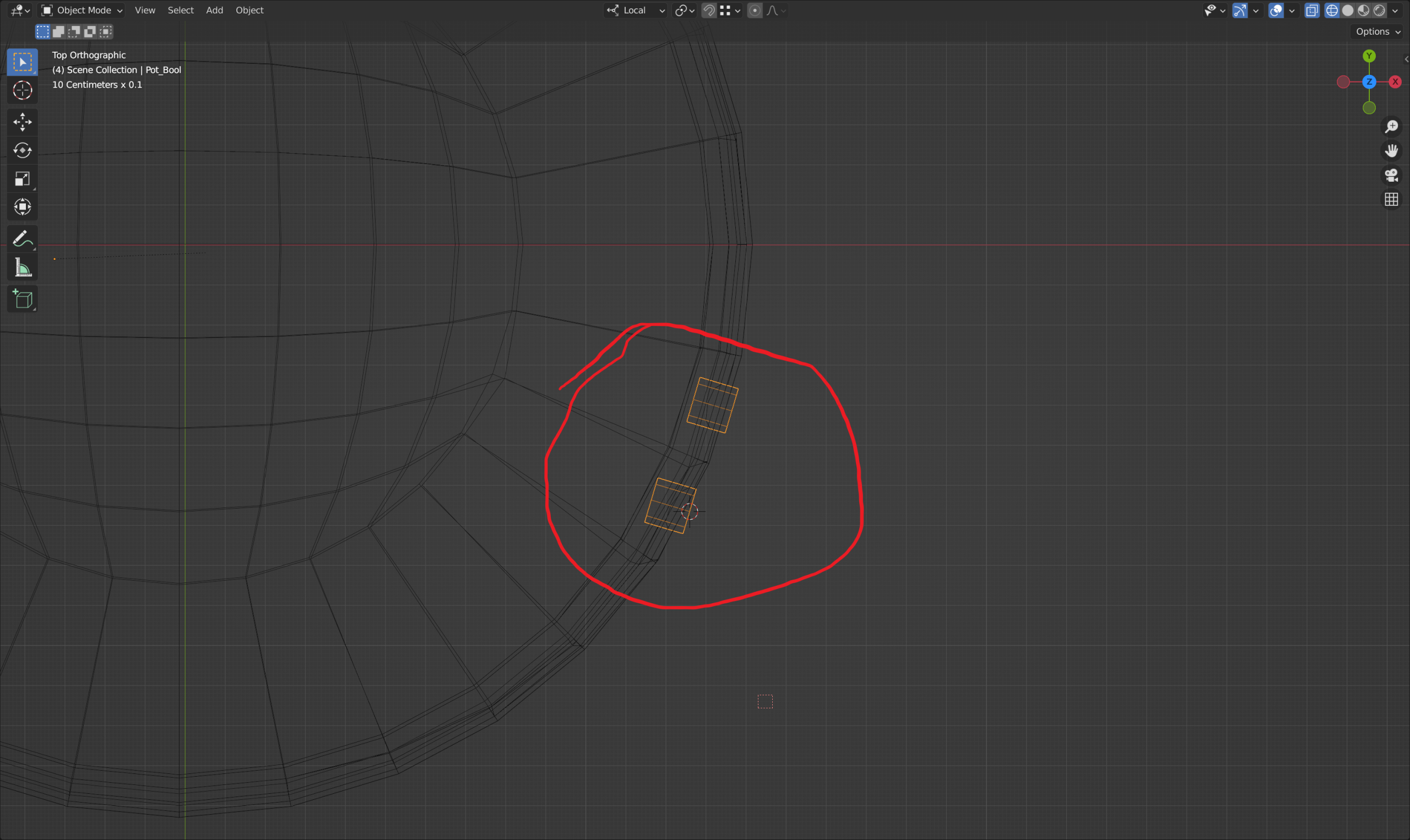
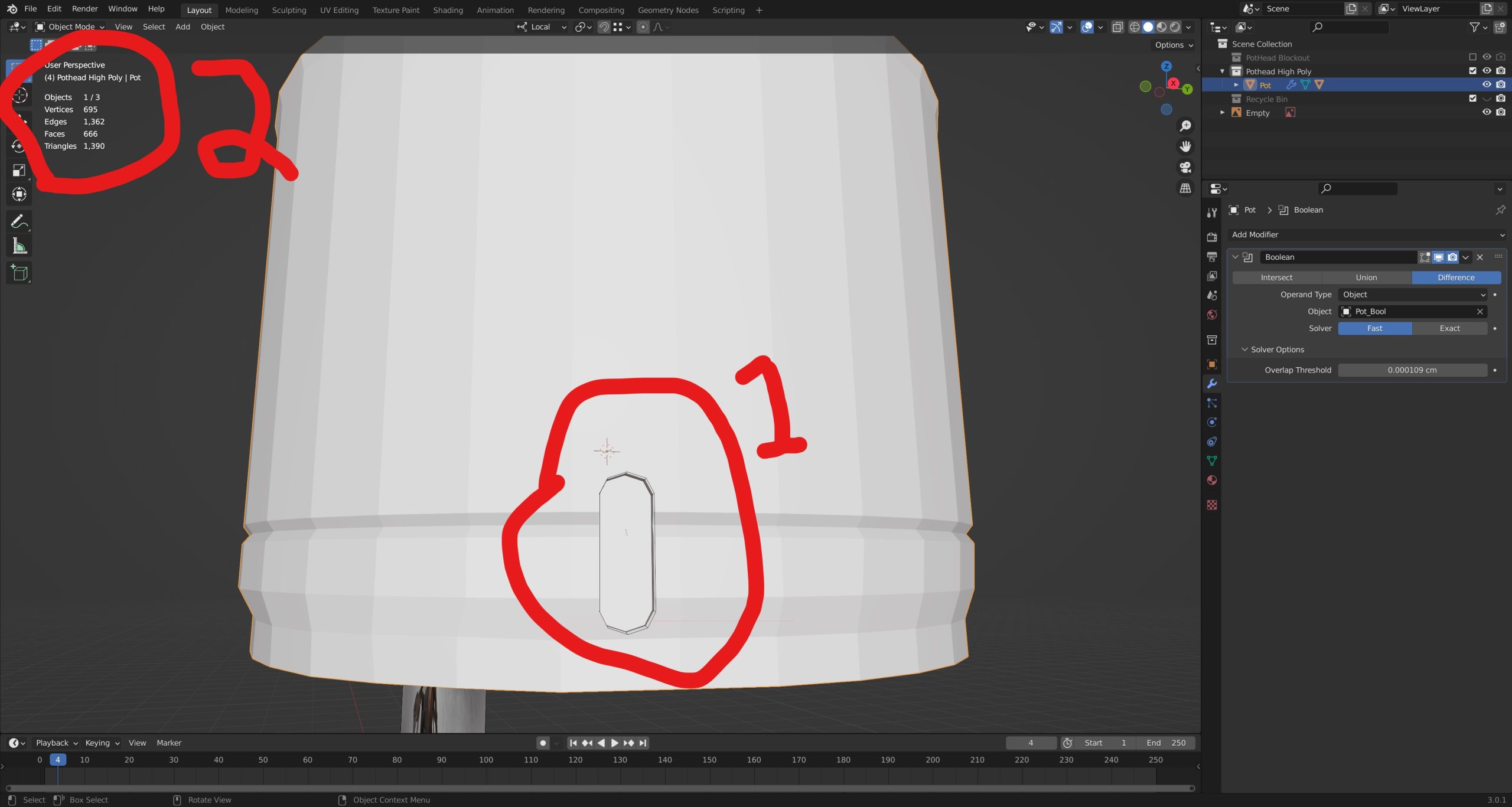
                        The thing that I found strange was the fact that there is only one Boolean modifier(red circle marked with a 1), but the statistics(red circled marked with a 2) show 1 of 3. I will note that I have attempted to duplicate the Boolean a couple times(also red circle marked two, right under user perspective). I am wondering if, when I got rid of the previous Booleans I didn’t do it right. When I removed the previous Boolean modifiers I removed the modifier in object mode, then filled in the holes that were left over manually. My question is: did I miss a step when I removed the previous Boolean modifiers?

                        #72260
                        naiad
                        Participant

                          I guess that your Empty image layer shown on the top right of your screenshot is also counted as 1 object. 

                          So your 3 objects are:

                          1,  Pot;

                          2, Pot_Bool;

                          3, Empty.

                          #72261
                          spikeyxxx
                          Participant

                            @naiad is correct; Empties are also counted as Objects in the Statistics.

                          Viewing 12 posts - 1 through 12 (of 12 total)
                          • The topic ‘Both highlighted objects rotate, when I only want one to rotate.’ is closed to new replies.