
Batch Resizing 4K Textures in Blender and Removing Duplicate Textures
Forum Archive › Batch Resizing 4K Textures in Blender and Removing Duplicate Textures
- This topic has 12 replies, 4 voices, and was last updated 2 years, 1 month ago by
Kwin K.
-
AuthorPosts
-
July 6, 2024 at 10:53 pm #18269
Hello everyone,
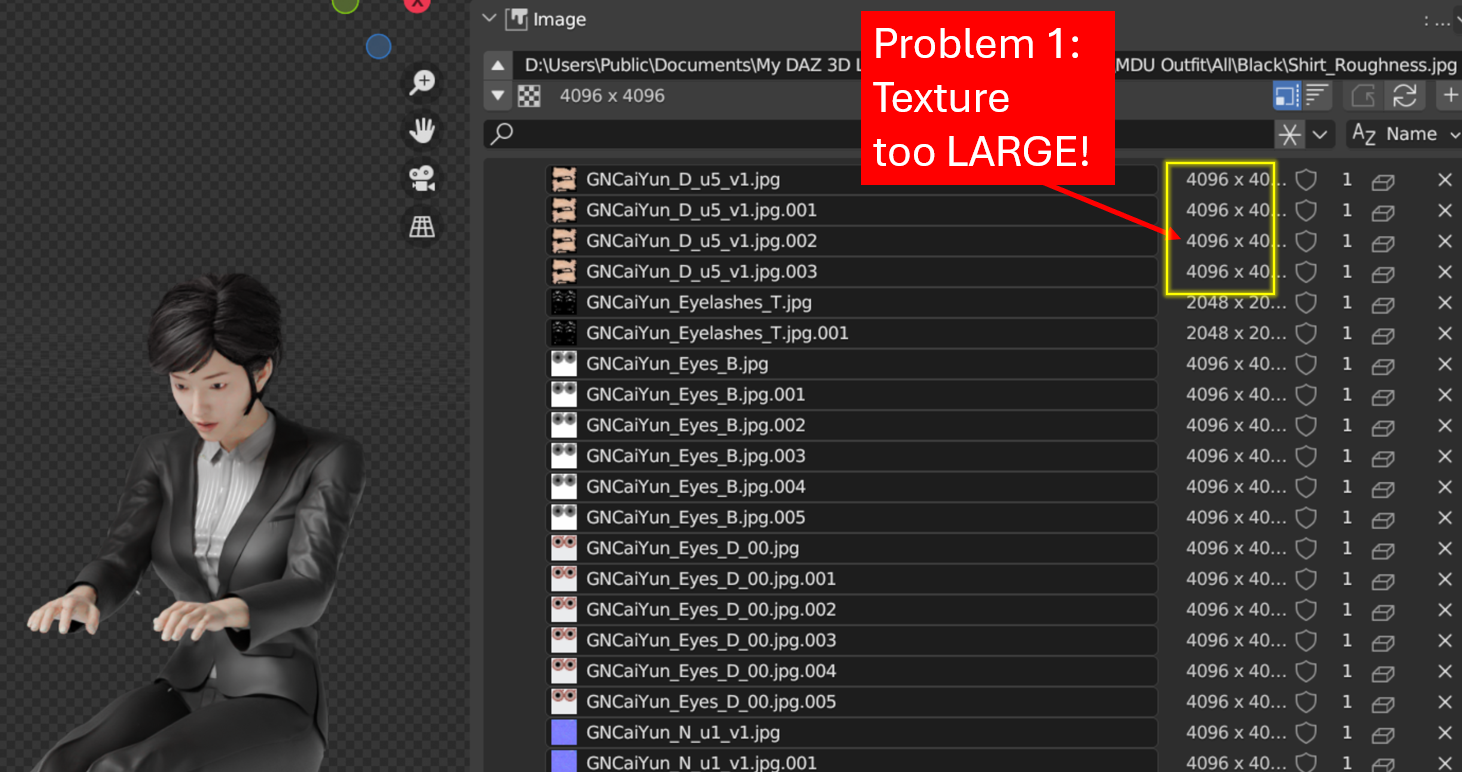
I’m seeking a solution to batch resize all the 4K textures I’ve imported into Blender. These high-resolution textures are unnecessary for my purposes, and I would prefer to work with smaller, lightweight files for a smoother workflow and reduced file size.
PROBLEMS:
1. Batch Resizing Textures:
I’ve imported a model from DAZ, and all the textures are 4K. I’ve tried searching for a solution, but I can only find methods to resize images one by one. Does anyone know how to batch resize these textures?2. Removing Duplicate Textures:
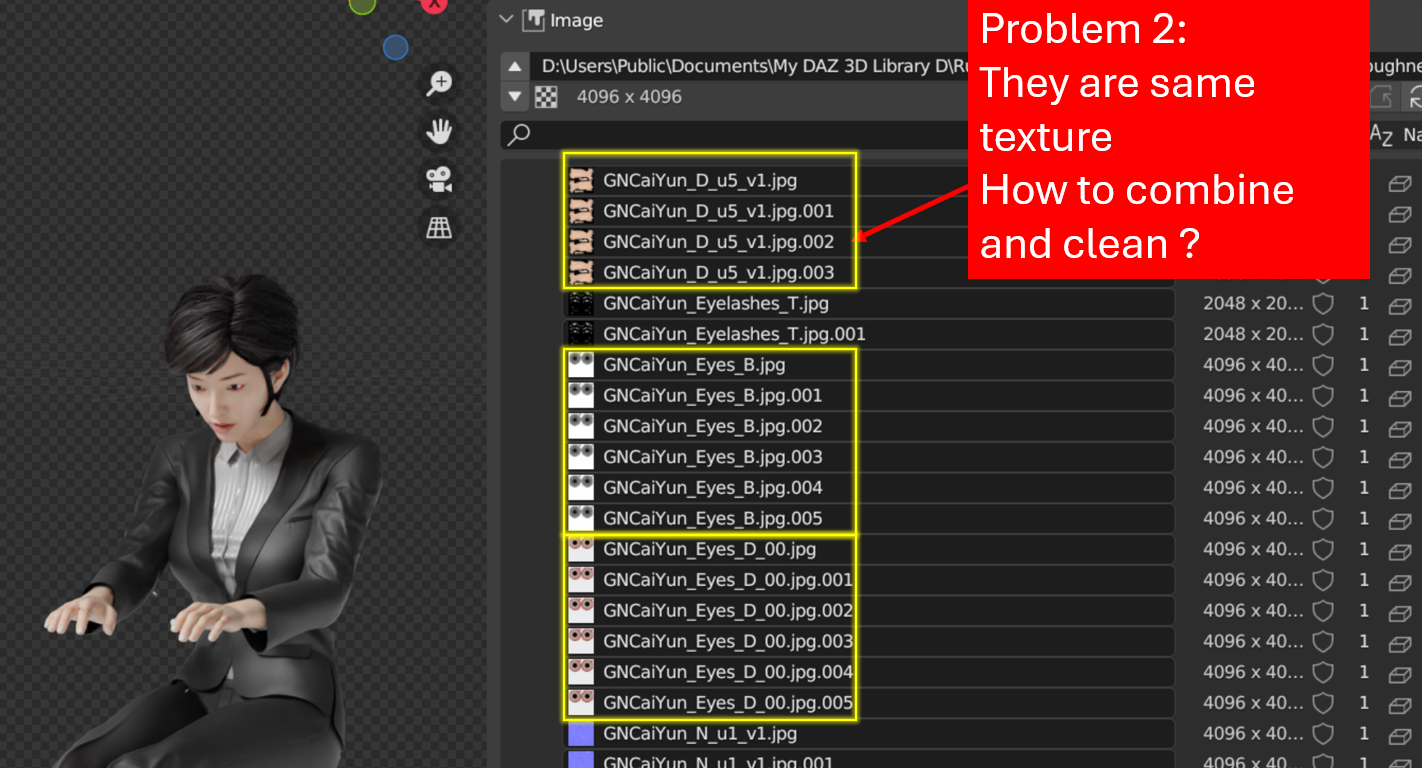
When I import a second model from DAZ, the same textures are automatically assigned new numbers, creating duplicates. Is there a way to clean up these duplicate textures?Any help to improve my workflow would be greatly appreciated.
Thank you very much.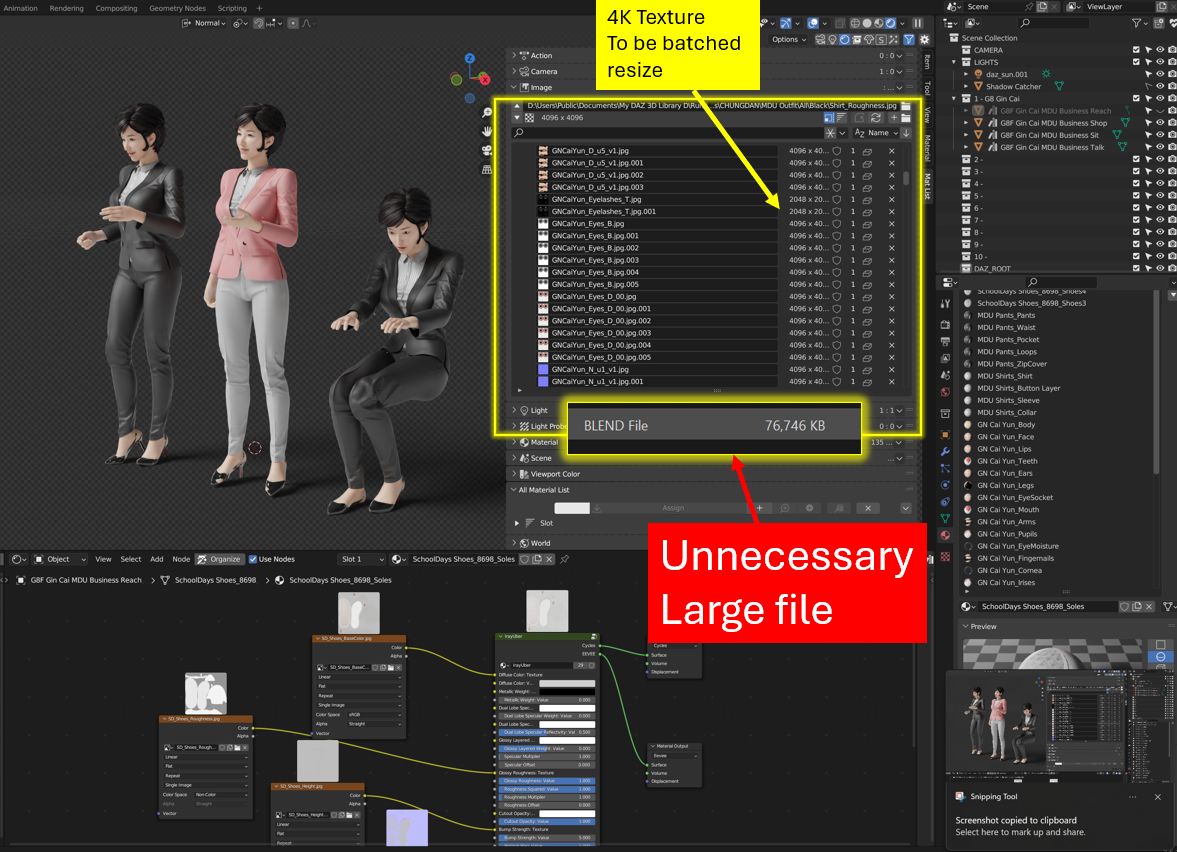
 July 7, 2024 at 8:06 am #87281
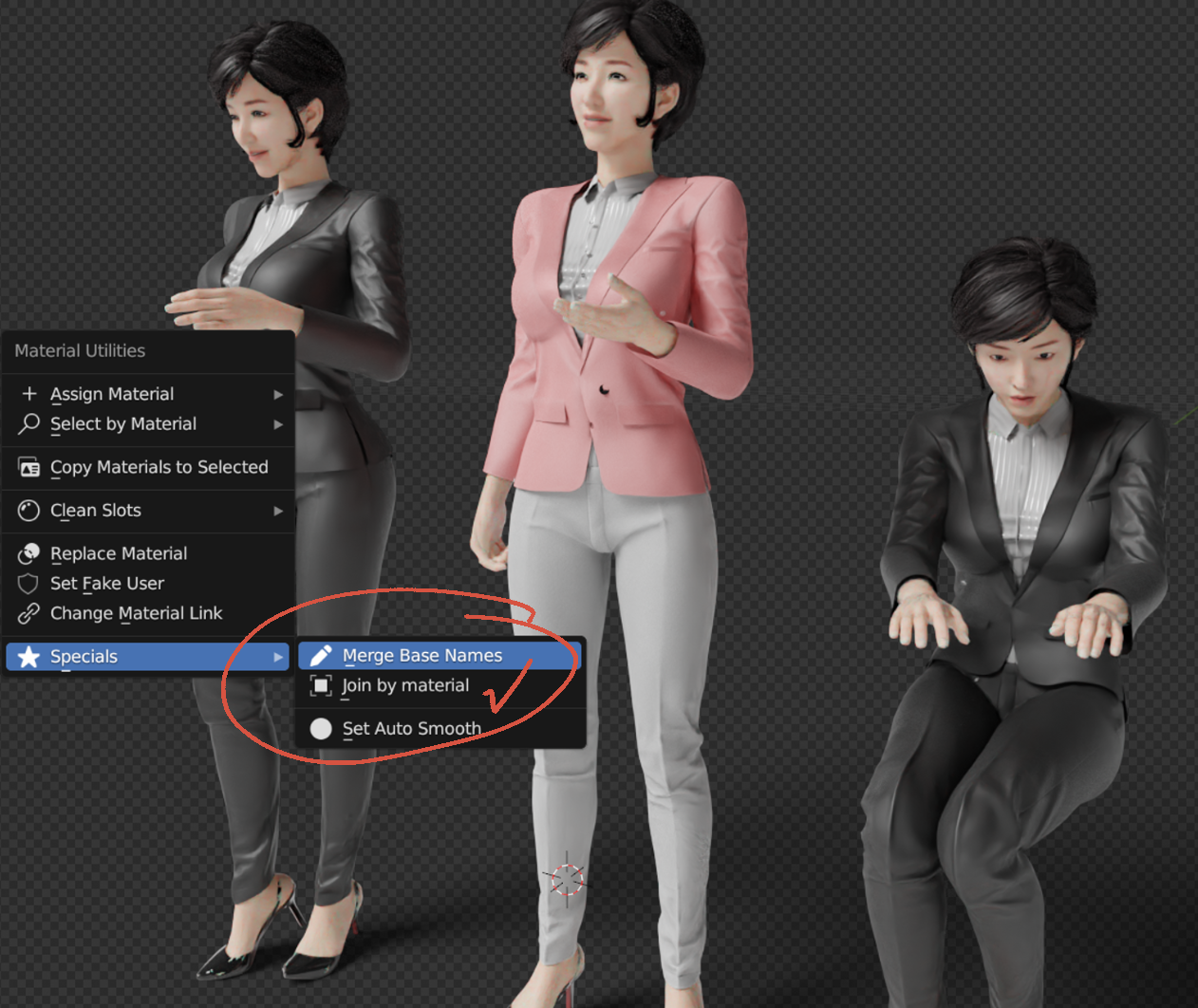
If I’m Not mistaken, the numbered textures is caused from multiple materials. If you look at the materials you will see [Materialname].###. There will be a base material without the numbers usually. Go to preferences->Addons and enable material utilities. Then with mouse cursor in the 3D Viewport press Shift+Q->Specials->Merge Base Name. Then select the material base name.(The material without the numbers.) Click OK. You may have to do this with multiple material depending on how the materials are setup on the models. This will remove the numbered materials and replace them with the base. Note: The textures are inside the material. Now to clean everything up you can save and reload a few times or you can goto File->Clean up->Recursive Unused Data-Blocks. This will remove the unused materials along with the textures assigned to them.
July 7, 2024 at 8:24 am #87282As for batch processing the images you can use Gimp at the command line batch process or download the Batch Image Manipulation plugin called Bimp. Note:I haven’t used it, but I have it installed incase I need it. You can download the installer if you’re on windows or mac. For us Linux users we have to manually install it. Once installed, click File->Batch Image manipulation. If I remember correctly you can select the images or the folder with all the images. Then you add the process you want. In your case the resize. you can resize by Pixel or by percentage. Since these are textures they will be square(Same height and width). Remember a base 2 works best for GPUs. 1K(1024), 2K(2048), 4K(4096) or smaller like 512 and 256.
July 7, 2024 at 9:50 am #87283Hi Dwayne,
Thank you very much for your help. Your guidelines have been very helpful. I just learned about merging duplicate materials today.
1. Merge Duplicate Materials:
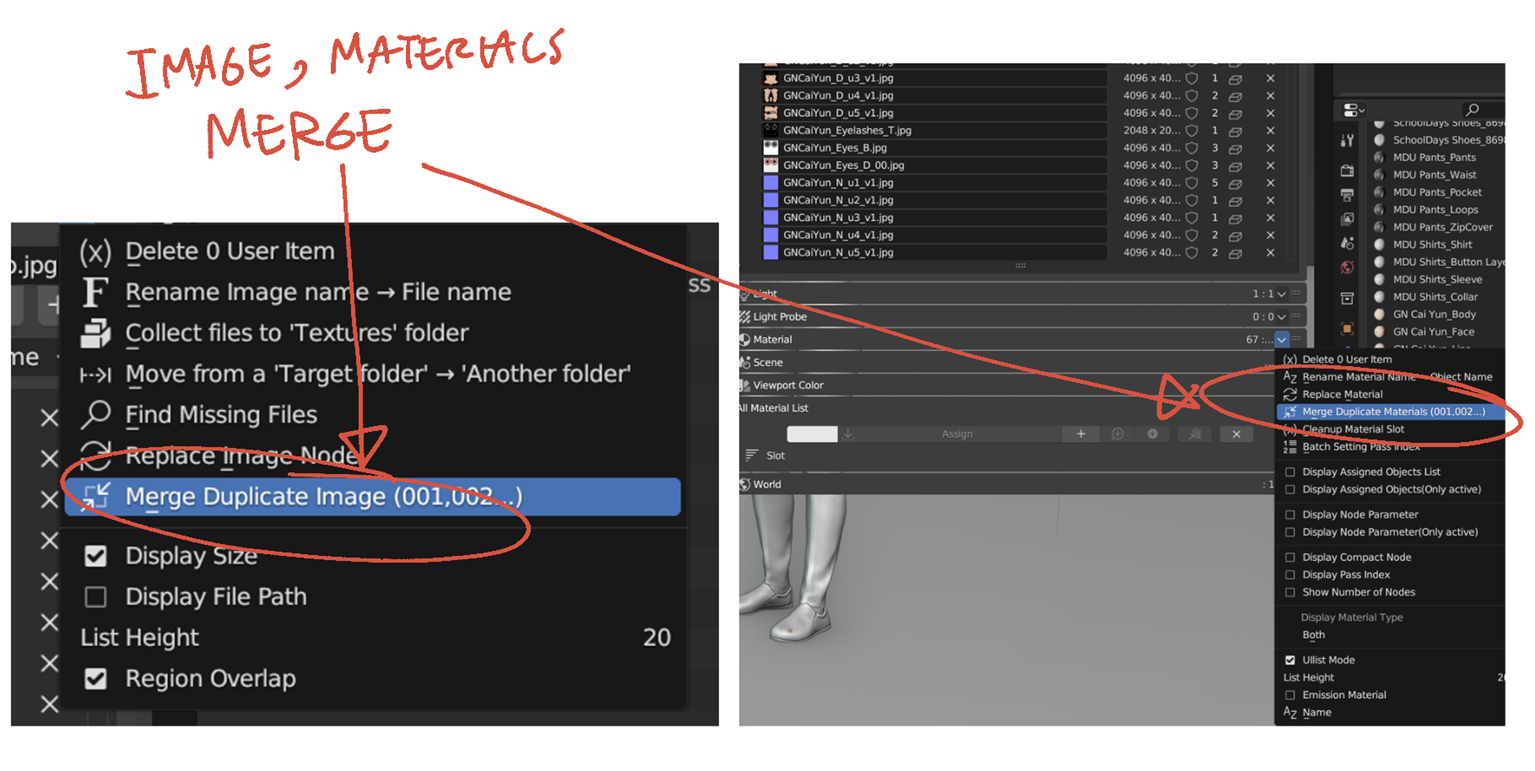
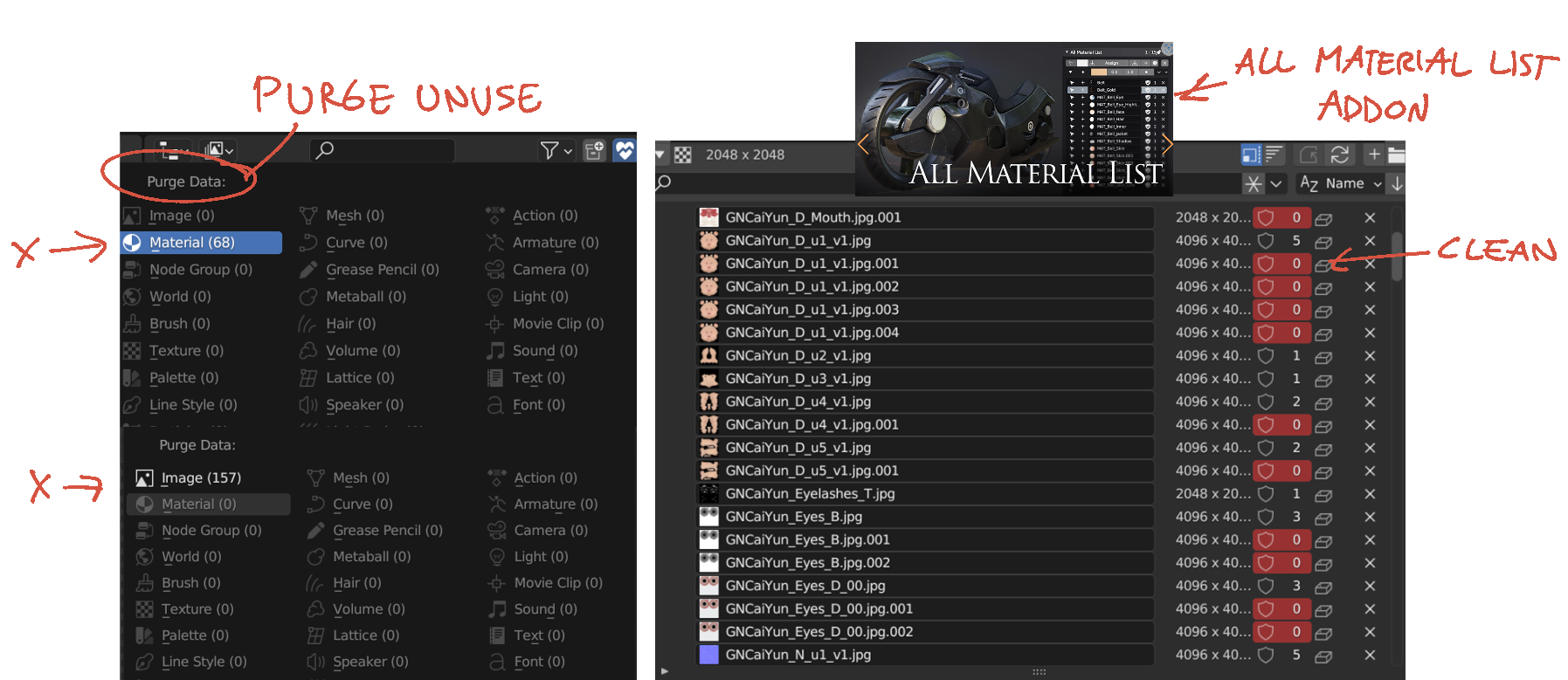
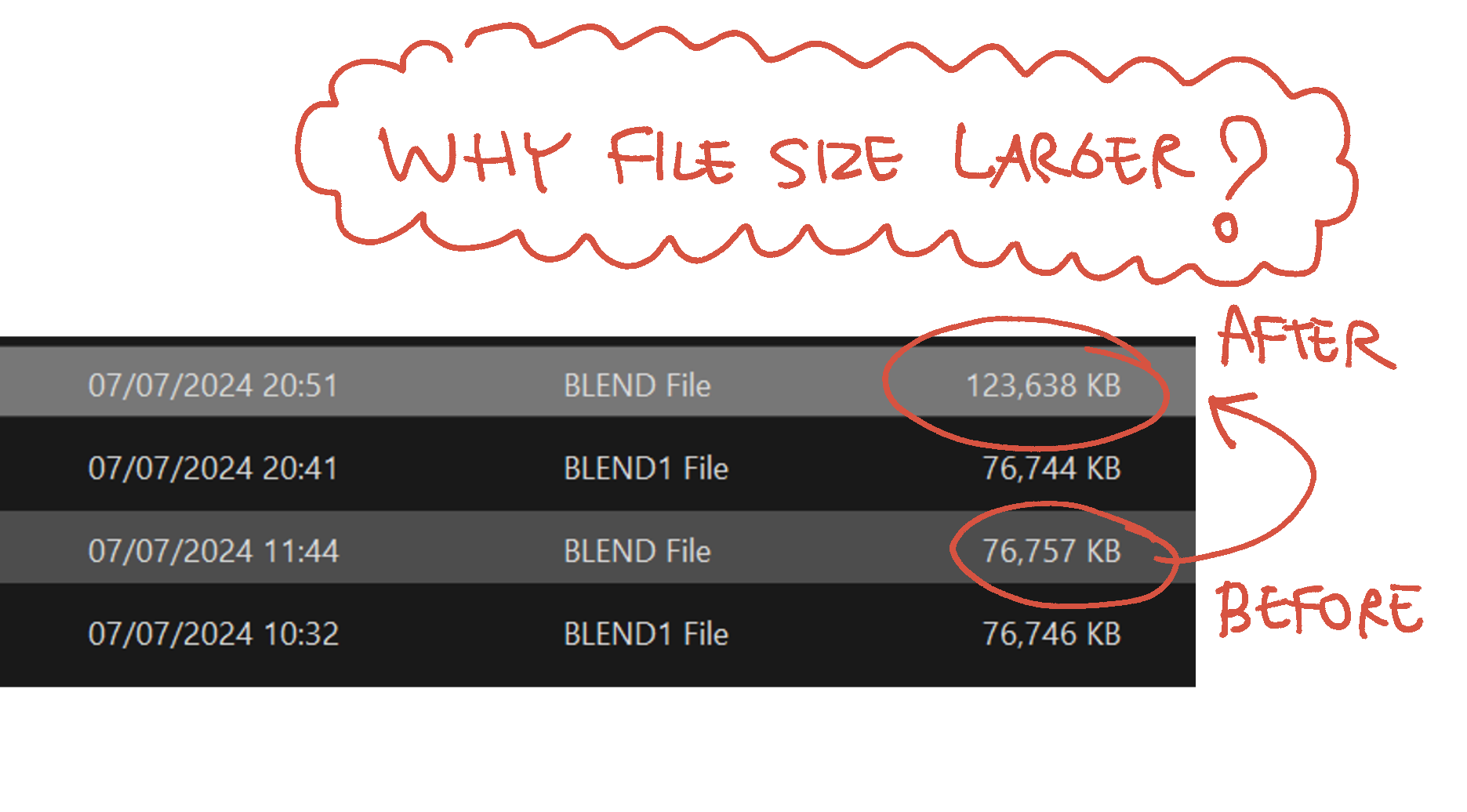
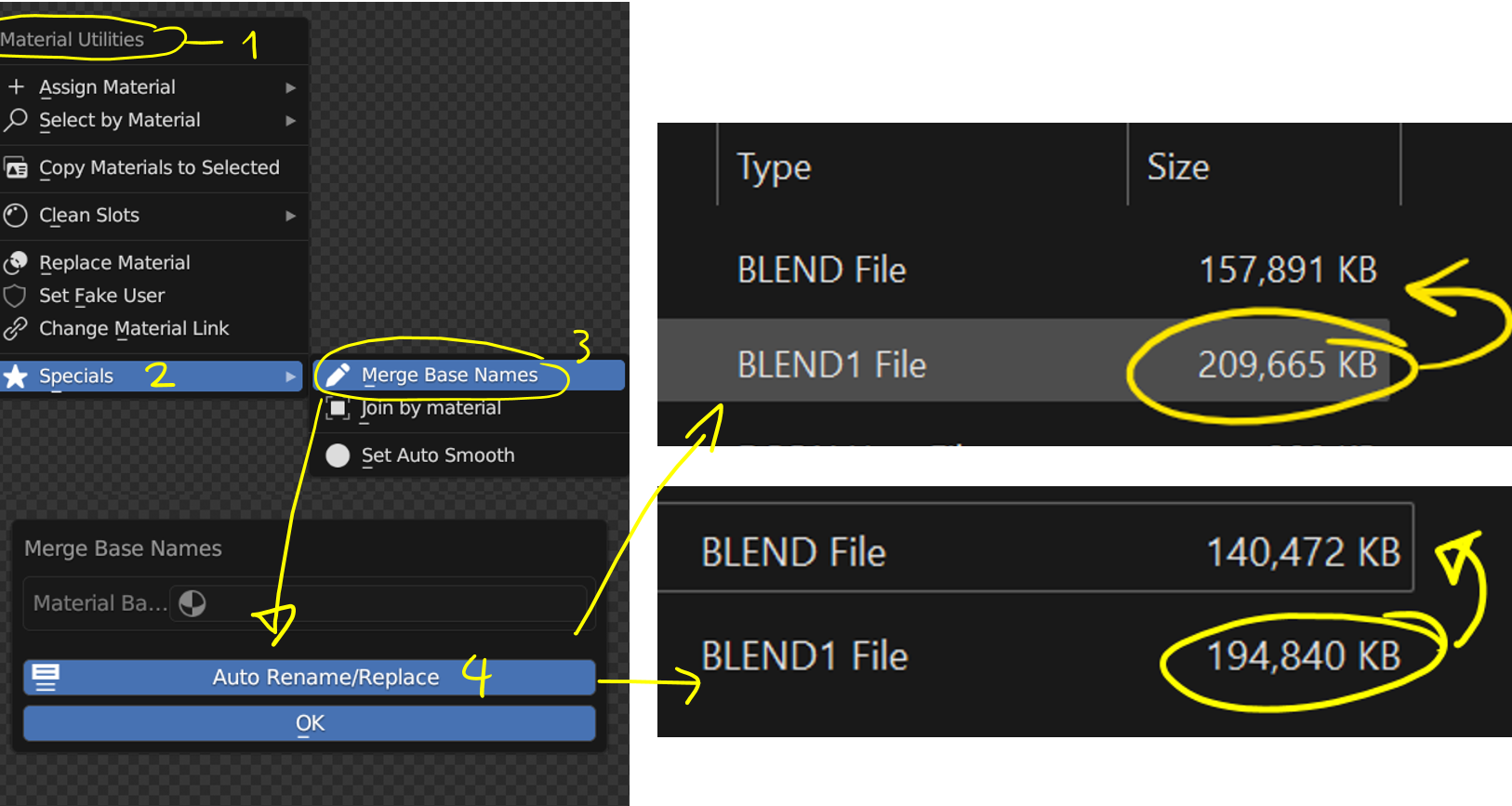
I have tried using “Material Utilities” and another Add-On called “All Material List” to merge duplicate materials and images. However, after purging unused materials, I noticed that the file size almost doubled instead of becoming smaller and lighter !. Do you have any insights into why this might be happening?2. Batch Resize Textures:
Thanks for sharing information about BIMP. I have checked it out and will test the file size after resizing image textures with another test file. I noticed that Blender links textures to the original Daz library file instead of creating another copy. If I resize the entire folder, I might lose the original texture quality and won’t be able to revert to a higher quality if needed. I will test with another model first to see if performance can be improved after resizing textures.Thank you very much for your time answering this topic.
1. MERGE BASE NAMES
2. PURGE UNUSE
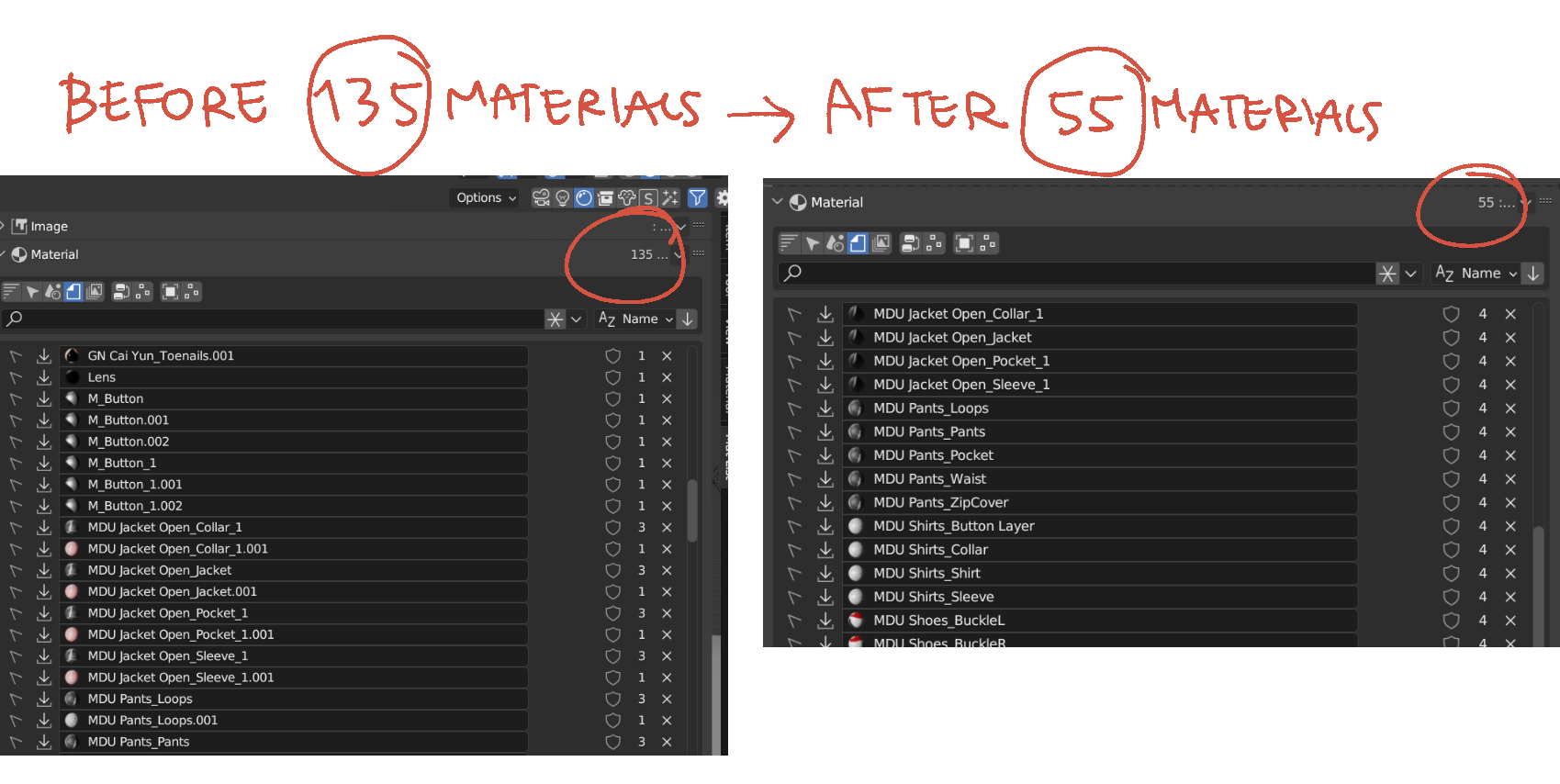
3. BEFORE VS AFTER
4. The file size increased after deleting unused duplicate materials !
 July 7, 2024 at 7:16 pm #87284
I don’t know about Blender, but Photoshop lets you make an “Action” and it repeats it over and over for a bunch of files and lets you do that super fast. I know PS is not free but it’s a solution. You can unpack all the files from Blender, open them in Photoshop and with one click for the Action and done.
July 7, 2024 at 7:57 pm #87285Yeah it’s a bug in blender that happen sometimes. The dev team are still working on it. To work around it after you save just close blender, then reopen. you can select the file thru the splash screen. Then save it again. It should be smaller after that. You can repeat the closing and saving another time. Usually twice is enough to clear out all the RNA and buffered items. In worst cases it takes 3 times.
July 7, 2024 at 8:01 pm #87286Thank you, Omar.
I also have a Photoshop subscription. I think Blender may has an add-on or feature for resizing textures.
However, if Photoshop or GIMP is better suited for this task, I’ll use one of those.By the way, I’m puzzled why my file size doubled after merging duplicate materials and cleaning up.
It’s now twice as large, which makes me question if cleaning materials and textures is efficient.How do you organize your materials when your projects grow larger?
In most cases, I need quick conceptual designs to show clients rather than final renders.
During the design process, I don’t need high-resolution 4K textures and prefer faster viewport rendering and a lighter model for easier manipulation.
What are some good practices for managing my scene in this scenario?Thank you very much.
July 7, 2024 at 8:14 pm #87287Yeah in most cases 1k textures are all that is needed with the exception of normal maps which usually 2K is usually enough. I personally create a separate blend file for each model and make them assets and save in an asset folder. Then depending on what I need to do I use one of these options for importing into a working blend file.
1. Use Append(Reuse Data). That way Blender combines the materials and textures that have the same name for you. Saving a lot of work. I use this if I’m going to be sending it to someone that isn’t use to the next method.
2. Use Link. This creates a link to the blend file. if you send this to someone you have to send all the blend files and maintain the folder/directory structure.
July 7, 2024 at 8:20 pm #87288Hi Dwayne,
Thank you for your response. I have tried opening the file from the splash screen several times, but the file size remains unchanged.
I will experiment with this “merge duplicate material” workflow a bit more and compare it to other projects. If I find anything interesting, I’ll provide feedback here.Thanks again for your time!July 7, 2024 at 8:27 pm #87289Hi Dwayne,
Thanks for sharing your workflow.
Noted:
1. Use 1K textures and 2K normal maps for most cases.
2. Create smaller asset files and use append to add them to the working scene.
I will try this approach.
Thank you!
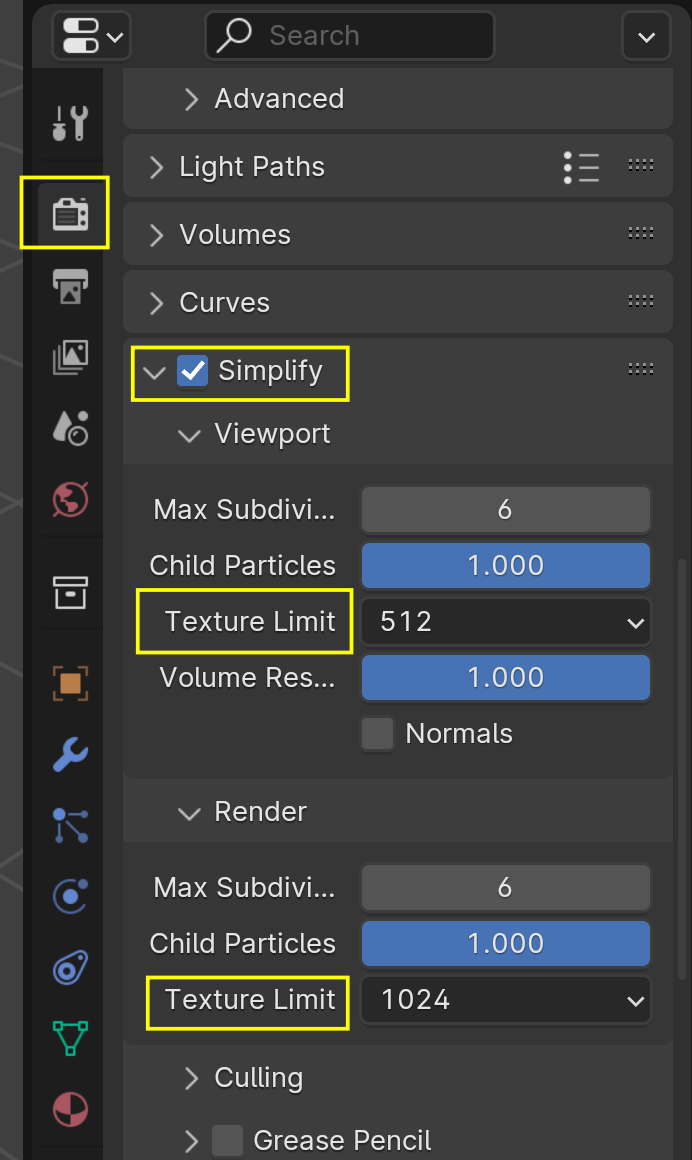
July 8, 2024 at 12:39 am #87290If you don’t care about your file size, you can also use lower resolution Textures for Viewport and Render, by using Simplify:
 July 8, 2024 at 5:49 pm #87291
Thank you Martin for this screenshot. I will set up my render Simplify as well 🙂
July 15, 2024 at 7:17 am #87292Hi Dwayne,
Just wanted to thank you for teaching me Merge materials. After further testing, I’ve found that Material Utilities (Shift+Q) is very helpful for cleaning up duplicate textures and reducing file sizes. I’m glad I asked about this, as it will now be an new essential part of my workflow.
-
AuthorPosts


- The topic ‘Batch Resizing 4K Textures in Blender and Removing Duplicate Textures’ is closed to new replies.