Gold Nugget #1: Dedicated Edit Preferences Workspace
I can’t tell you how many times I go to my edit preferences. I also can’t tell you how many times I get annoyed by my pop-out window of Edit Preferences disappearing on me when I am not done with it. Since the release of custom Workspaces I found a great solution to my problem!
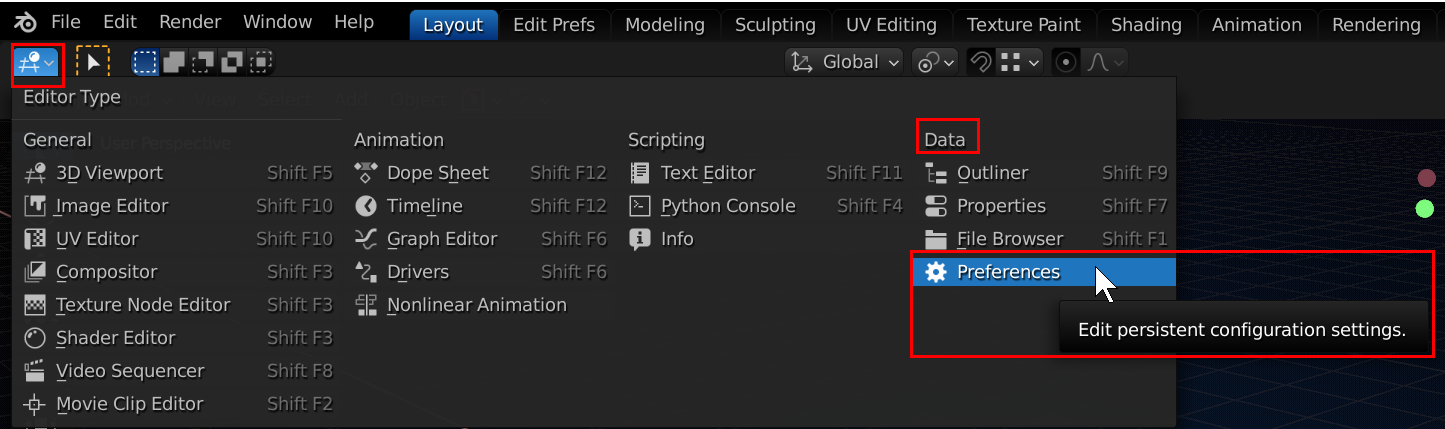
Step 1. Open a new instance of Blender and start on a new file.
Step 2. Duplicate the Layout Workspace by right clicking on it and selecting Duplicate
Step 3. Double click on the duplicate Workspace and rename it to something like “Edit Prefs” or similar.
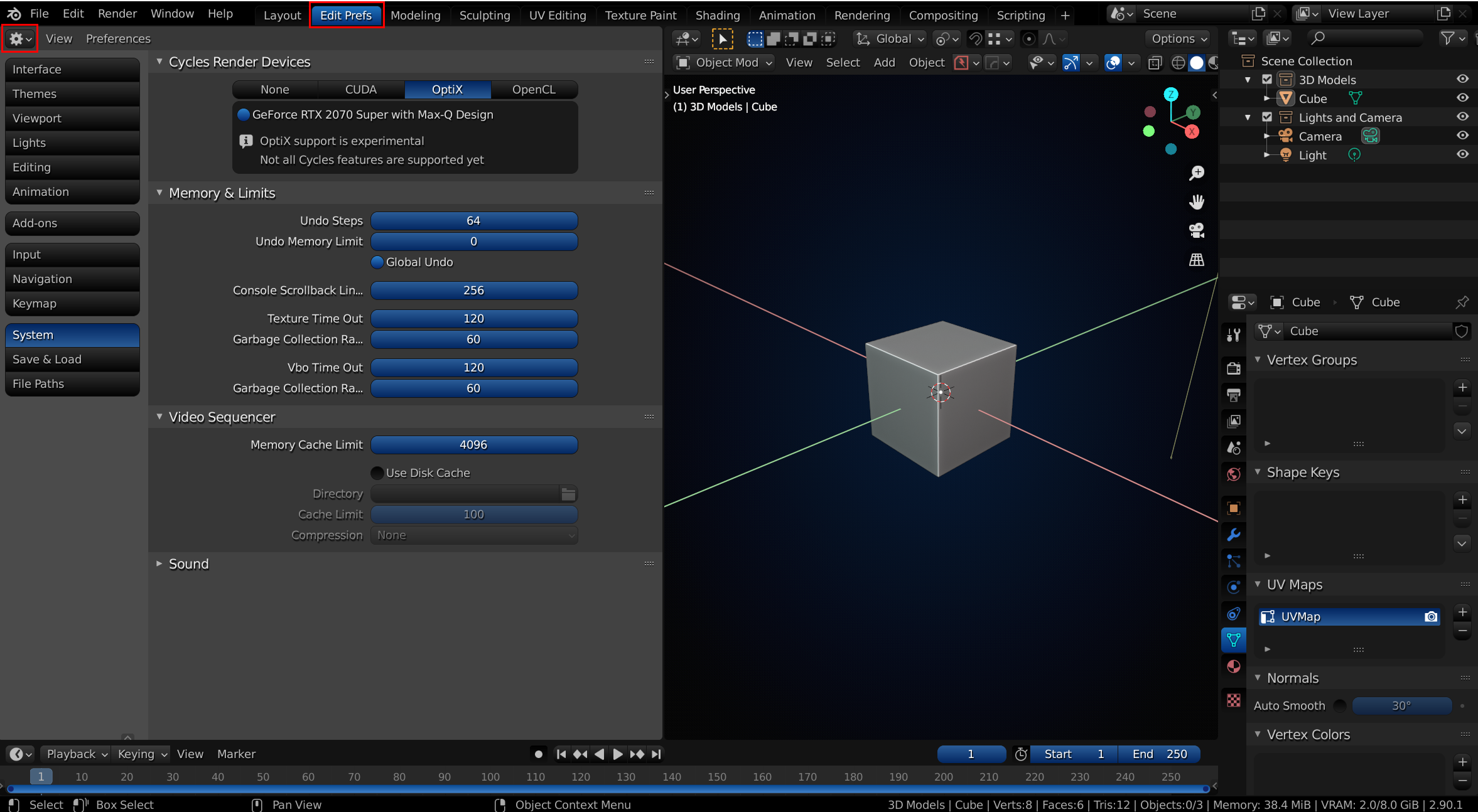
Step 4. Change the Editor Type to Preferences.
Step 4. Optional. Split the window and change the second half to whatever editor type that you currently want. I typically leave the second screen as the 3D viewport so I can see changes live while I am editing my preferences.
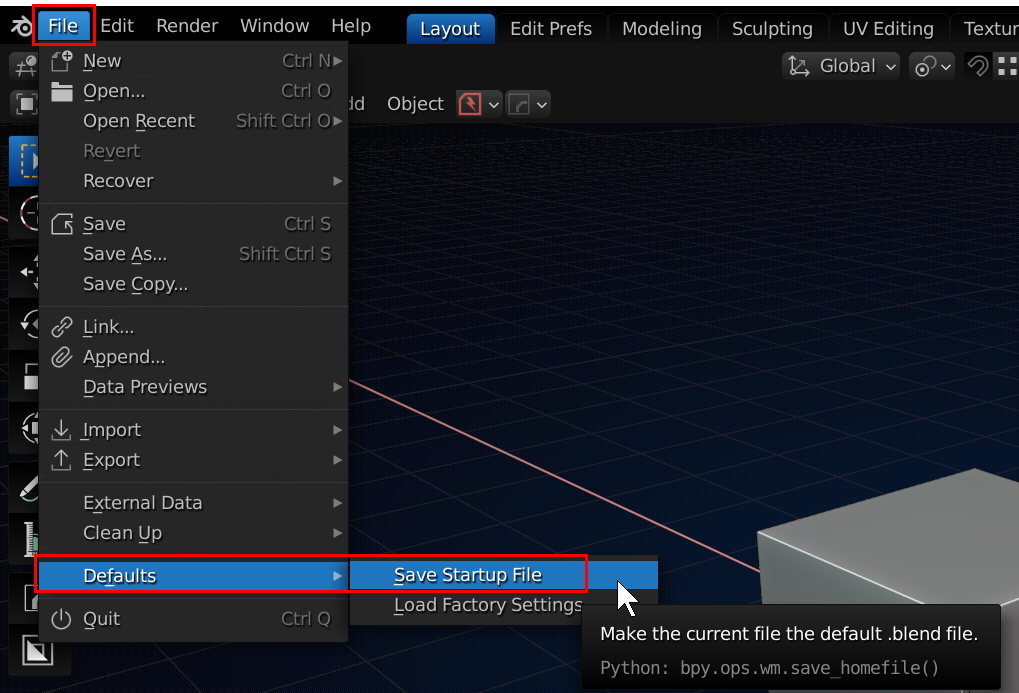
Step 5. Click on the Layout workspace again and save the startup file by clicking File, then Defaults and then click Save Startup and confirm.