
Reply To: Blanchsb’s Blender Nuggets
Forum Archive › Blanchsb’s Blender Nuggets › Reply To: Blanchsb’s Blender Nuggets

Gold Nugget #2: Easy Flipped Normals View Setting (always on and only there when you need to know!)
We’ve all been there. Working and plugging away on our beloved project. Then it comes time to add a Subdivision Surface modifier, or a bevel modifier and the cookie starts to crumble in our hands. After lots of troubleshooting and maybe a forum post or two we find that we have fallen victim to the ever elusive flipped normals! No longer will we be tricked thanks to this new treat! This one is actually credited to Josh Grambell from his video on his custom Blender Settings. Gold nugget #1 comes in handy for implementing Gold Nugget #2.

Step 1. Open a new instance of Blender and start on a new file.
Step 2. Go to your Edit Preferences and click on the Themes tab and open up the 3D Viewport section.
Step 3. Find the Face Orientation Back and Face Orientation Front settings.
Step 4. Set the alpha on the Face Orientation Front to 0.
Step 5. Set the alpha and color on the Face Orientation Back to whatever you please. (I personally like a dark pink/red with 0.75 alpha).
Step 6. Save the Preferences
Step 7. In your 3D Viewport click on the Viewport Overlays and turn on the Face Orientation.
Step 8. Click on the Layout workspace again and save the startup file by clicking File, then Defaults and then click Save Startup and confirm.
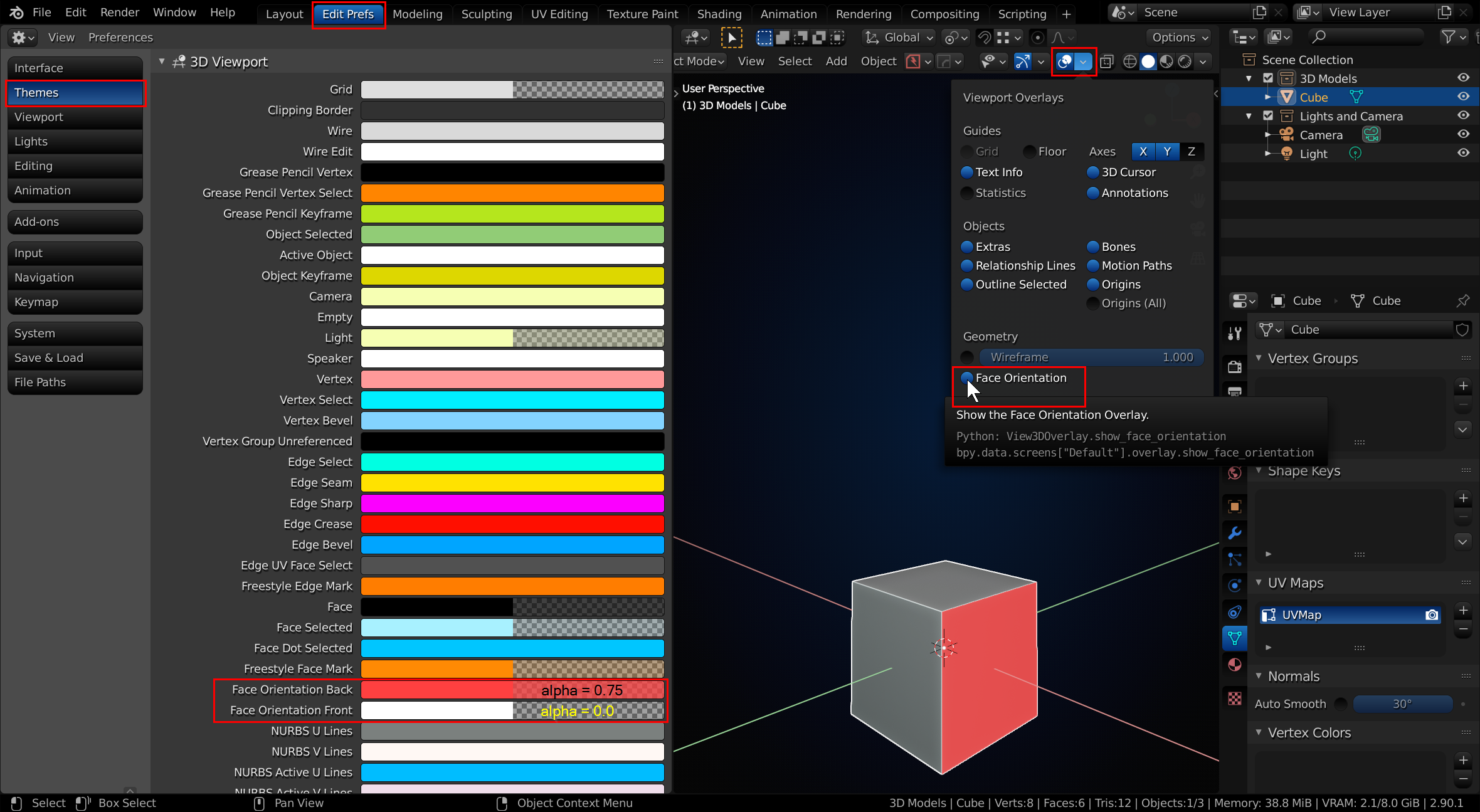
Now anytime a normal flips without your permission you’ll know instantly and can flip it back with Shift + N.