
Reply To: Best way to bevel and subdivide
Forum Archive › Best way to bevel and subdivide › Reply To: Best way to bevel and subdivide

Hey @tbrbn !Thanks for the input.First of all, great idea to just use the bevel modifier without subdiv.
I’m so accustomed to think: Use a bevel modifier and a subdiv after that to get it smooth. But in this case it’s really enough to increase the bevel segment number to make it look good. So that solves that I guess ( Have to test it at home with my actual model, but for my test thingy I built quickly this works)
About your other tips:
I also had autosmooth on my mesh before as this seemed to fix a lot of shading errors I had before.
I just created a small, simplified test and am still wondering about a few things, maybe you can get me less confused.
This is the test I used. The mesh is set to smooth and Autosmoothing is on.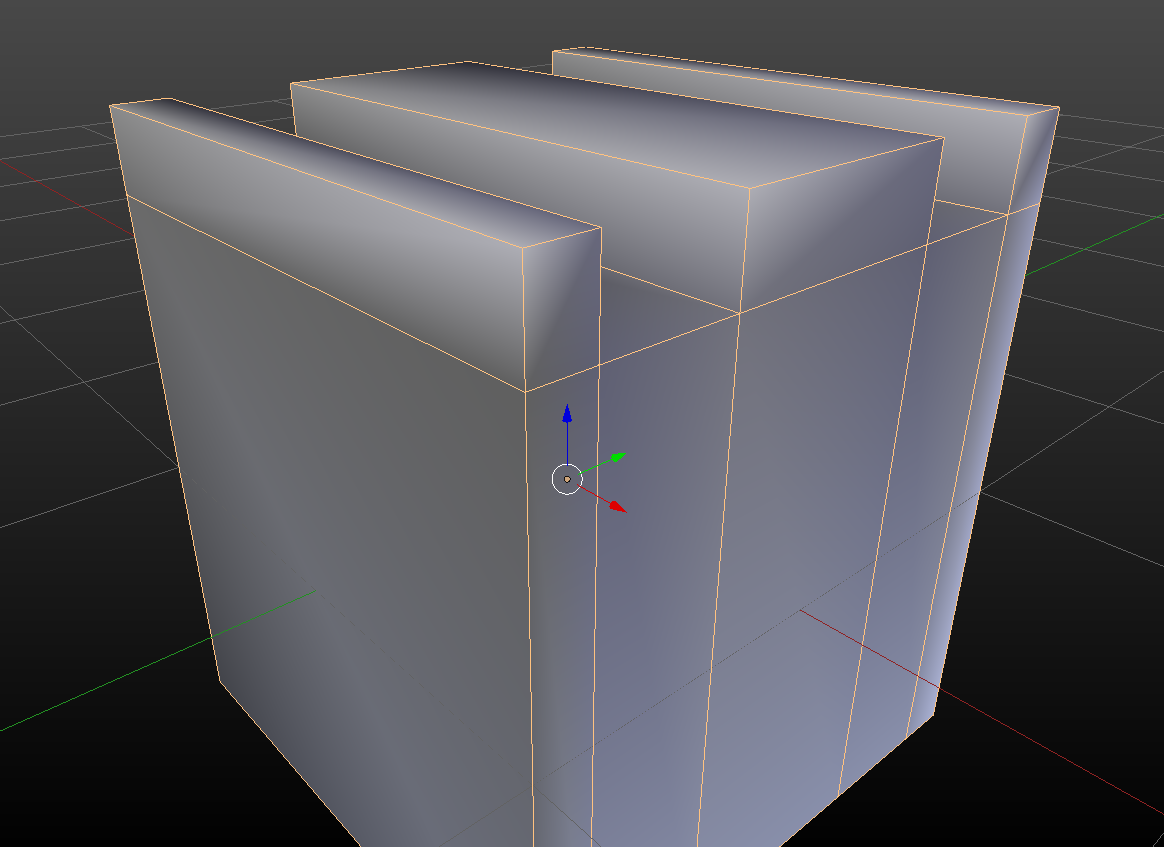
I added a Bevel modifier with 3 segments. It looks good so far.
The corners where 5 edges meet actually look a little bit funky, not sure if that’s avoidable?
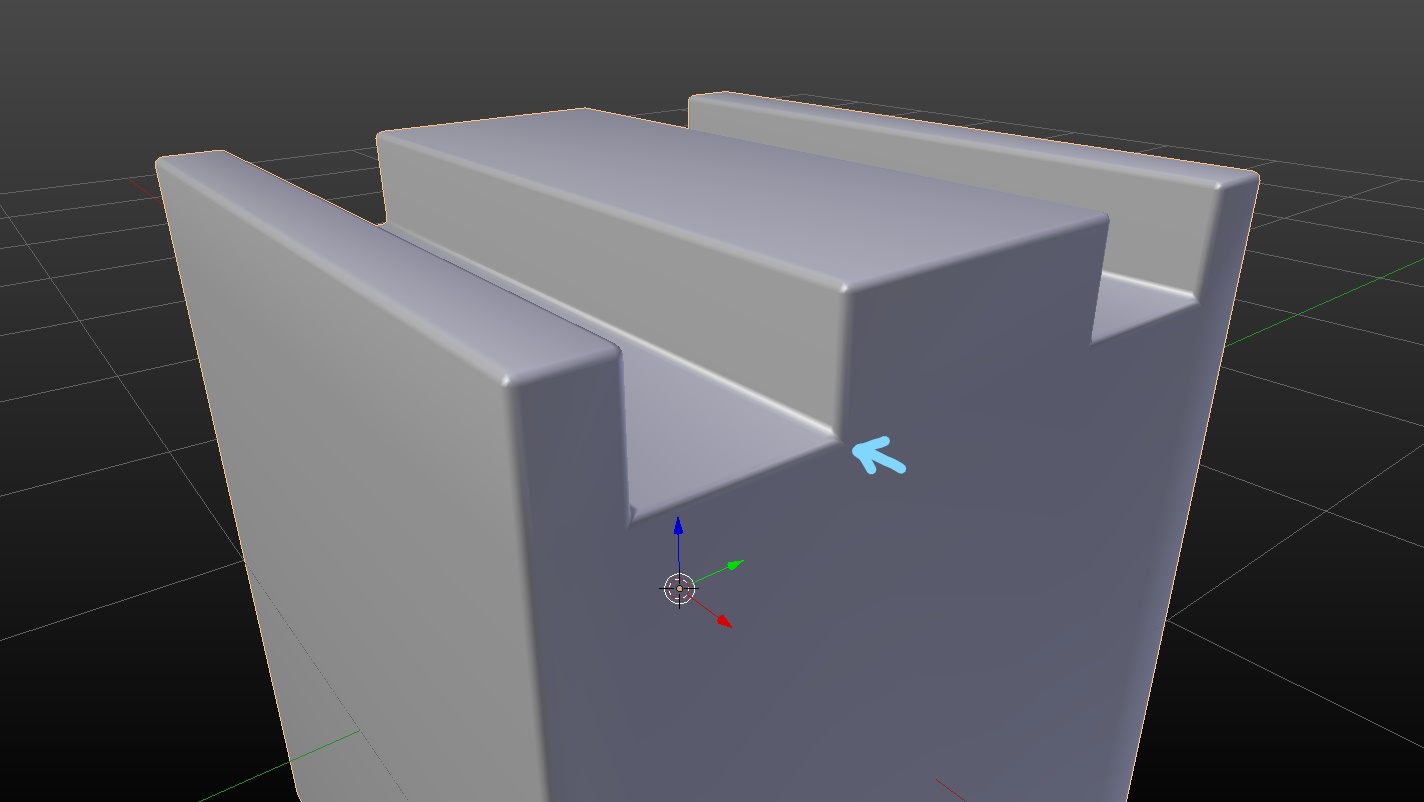
I also tried to mark the beveled edges sharp as shown in you video
(Select 1 beveled edge, select same-> bevel -> mark sharp), which results in some interesting shading: 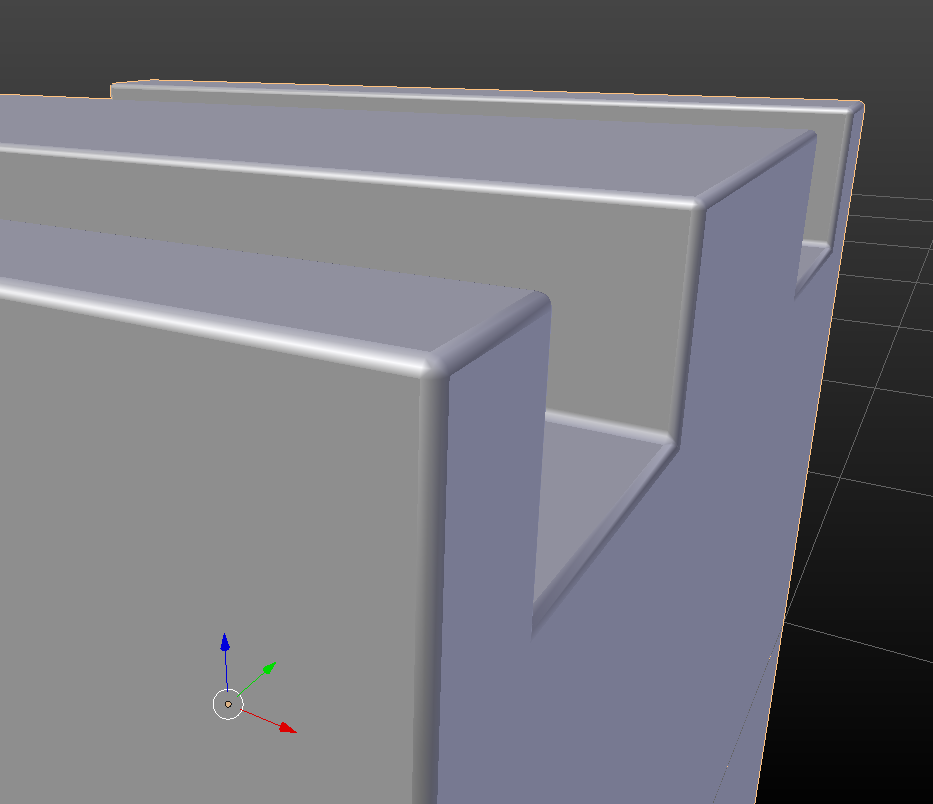
Not sure if I’m missing something here.
Also even though I’m probably not going to use the subdivision surface modifier here I tried to apply one with 2 subdivision levels.
This happens then: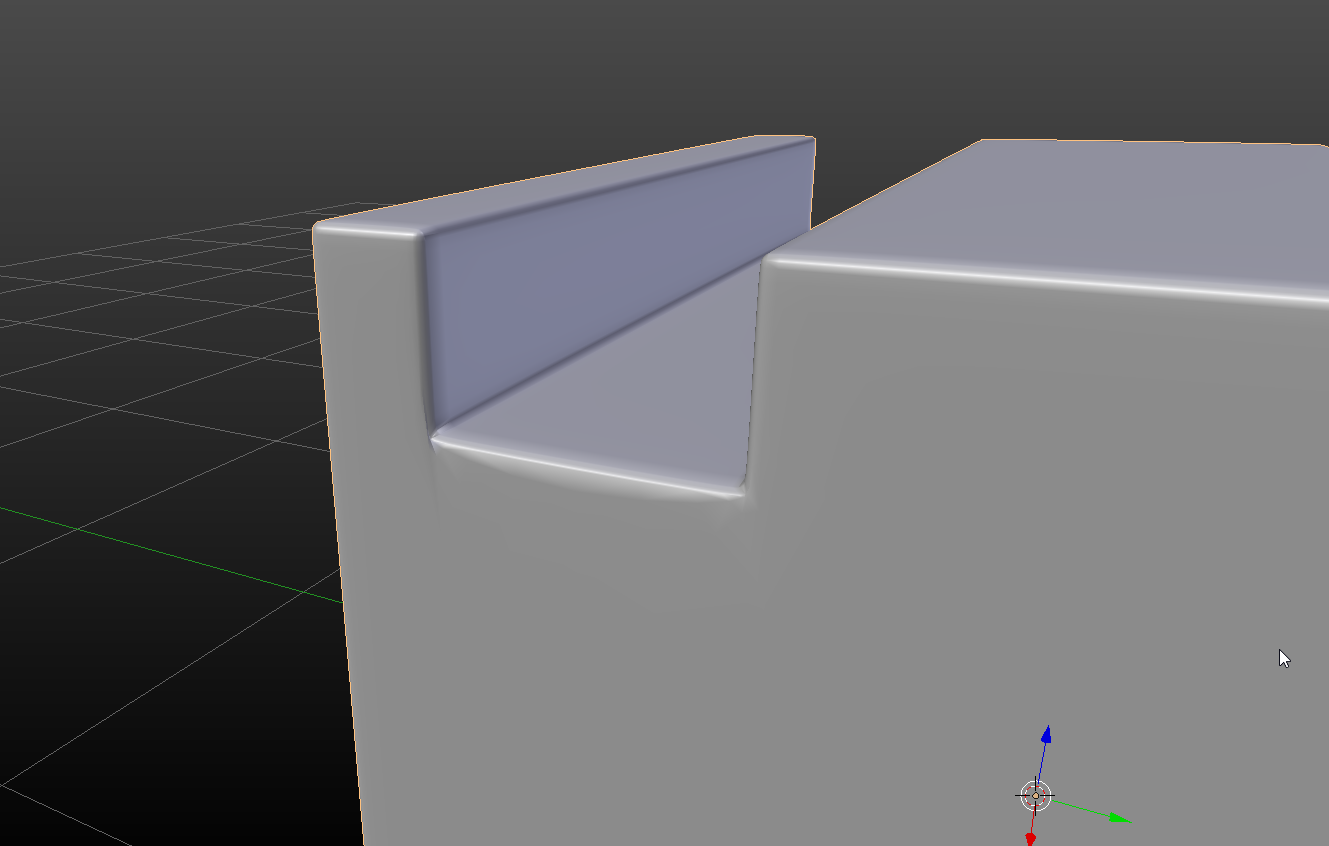
Out of curiosity and for future projects: Do you have any idea what causes this and how to avoid it?
About your comment about the modifier order, you’re right, but I’m always using bevel modifier first and subdiv afterwards 🙂
Any help or advice would be appreciated, I’m always eager to improve / learn new things 🙂
Cheers
Daniel