Hi @dbro0808 ,
Let me try to give a better explanation. Auto means you are giving away some control; you let Blender decide which Faces are Shaded Smooth and which are Shaded Flat. This is solely done by looking at the angle between Faces (or easier to imagine: look at the angle between the Face Normals of adjacent Faces) and if that angle is smaller than the set (threshold) Angle, it will be shaded Smooth.
In the example of the dice, the angle between the ‘flat Faces’ and where the ‘dimples’ start is quite small. There are several ways to overcome this and the easiest way is, like I said to lower the threshold Angle in the Autosmooth.
You can also make changes to the Geometry of the Mesh (increasing the angle of the outer circle by moving the ‘dimples’ a bit deeper, or making an extra ring around the ‘eyes’ *).
Or set the Object to Shade Smooth (not Auto Smooth) and in Edit Mode, Select the ‘flat Faces’ and go to Object > Face > Shade Flat (or just CTRL+F > Shade Flat).
This gives a great result:
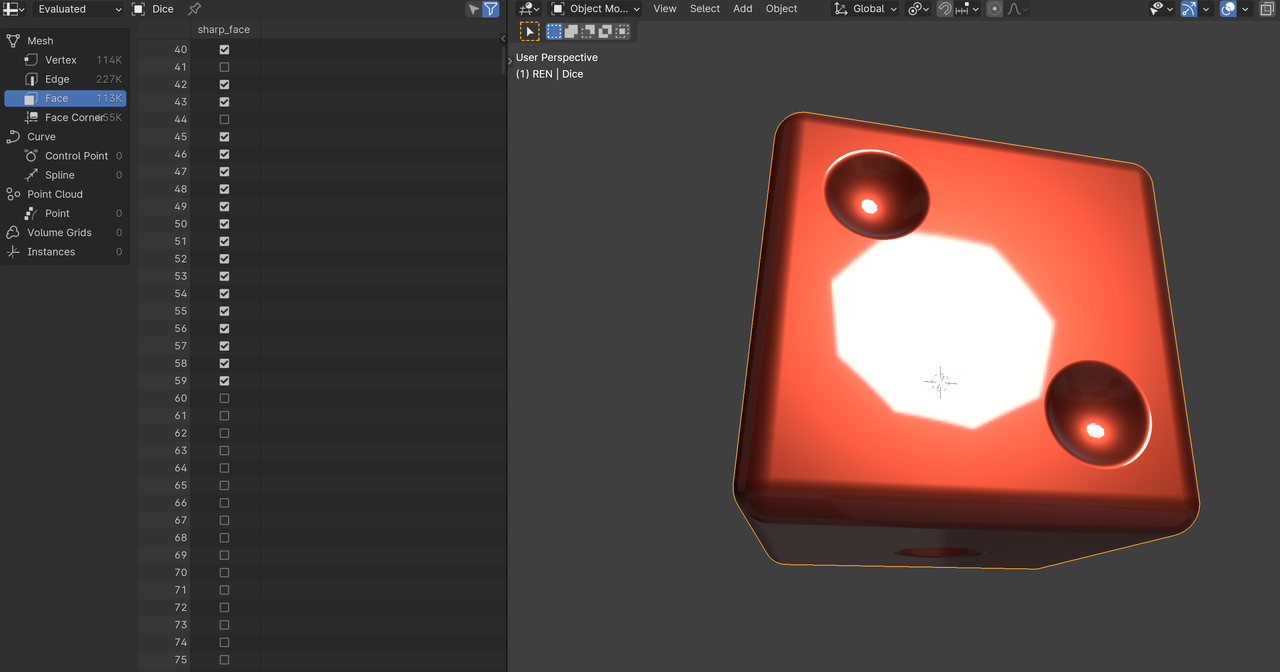
but might not be suitable for all situations.
And it is very well possible, that Kent doesn’t even use Shade Smooth, hence the use of so much Geometry (I can’t remember if he uses Smooth Shading or not…)

