Hi Bernd @bguenthe ,
As for point 2: Do not Apply the Rotation of your Objects, if you can avoid it! (Now you must suffer.) Luckily it’s a ‘cube’:
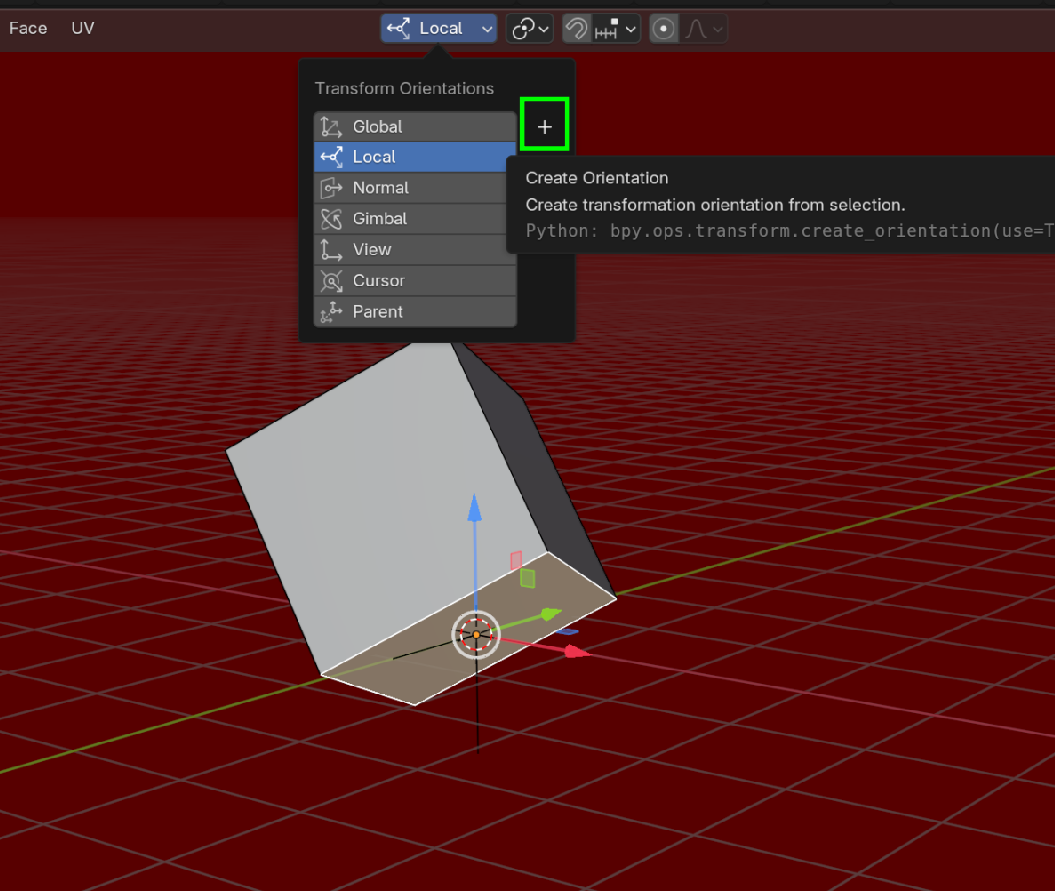
Switch to Edit Mode, Select 1 Face and make a Custom Transform Orientation, by clicking the ‘+’
Then switch to Object Mode, go to Options > Transforms > Affect Only > Origins. Now you can Align the Origin to your Custom Orientation:
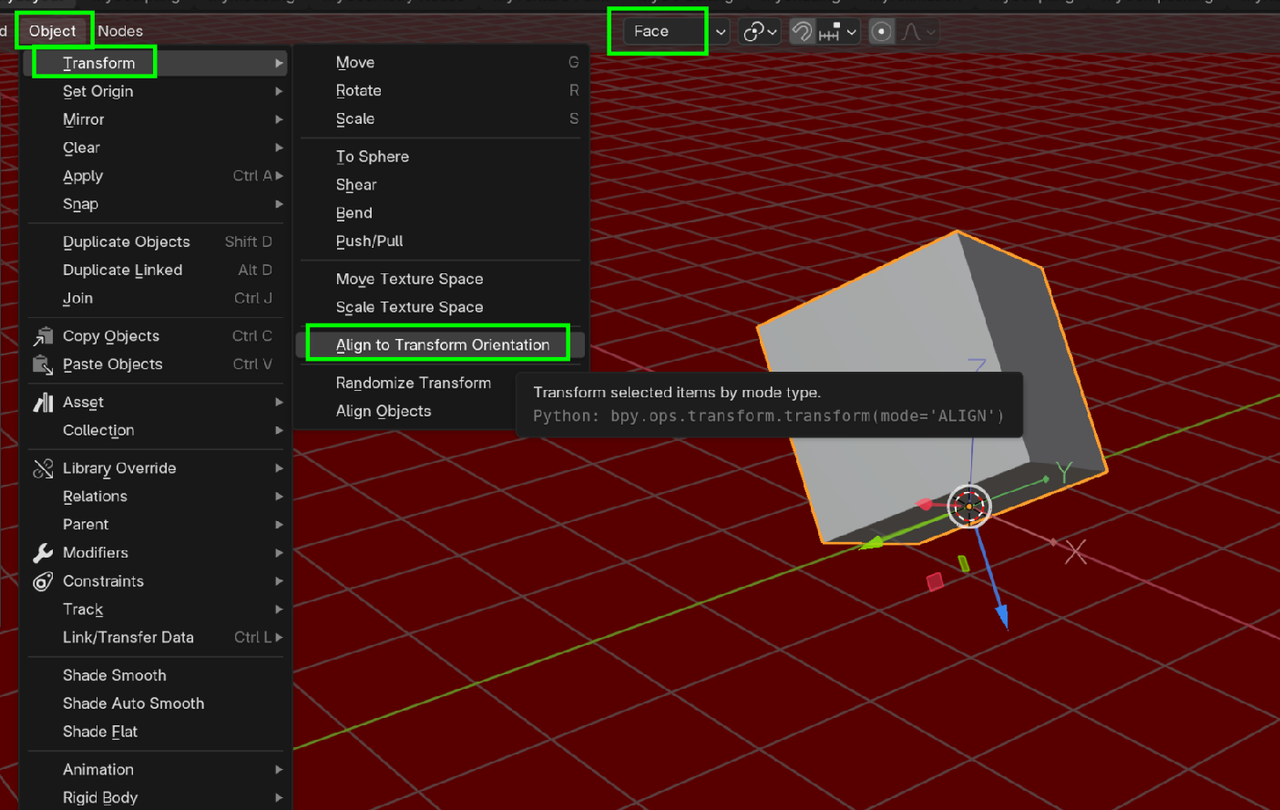
Don’t forget to disable the Option (> Origins).
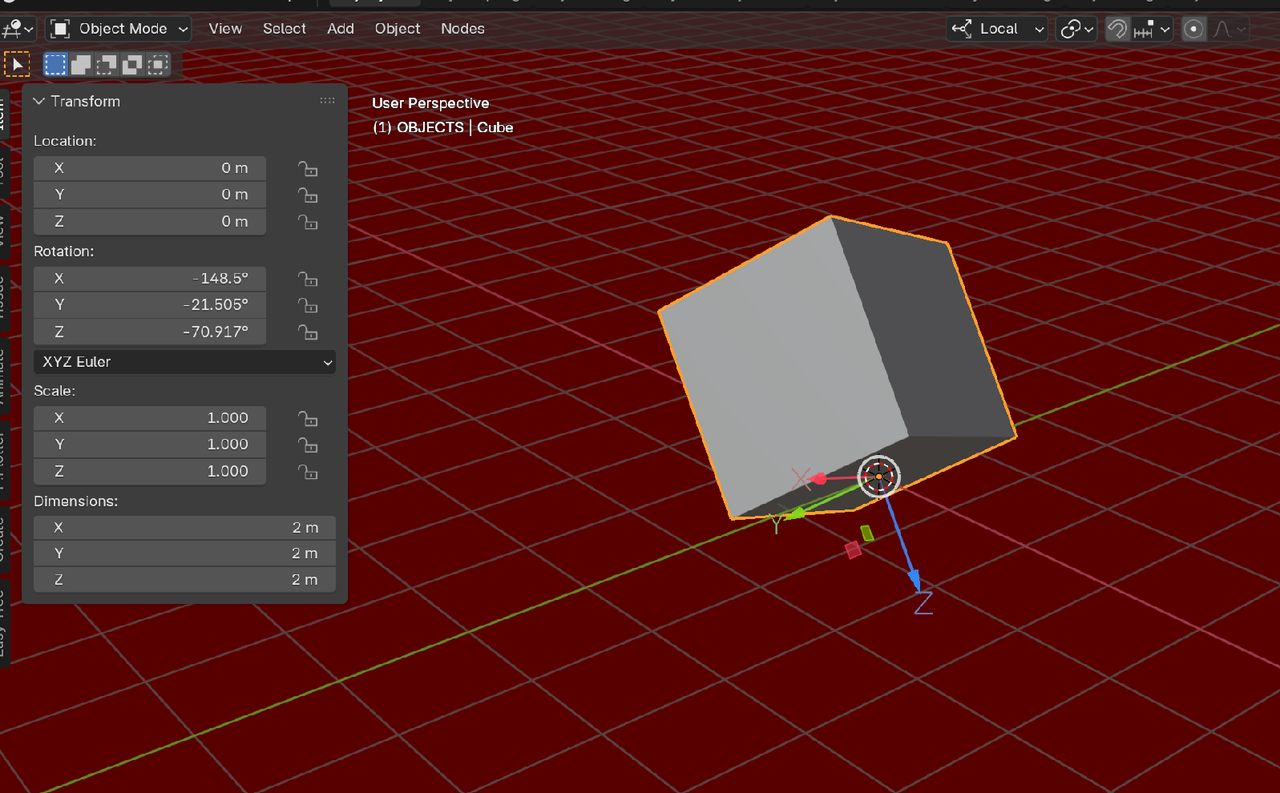
You now have the Object’s Rotation back (apart from possible multiples of 90°, depending on which Face you Selected in the first step)):
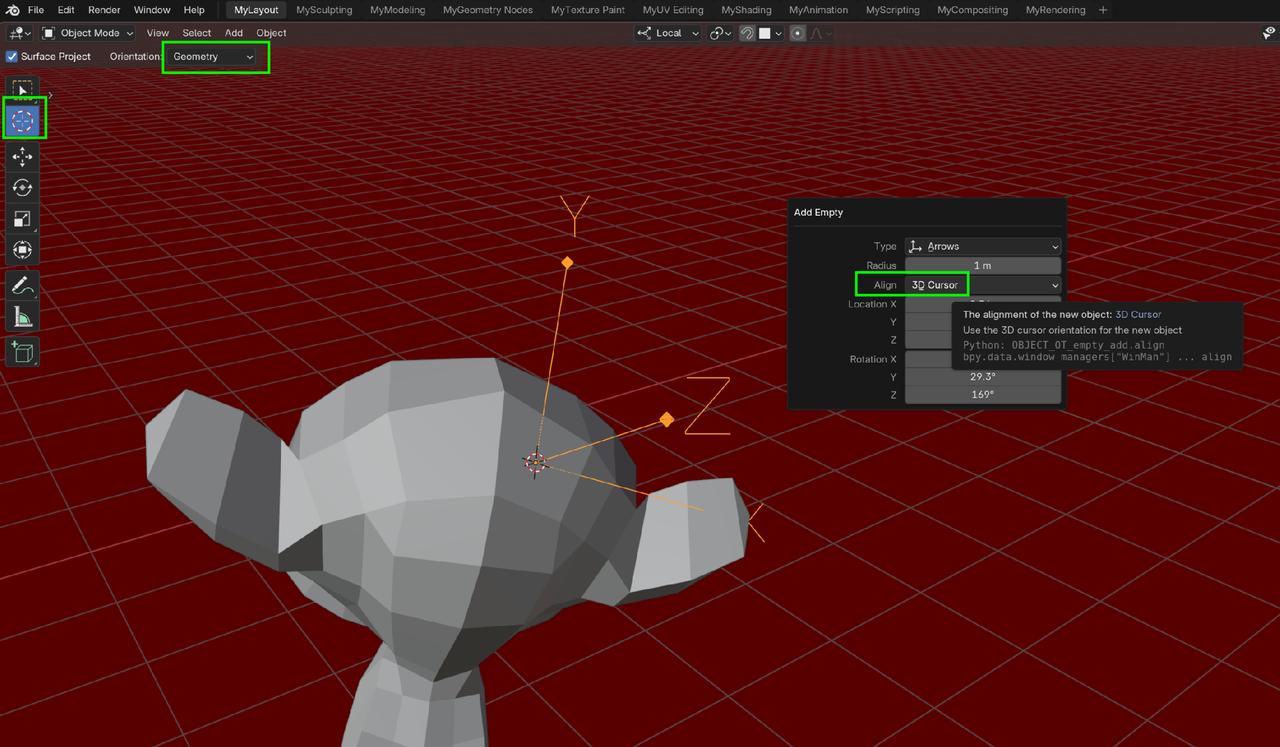
As for point 1.: Not sure if this is easier for you, but you can use Set Cursor and set the Projection to Geometry. Then place the 3D Cursor on the Face you want. Add an other Object (I mostly use an Empty for this kind of thing) and set that to Align to the 3D Cursor.:
Then Parent tne Object to the Empty and you can Snap the Empty to any Surface you want (with Align Rotation to Target enabled). (Again, similar to above, you might need to Rotate 180°, because the Z is facing the wrong direction).

