Reply To: Issues with text converted to curve
Forum Archive › Issues with text converted to curve › Reply To: Issues with text converted to curve

Ok – I think this is a good question to tackle in more depth when I do my Office Hours this week. If you’re available at the assigned time (US CST 2PM) I will be recording it and will upload the relevant segment here for you. Each object type has its own pros and cons, and some settings can help you adjust problem areas, but ultimately, it is a toss-up between non-destructive and destructive editing. There’s always more than one way to do things, so here are a few options you might want to try.
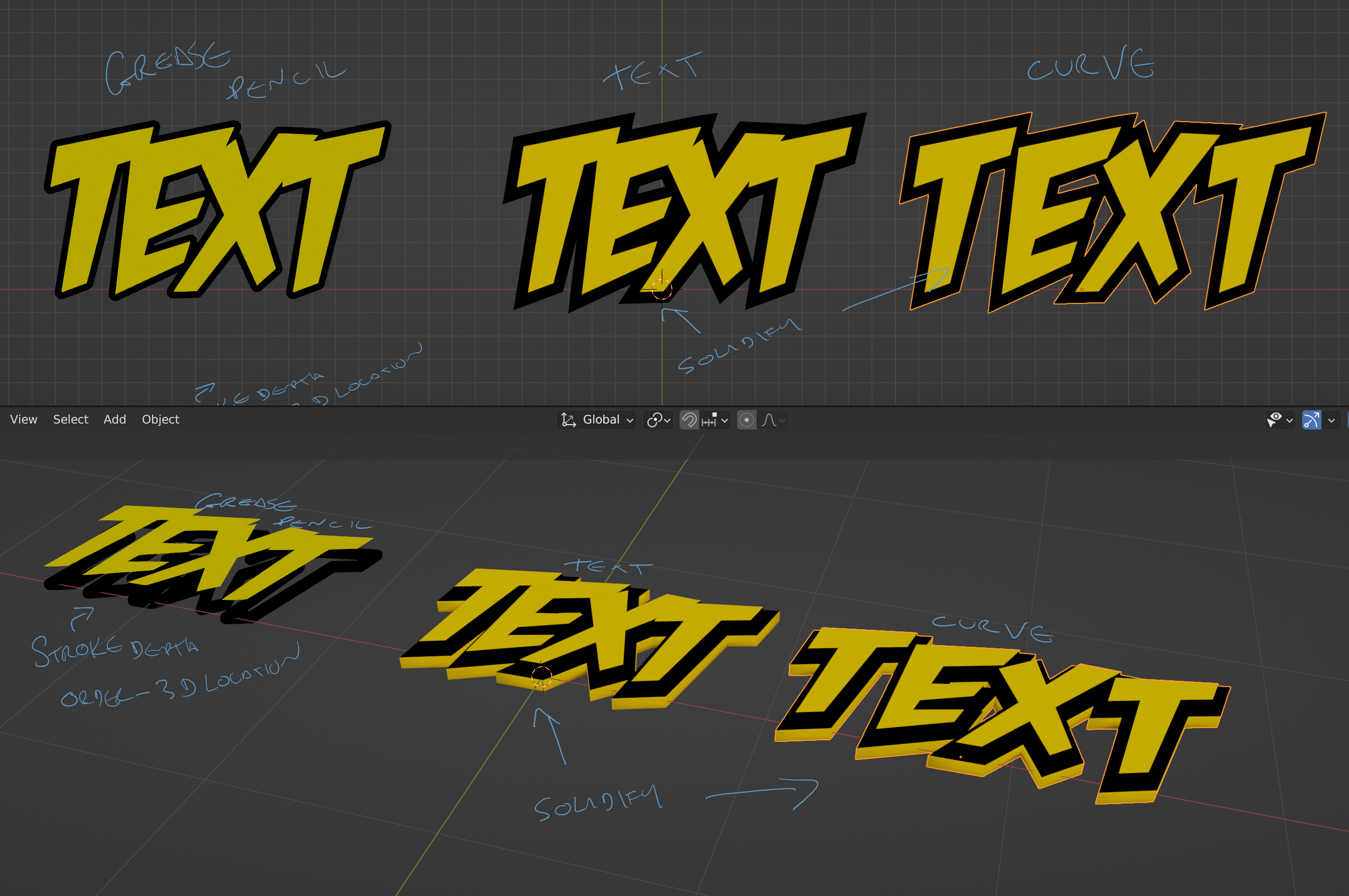
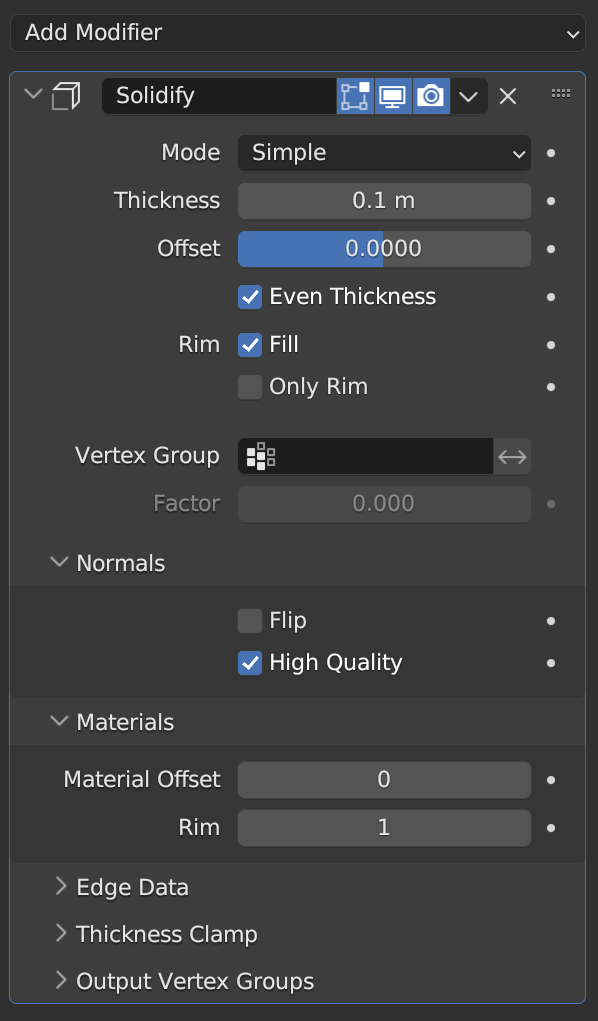
Text will allow you to overlap characters with spacing, but you can’t really effect the text too much beyond that. Using the Solidify settings as shown will give a good outline and scale isn’t really an issue.
Curve will not allow good overlap, since it tries to calculate a boolean operation when 2D curves overlap. Setting to 3D curve does not help, as it then becomes a curve which is more like a path or an outline and no fill. Scaling is also problematic, as you have seen. If the object is sufficiently large, you will not see the problem areas (as you have already shown in your original post) but scale it too small, you will begin to see where the curve angles overlap for bevels or solidifying.
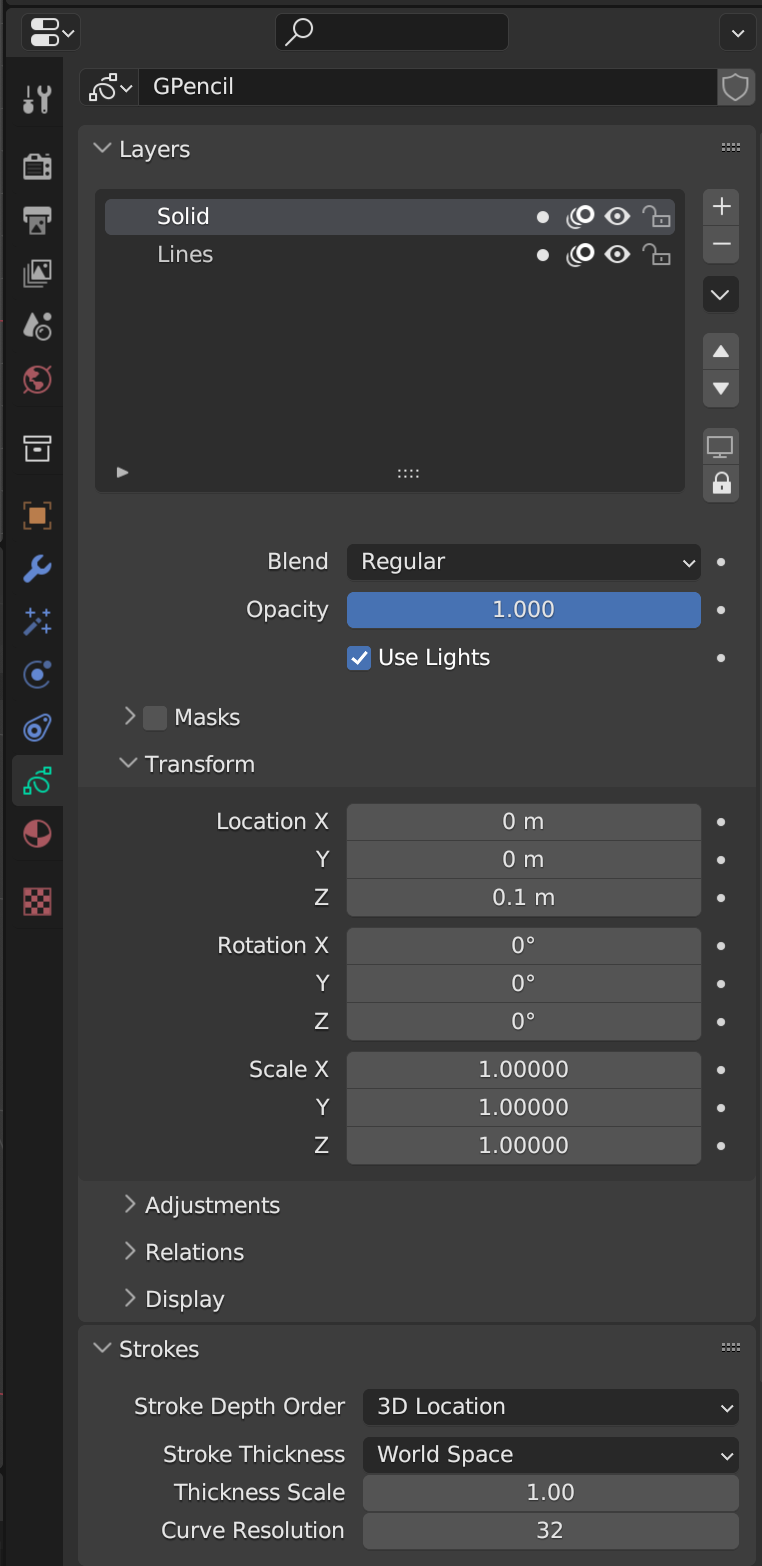
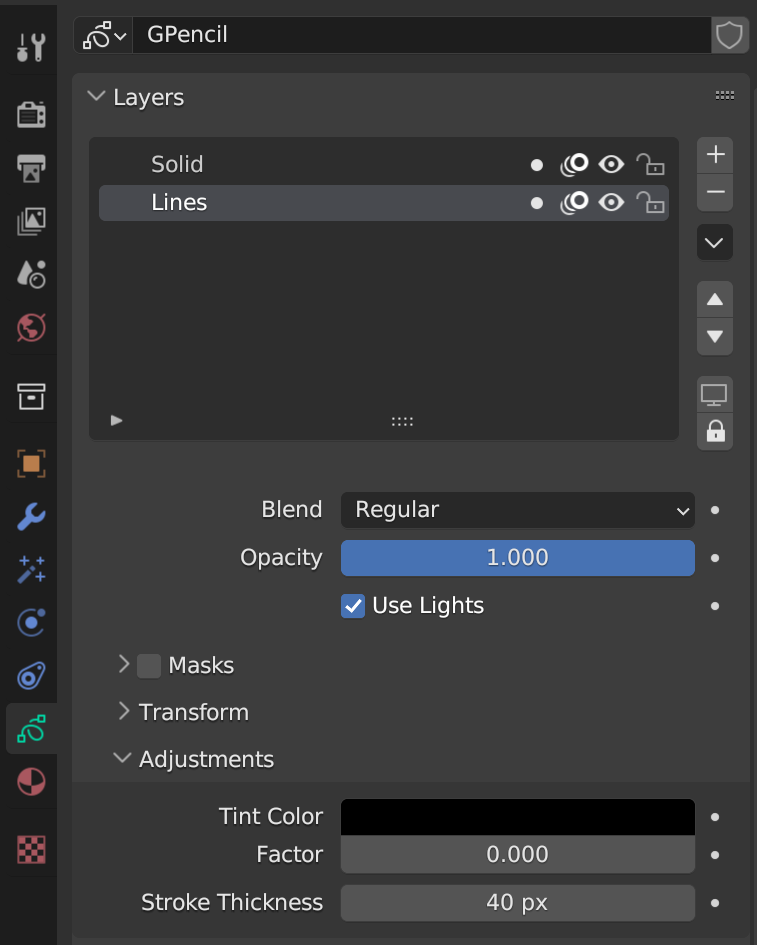
Grease Pencil will allow overlap, but creating an outline requires you to duplicate the shapes onto a second layer and assign all those shapes an Outline material. Each shape will be outlines, but if you change your Grease Pencil object’s Stroke Depth Order to 3D Location, then transform the location of the layers individually (eg: attached image show the Solid layer adjusted in the Z direction), you can set the solid shapes above the outlines and mask out the overlapping segments. You can then adjust the stroke thickness of the Lines layer to get a better outline.