As Dwayne said, Kent doesn’t click on the gizmo to navigate to front view.
Kent uses the numpad 1 button, as displayed by the screencast keys bottom right of the screen.
To understand the gizmo, take a closer look at the gizmo by hovering the mouse over it, the front view is actually -y.
(Mouse not captured, but it is hovering over -Y)
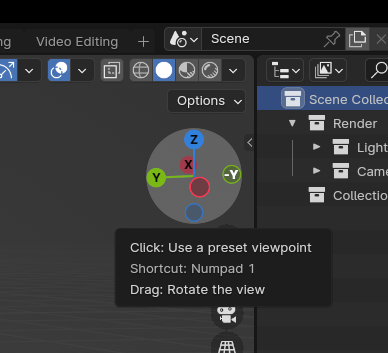
It can be a little confusing as a beginner, the -y on the gizmo is the direction of your view, whilst the +y direction of an object is the front facing direction and the -y of an objects direction would be the back facing direction.
Think of a character in the 3d viewport looking forwards in the +y direction towards you, and you look back at your character in the -y direction.
So, clicking the +Y on the gizmo you are actually in back view, facing the same direction (+Y) as the character, looking at the back of the character, like standing in a queue.
For the purpose of this course though, the direction of your model and the position of the camera and light is irrelevant, as you will need to move the camera and light anyway. You could delete them if they are distracting you and add them later in the course.

