Reply To: Artifacts in Eevee and Cycles
Forum Archive › Artifacts in Eevee and Cycles › Reply To: Artifacts in Eevee and Cycles

Hi Martin,
Thank you for responding! You are correct that the cylinder topology is to blame. Well-spotted!
After I gave up and posted here, I suddenly had an idea about how to solve it and it worked. I even found a second solution!
I went back to the first saved version of the .blend file that I had and saw that the problem was there as well. The only thing I did after import of the model and saving that file was to add a Smooth modifier to the big saucer object because it was so distorted after import. So I selected a few cylinder faces of one window around the artifacts in Edit mode and shaded them flat. The problem disappeared!
My first solution was select one edge loop above the windows that went all the way around the saucer, mark a seam, and then repeat for an edge loop below the window. Then Cmd+L to select linked and Faces>Shade Flat. That took care of all the artifacts in one go.
The second solution was to select the whole saucer object and change the Smooth modifier angle from the default 30 degrees to 20 degrees. It fixed the problem without re-introducing the mesh problem that required the Smooth modifier in the first place.
I don’t really understand how or why changing the Smooth modifier settings or shading the faces flat fixed the problem, I just know that they did.
Screenshots follow:
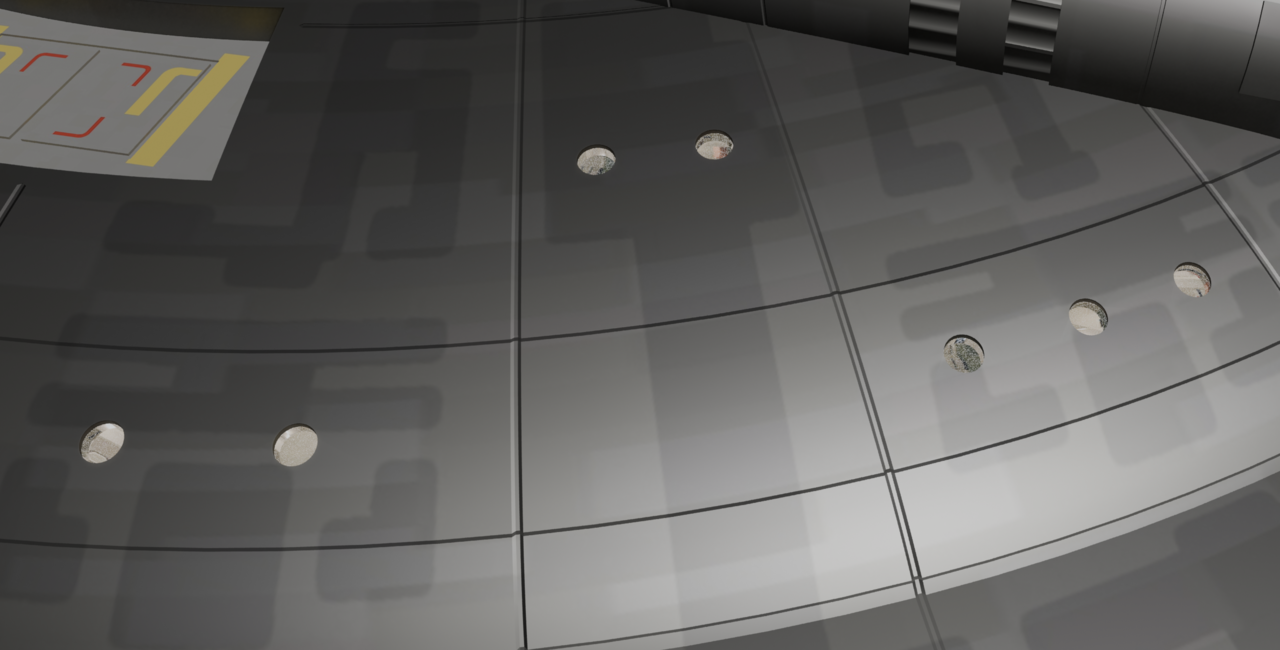
The initial import problem. Note that I imported and added the Smooth modifier in Solid viewport shading mode, with no scene lights or world shader, so I never saw the artifacts initially.
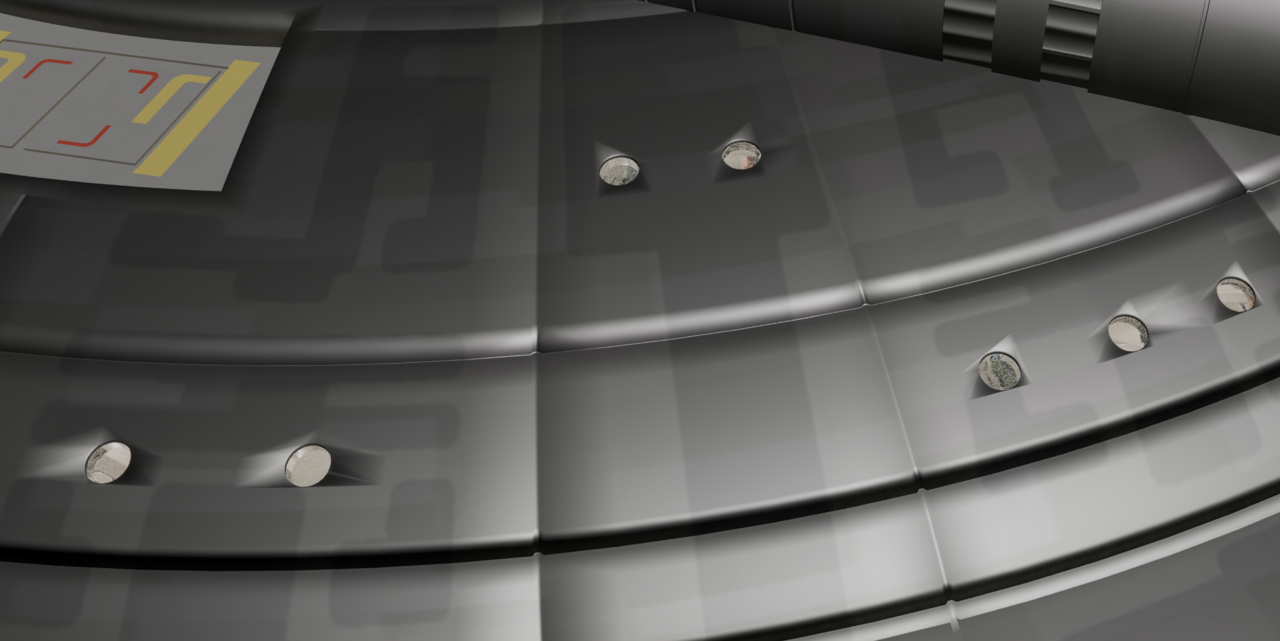
After the Smooth modifier at 30 degrees:
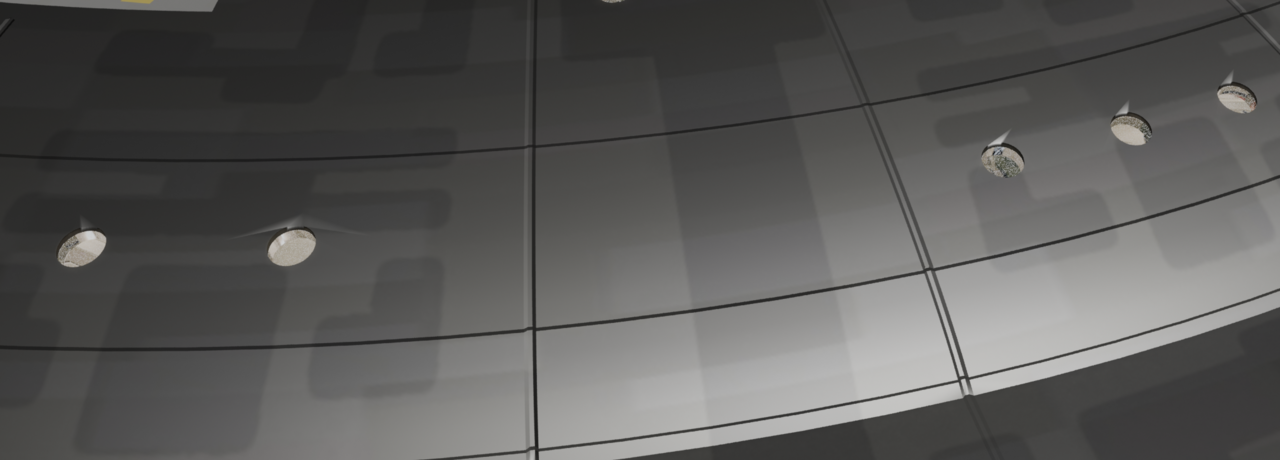
After the Smooth modifier at 20 degrees: