
Reply To: COLLAB2021 – The Spice Must Flow (TSMF) Blog
Forum Archive › COLLAB2021 – The Spice Must Flow (TSMF) Blog › Reply To: COLLAB2021 – The Spice Must Flow (TSMF) Blog

Top Reasons Why a Bevel May Not Work
Even though we are moving past the modeling part of the project, I felt it was important to not only include this discussion, but to make it the first real post. When people are new to Blender (including myself) they often come across some of these issues. Experienced modelers make it part of their normal workflow to remove duplicate vertices, apply scale and check for normal directions; it becomes second nature.
In all three examples, we are going to make a bevel on three edges of a corner.

DUPLICATE VERTICES
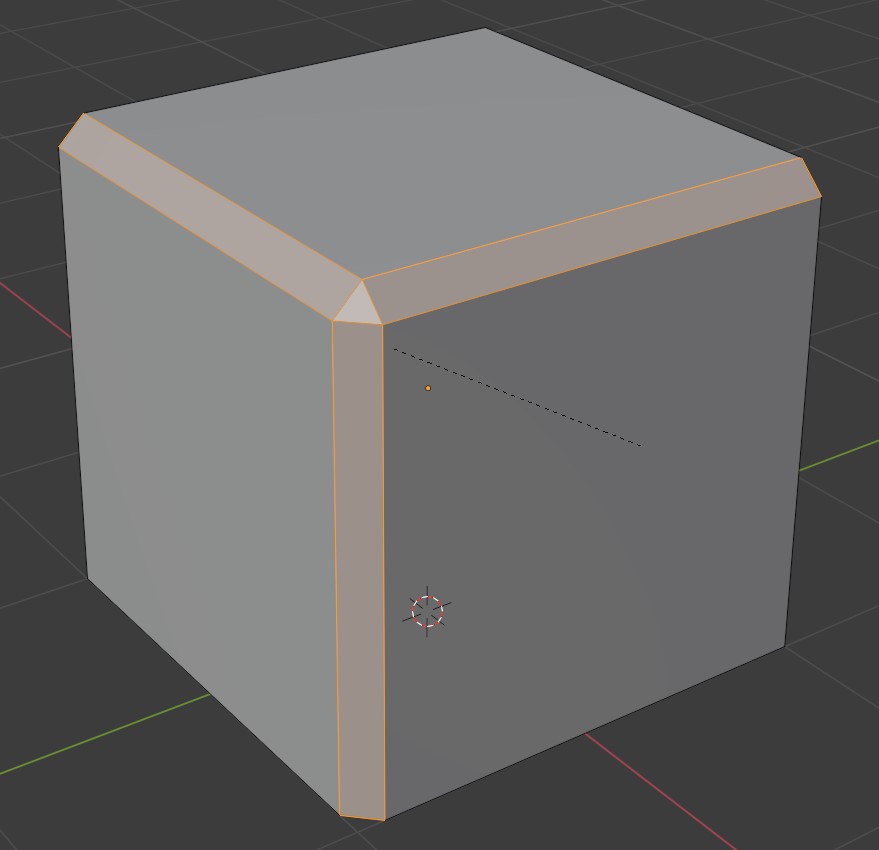
Let’s say you bevel and see something like this:
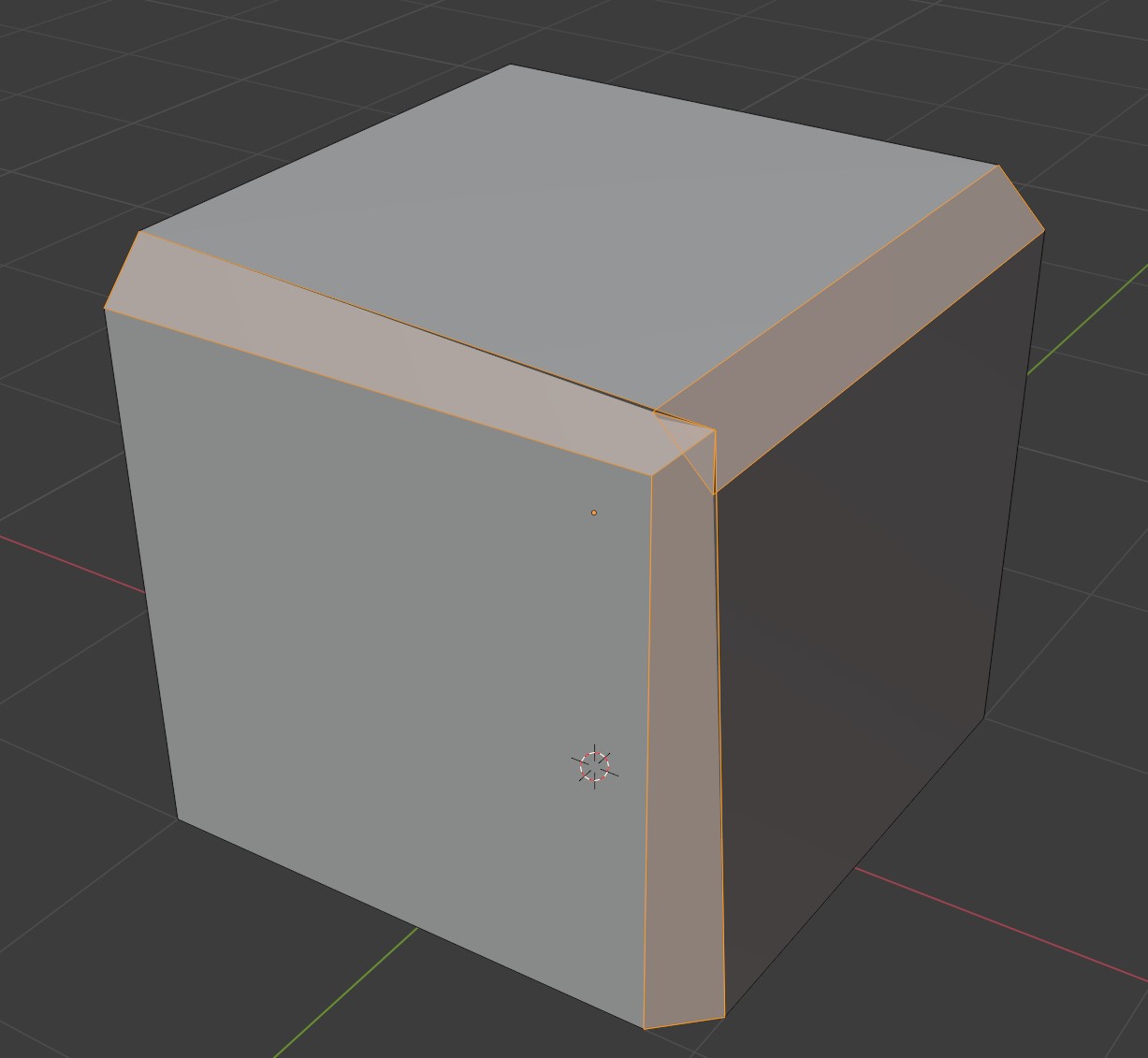
You may have more than one vertex close together or even on top of each other (e.g, if you moved a vertex and snapped it to another vertex).
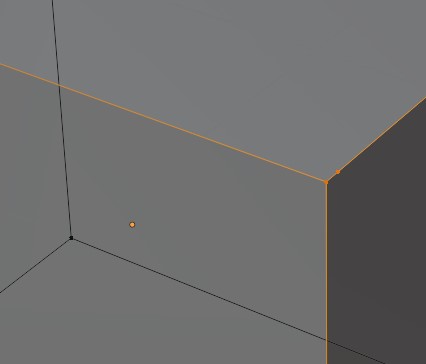
To correct this problem, in Edit mode, hit A to select all elements in the mesh (it does not matter if you are in vertex, edge or face select mode). Press M (to Merge) and select by Distance.
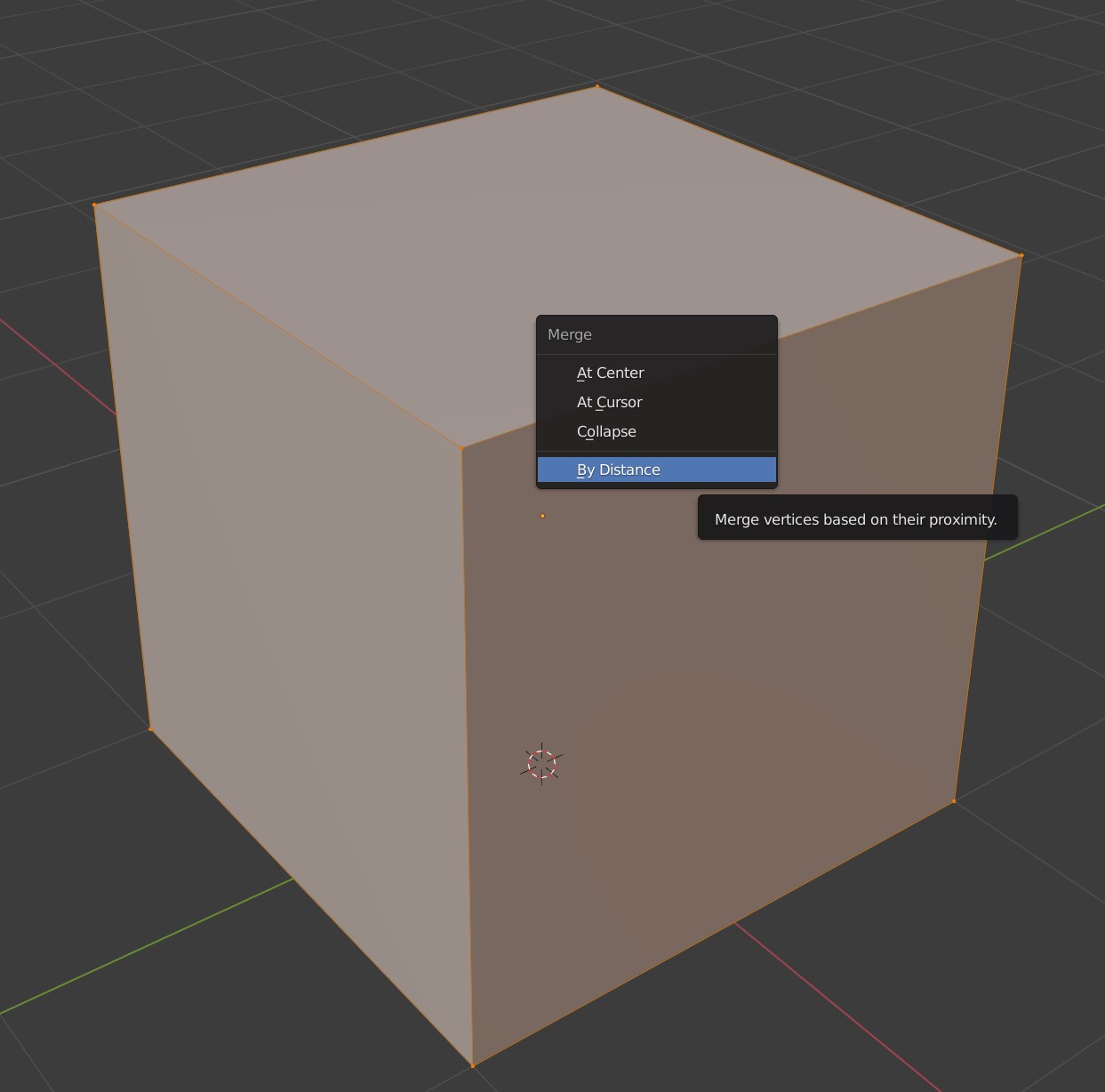
Blender will display the number of vertices removed at the bottom of the screen.
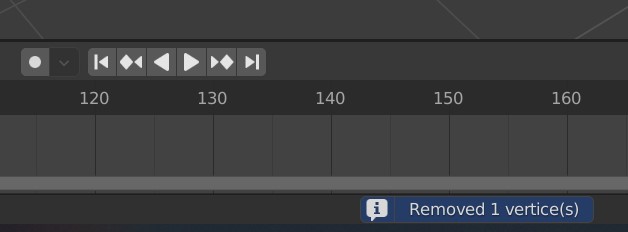
Bevel the edges again to view your success.
APPLY SCALE
In this example, you may see something like this at your corner when applying a bevel.
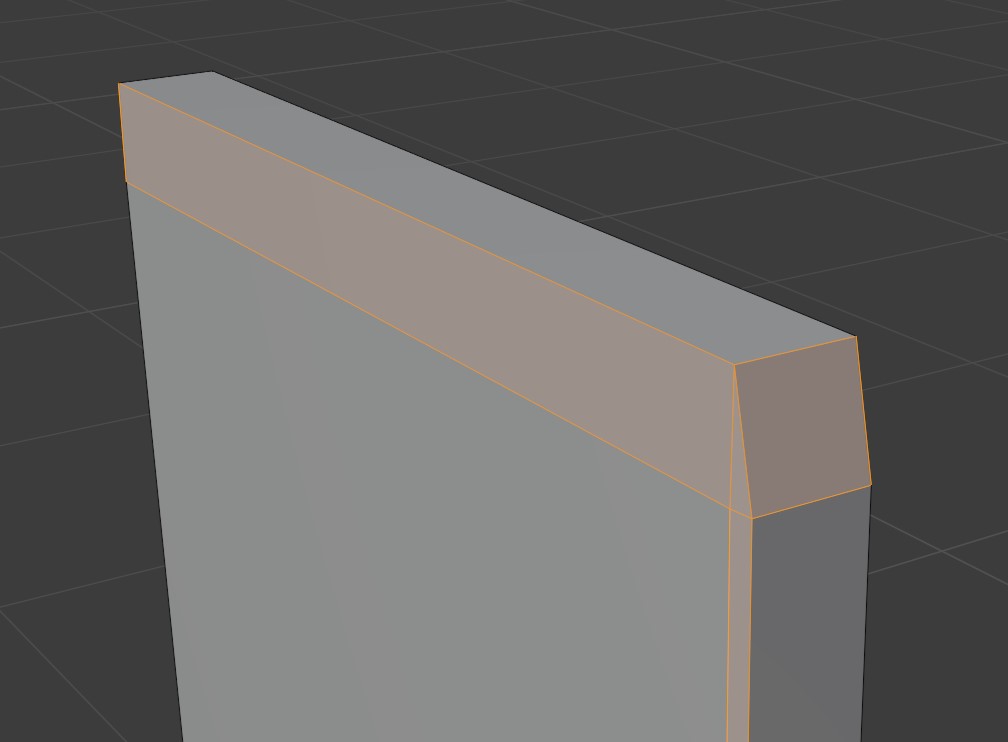
Tab back to Object Mode and press N to view the Sidebar. Look in the Item tab to see the Transform settings. Specifically, look at the Scale section. If all three axes are not 1.000, then you have a problem.

Select your object and press Ctrl-A to pop up the Apply menu. Select Scale, and the scale values are reset to values of 1.000.
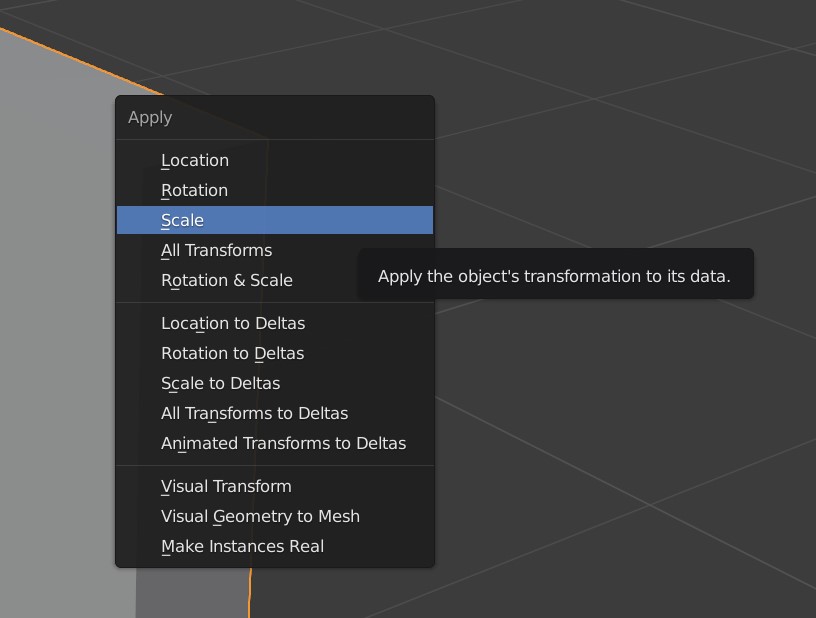
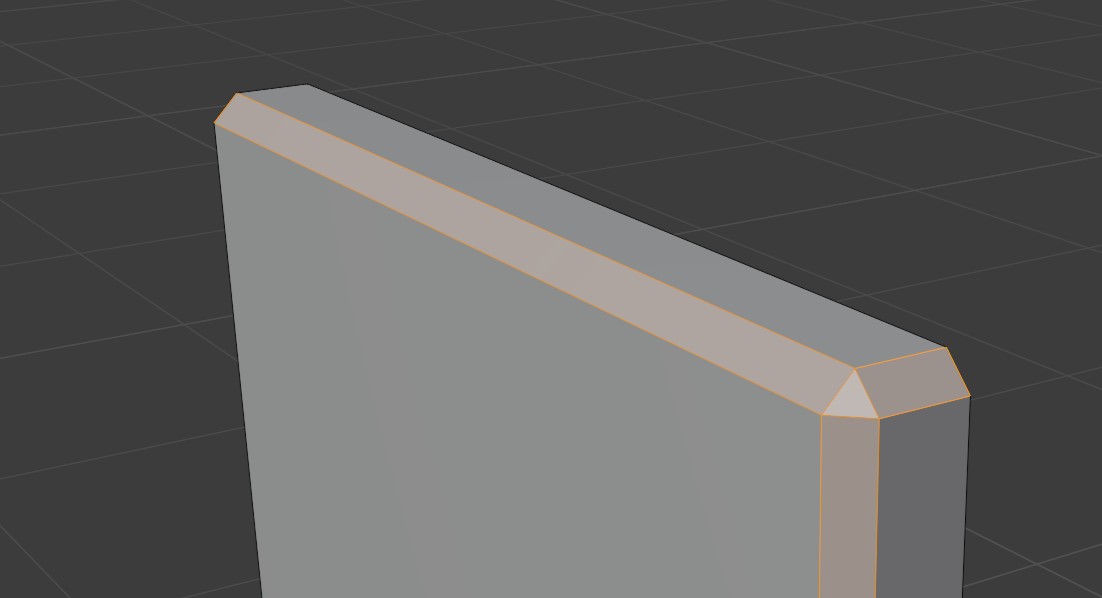
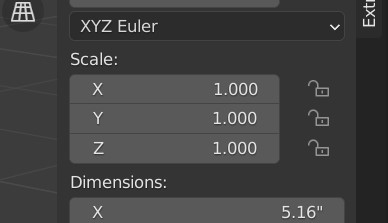 Tab back to Edit mode, apply a bevel to your edges and view your success.
FLIP NORMALS
Now, if you get a dissatisfying bevel like this…
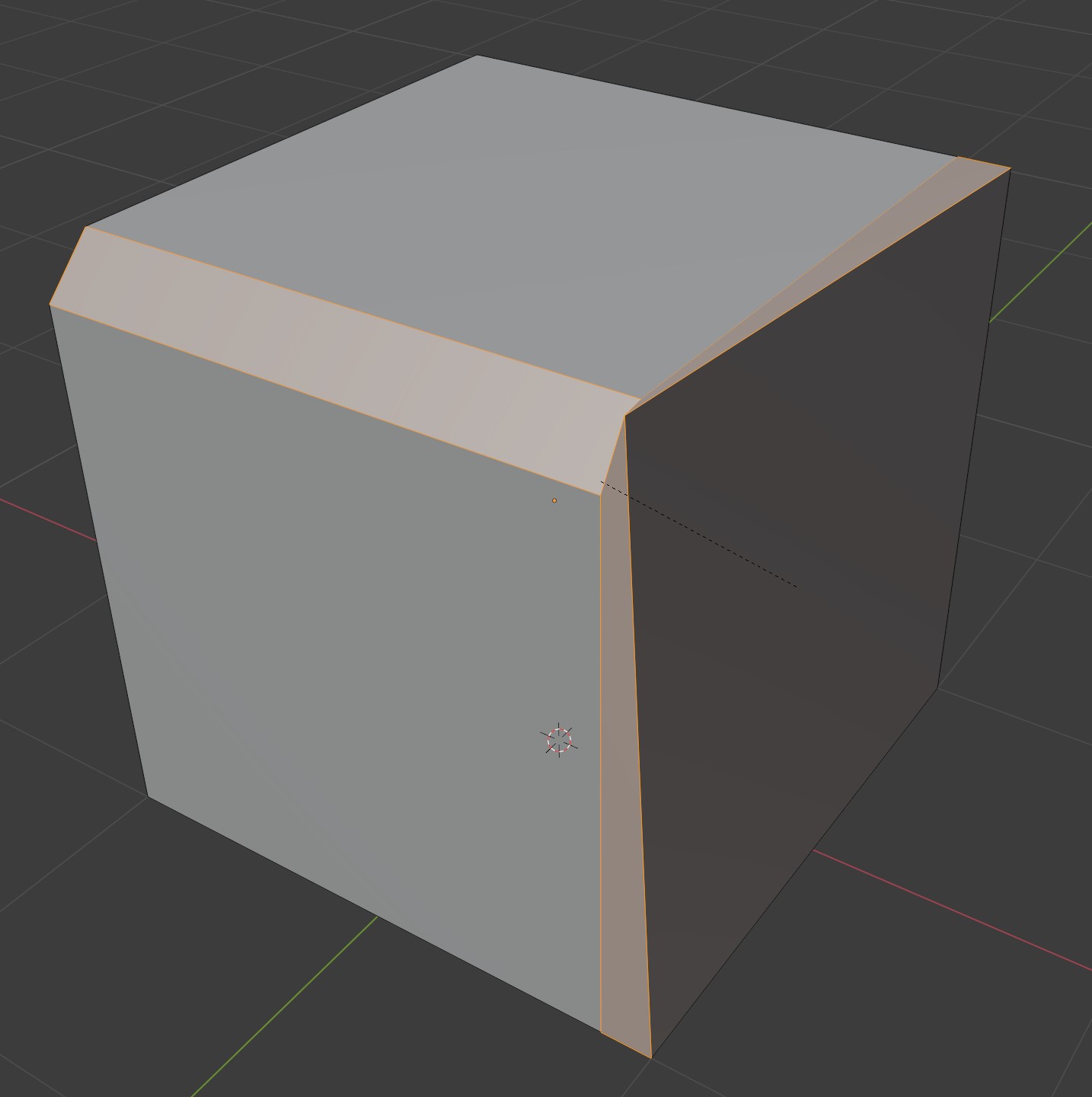
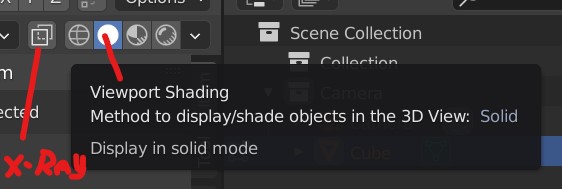
We need to check that all normals are pointing in an outward direction. Pull down the Viewport Overlays menu and check the Face Orientation box. You should be using Viewport Shading with X-ray toggled off.
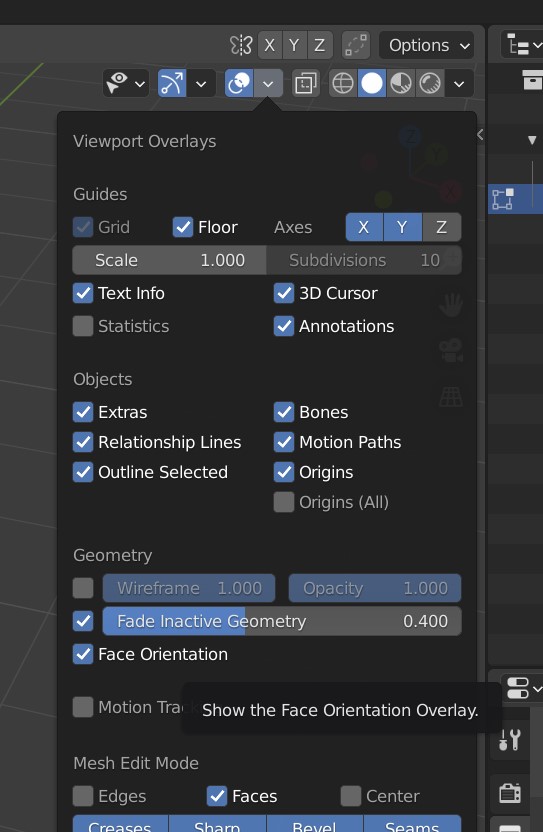
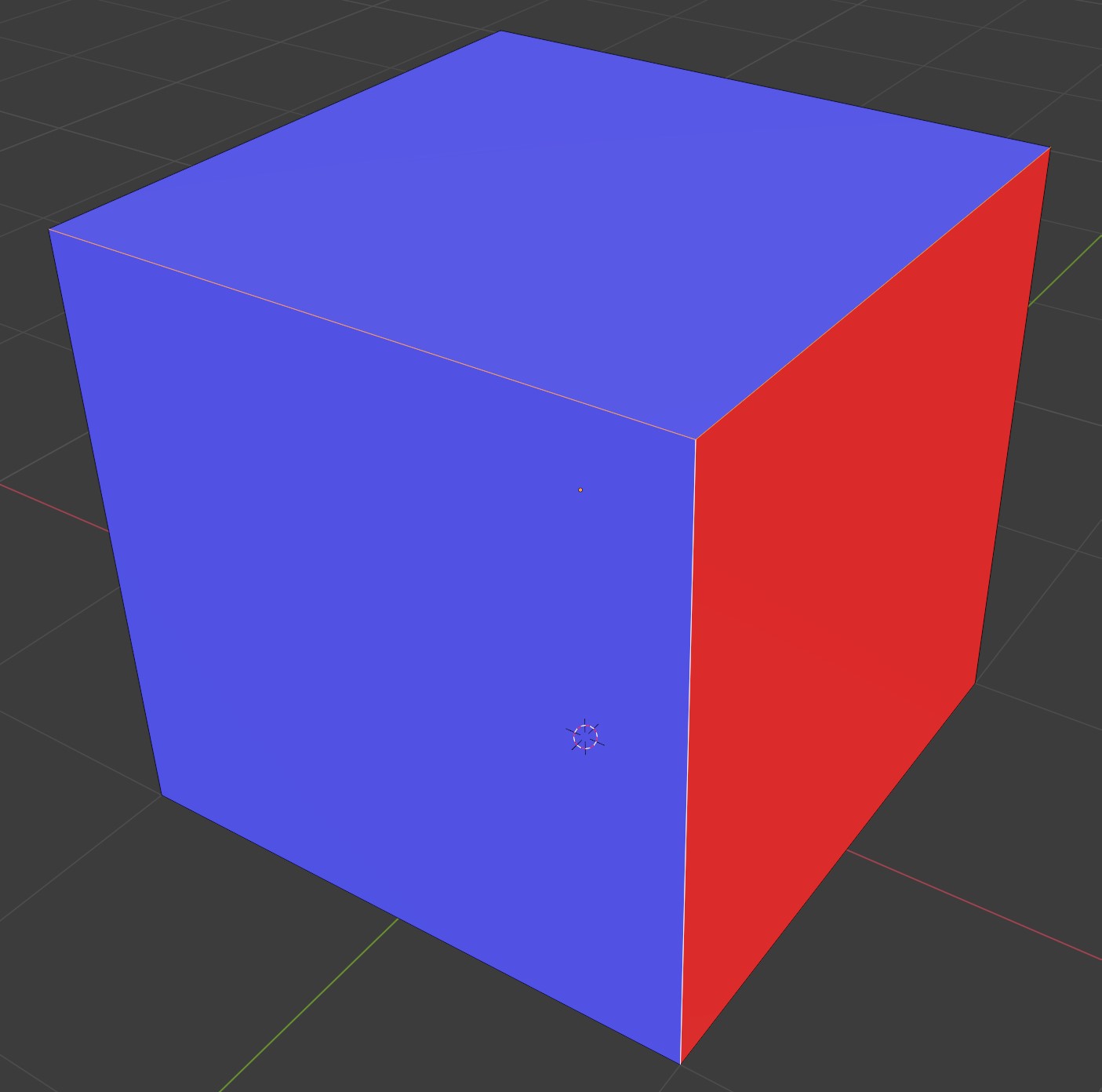
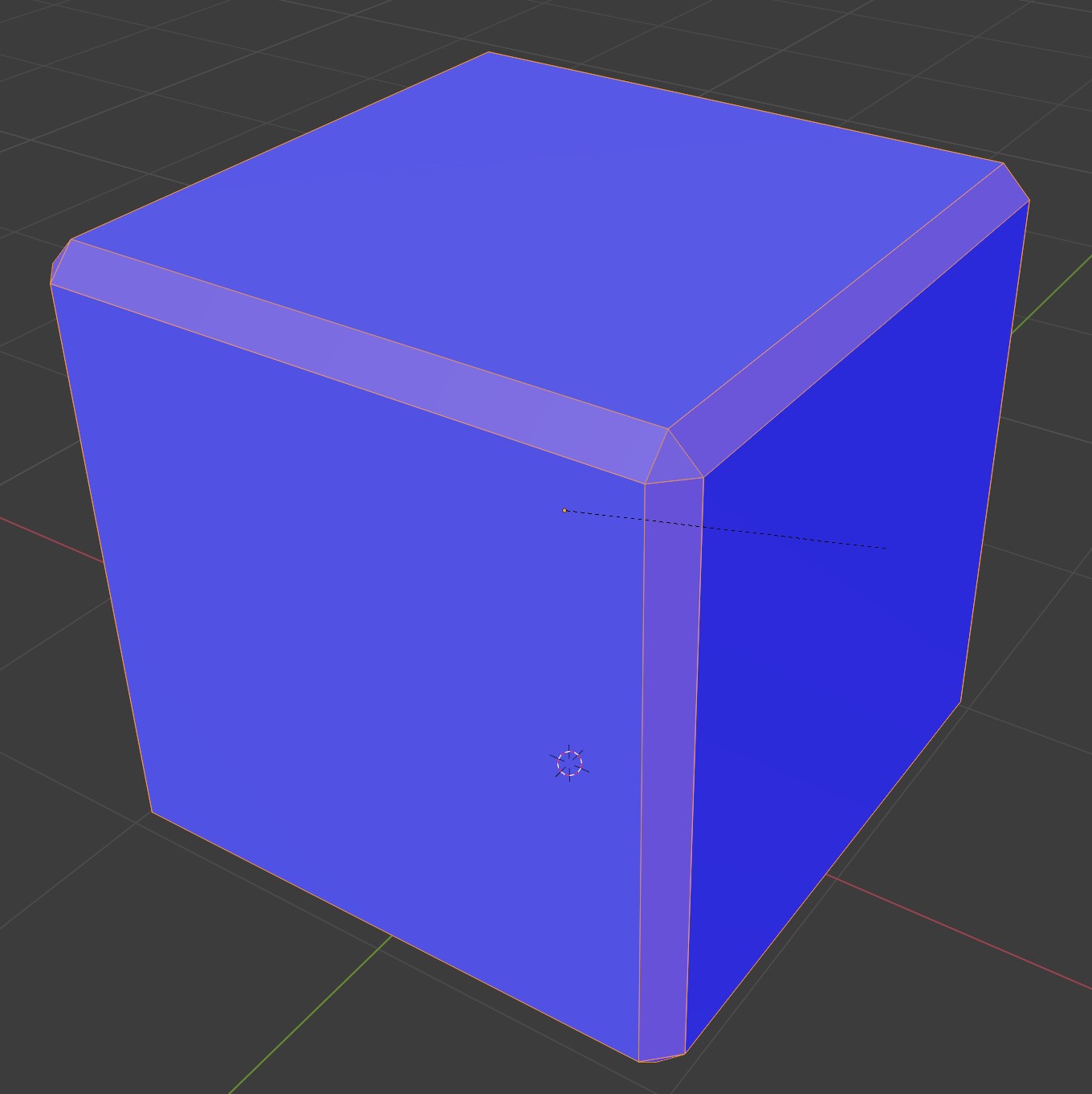
All blue faces are pointing correctly outward. If you see red, that face is pointing inward and needs to be flipped to point outward like the rest of the faces.
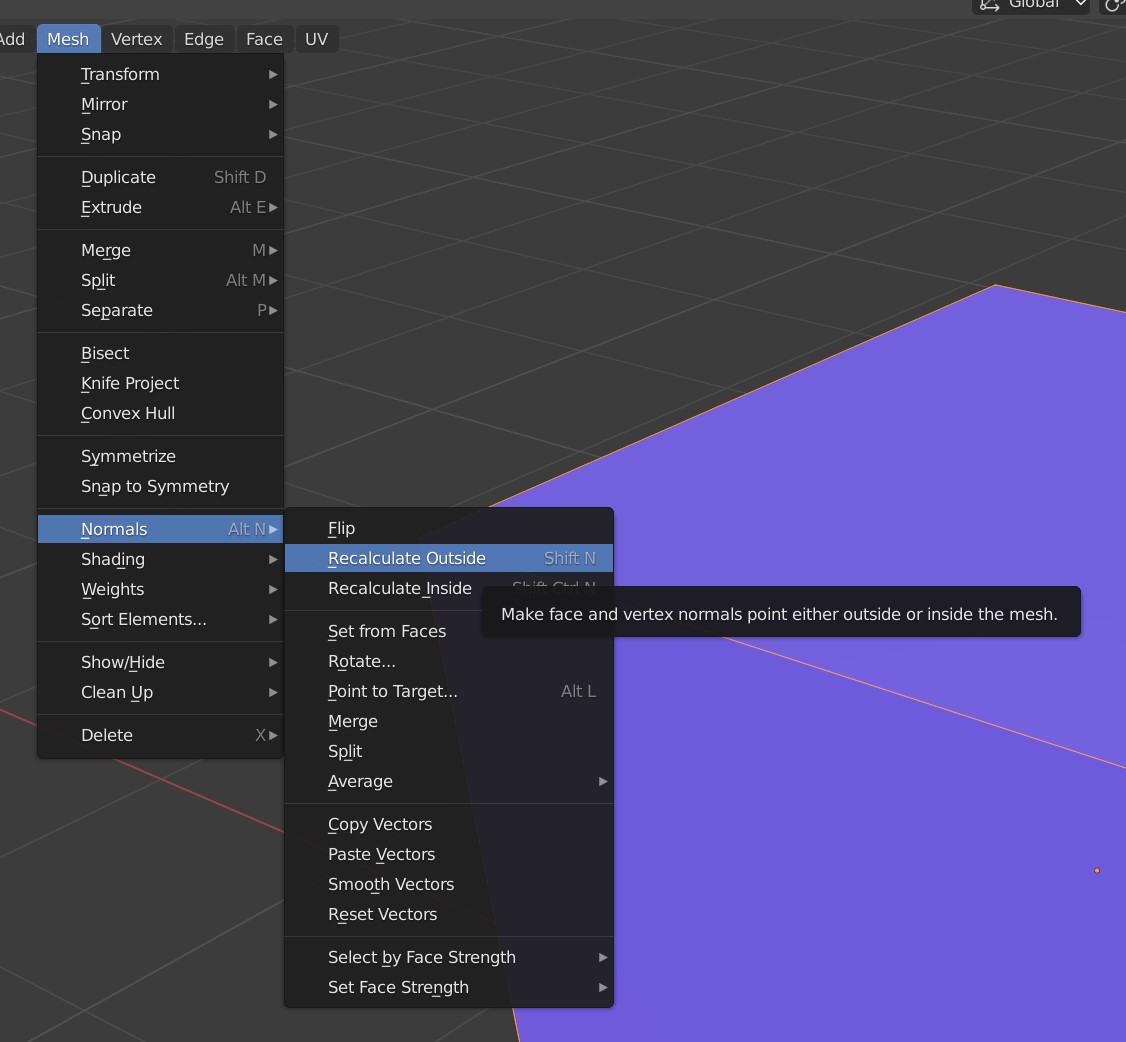
Press A to select all. Either press Alt-N to get the Normals menu (or get there from the pull-down Mesh menu). Select Recalculate Outside (note, while this should work most of the time, you can also select individual red faces and select the Flip option to change the normal direction manually).
All normals should now be pointing in the same outward direction, as indicated with all blue faces.
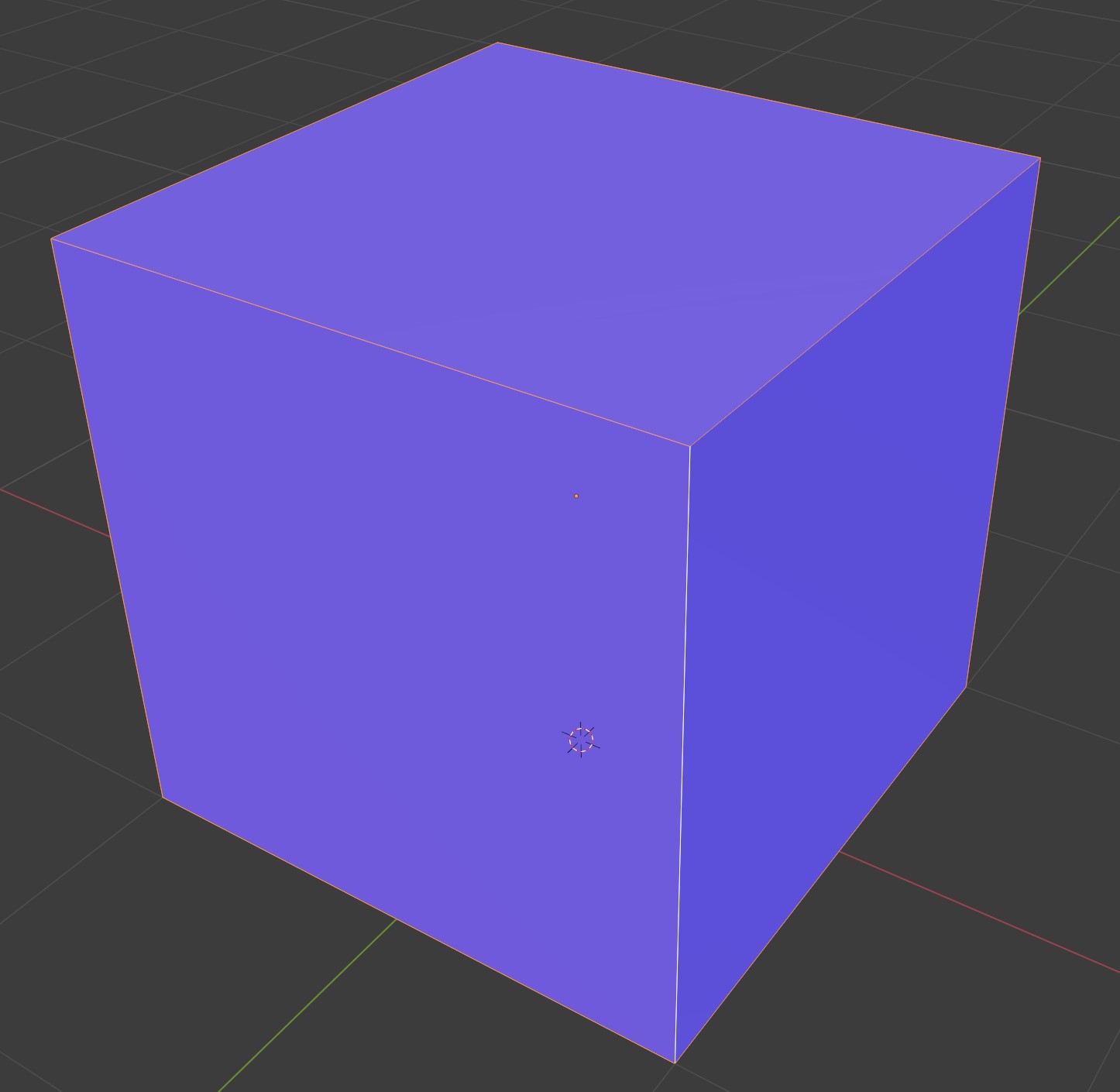
Bevel those edges and view your success!
End Bevel
