
Weeoe caused by “Draw Face Sets” brush – invisible Faces and unable to delete/repair them
Forum Archive › Weeoe caused by “Draw Face Sets” brush – invisible Faces and unable to delete/repair them
- This topic has 11 replies, 4 voices, and was last updated 1 year, 1 month ago by
label1.
-
AuthorPosts
-
July 27, 2025 at 4:47 pm #20528
In Blender 4.0 I clicked on a brush called “Face Set” and cannot find a solution on the following issue so I wondered if anyone may know a solution to this: I seem to have masked some faces with “Face Set” (Brush) in sculpt mode (right in the middle part of the ear). I tried to reset it by navigating to “Face Sets” (from visible) but it still won’t show the parts of my mesh if I switch to front view. If I deactivate “overlay > Extras”, it shows the mesh in front view as it should, with a modeled ear. But as soon as I switch ithe overlay Extra on again, that part of the mesh disappears and splits the ear in two halfs…. I tried to delete the selected faces, too, remodeled the ear several times. But in vain – it just sticks to the same old face Set despite the reset (“from visible selects the whole head as one face set). I cannot find much on that tool or even about anyone having the same issue. Apparently there is no easy way to see or delete any “Face set” selection like an eraser (and ctr+Z also didn’t help). Does anyone know the issue or how to solve it? Alt+H doesn’t show all masks either. Luckily, the ears aren’t that important in order to finish this model so I may just skip that step and cover the error with the headphones 🙂 – but I am very curious to learning how to solve this issue nevertheless!
July 28, 2025 at 1:29 am #96083Hi @label1 ,
Could you add some Screenshots please? I, for one, don’t understand what is happening from your dscription.
Especially this part: “…stlll won’t show the parts of my mesh if I switch to front view. If I deactivate “overlay > Extras”, it shows the mesh in front view as it should, […]. But as soon as I switch ithe overlay Extra on again, that part of the mesh disappears…” sounds extremely weird.
Maybe it’s a Bug; after all it’s 4.0 (first Release after major changes), you could try Openeing the file in 4.2, or Appending the Model in 3.6…
July 28, 2025 at 1:34 am #96084Btw, you cannot Erase a Face Set, but you can go tothe Edit Face Set ‘Brush’ and set that to Shrink Face Set. Then you can Shrink any Face Set until it’s gone.
But that will probably not help you with your problem, because Face Sets have nothing to do with Overlay Extras, as far as I know.
July 28, 2025 at 8:28 am #96085Yes usually you clear them with face set from visible. Even Kent has a hard time with this feature, but as Martin, I’m not quite sure I understand what you mean, so a couple of screenshots will help out.
July 29, 2025 at 9:50 pm #96086Don’t know if you’re still having problems, but you can do the following: Make sure you are in Sculpt Mode
1. Press Alt+M or Click Mask->Clear Mask.
2. Press Alt+H or Click Sculpt->Show All.
3. Press TAB or Switch to edit mode.
4. Press A or Click Select->All.
5. Press TAB or Switch back to Sculpt mode.
6. Click Face Sets->Face Set from edit mode selection. Mesh will change to 1 color.
7. Click Face Sets->Face Set from Visible. Mesh will change to grey color.August 3, 2025 at 2:48 pm #96087Hi everyone and thanks a lot for your replies,
sorry for my late reply. I didn’t have much time to get back to the project last week but I took some screenshots today to clarify what I mean by toggling the mask on and off:
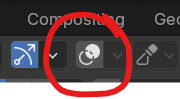
Depending on that button, the area can be seen and edited (but it also un/hides everything else):
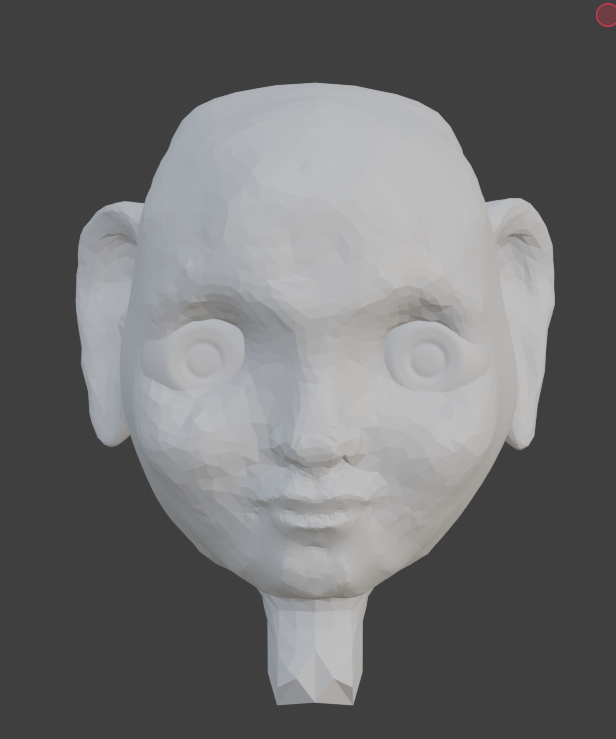
This is how it looks like in normal mode (missing parts of the ear):
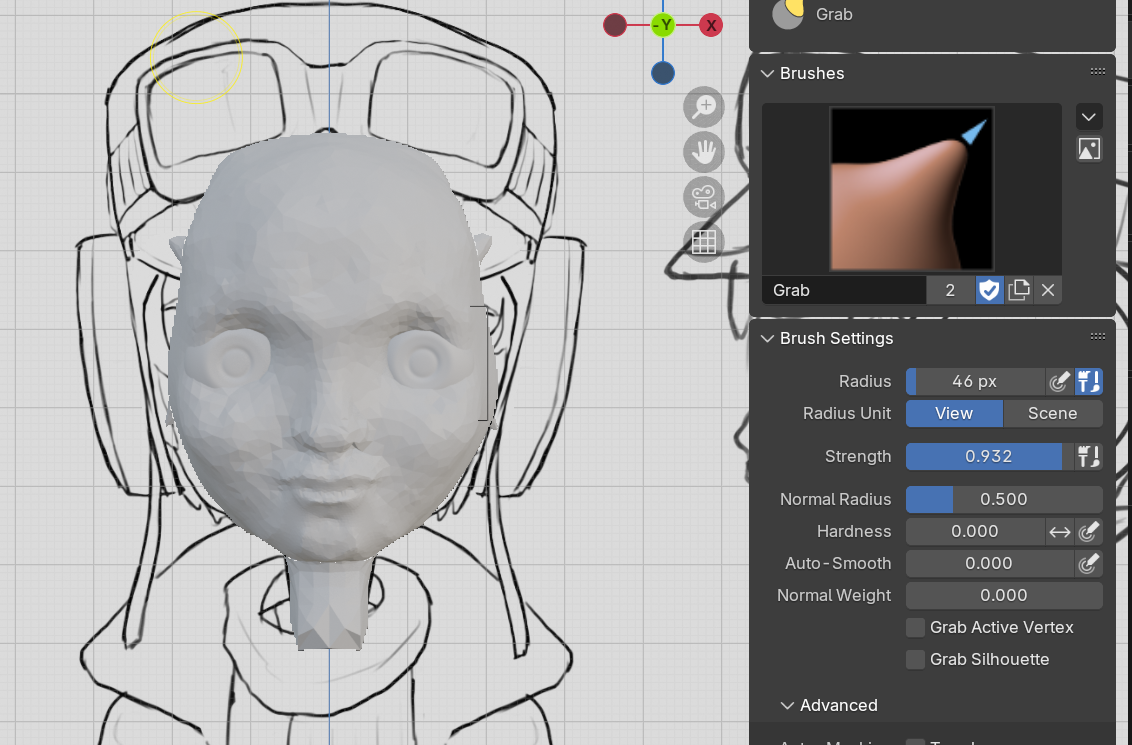
I will try to clear the mask again in accordance with your 7 steps and will let you know if that solved the issue! There should be an eraser tool for that mask or some button to undo any selection. 🙂
August 3, 2025 at 2:54 pm #96088okay, I just tried it according to the 7 steps by Dwayne Savage, but nothing changes. Maybe it’s a bug, indeed?
August 3, 2025 at 3:29 pm #96089Are you saying that when you toggle the overlays, your mesh disappears in the areas that it has face sets or masks? If so yeah that shouldn’t happen I think. You can clear masks with ALT + M and face sets like Dwayne said. Just in case, overlays shows or doesn’t show all the overlays of the 3D view, so in part that it what it does, but it doesn’t hide the masks along with it.
Just in case you have a bug, try copy pasting your mesh into a totally new scene and see if the hiding problem persists in the new file.
August 4, 2025 at 3:15 am #96090Hi @label1 ,
I don’t think it’s a bug; in the bottom Screenshot yoiu have an Image, that is probably hiding part of your Mesh. The Overlays Button, will ‘hide’ that Image.
August 4, 2025 at 7:59 am #96091You probably Added the Image as Reference Image. you can easily switch the Settings to a Background Image, that won’t cut off your Mesh:
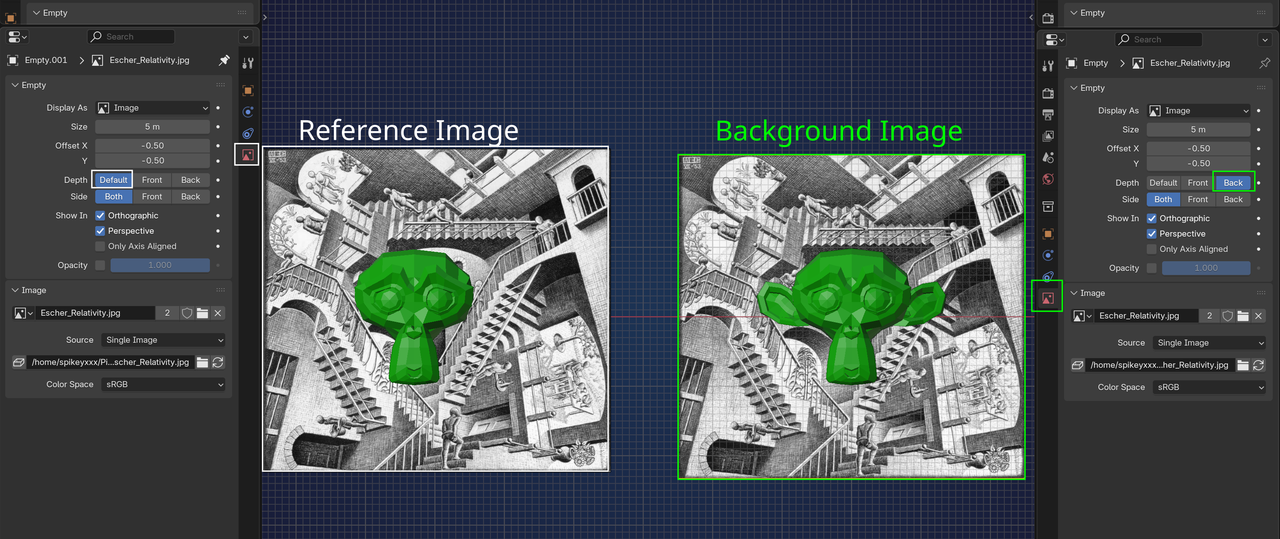 August 4, 2025 at 12:48 pm #96092
Ah the old reference image to the ears issue, that could very much be it.
August 4, 2025 at 6:12 pm #96093Thanks so much for solving the issue! The reference image was simply placed too closely to the model.. oops 🙂 – it really cut away that part of the ear (the timing of that error is fascinating, though, given that it coincided so closely with the creation of a mask at that spot of the ear…luckily I don’t start all over to model the head now, thanks so much for your help and saving me from that headache @everyone ;-).
-
AuthorPosts


- The topic ‘Weeoe caused by “Draw Face Sets” brush – invisible Faces and unable to delete/repair them’ is closed to new replies.